
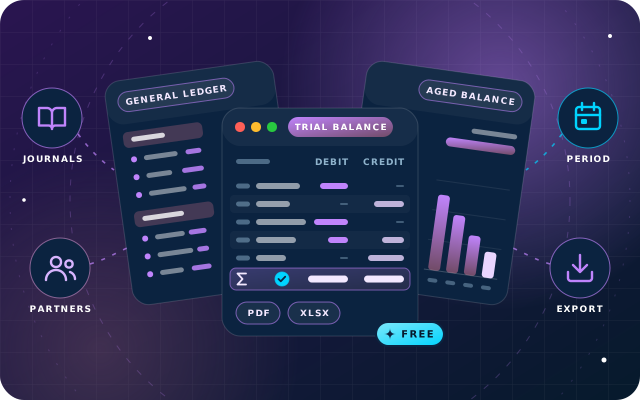
If you run Odoo 19 Community, you already know where the Odoo Community accounting reports run out. Invoices post, payments register and journals fill up, but there is no general ledger to print, no trial balance to hand the auditor and no aged receivable listing for credit control.
So teams export journal items to a spreadsheet and rebuild the same reports by hand every month. That works until a formula breaks, a late entry lands after the export, or an auditor asks where a number came from.
This article walks through what finance teams need at month-end, what Odoo 19 Community ships, and how SBS Account Community, a free module from Star Bit Solutions, fills each gap.
On Odoo Enterprise? Its Accounting app already includes these reports, so this module is not for you. We implement Odoo Enterprise as well, and upgrade both editions to Odoo 20.
What finance teams need at month-end, and what Community ships
A month-end close is a routine: post everything, check it, report it, then lock the period so nobody changes it. Each step needs a specific report or control.
Accountants need a general ledger and a trial balance to prove the books balance. Credit control needs a partner ledger and aged balances. Cash-handling businesses need daily cash and bank listings, and auditors want a journal audit and a tax summary.
Finance managers add fixed-asset depreciation, budgets measured against actual postings and a way to chase overdue customers. Administrators need fiscal years and lock dates, so a closed period stays closed.
Odoo 19 Community gives you the ledger data underneath all of this: journals, invoices, bills and payments. In Odoo, the reporting layer, assets, budgets and follow-ups come from Enterprise apps such as account_reports, account_asset, account_budget and account_followup. That is the gap.
The missing Odoo Community accounting reports, one by one
Here is each missing piece, and what SBS Account Community does about it. Every report opens from a wizard under Accounting > Reporting and prints to PDF.
General ledger
The general ledger is the record of every movement under each account. Without it, you cannot trace a balance back to the entries that make it up.
The module's General Ledger groups every movement under its account with a running balance and optional opening balances. Sort by date or by journal and partner, and narrow it to particular accounts or partners.
Trial balance
The trial balance is the first check at month-end. It shows debit, credit and balance per account for the chosen period, for every account, only accounts with movements, or only those with a non-zero balance.
Partner ledger and aged balances
The Partner Ledger prints one section per partner, with every receivable or payable movement and a closing balance. Choose receivable, payable or both, include reconciled entries if you need them, and show currency.
The Aged Partner Balance buckets outstanding balances by age, with a period length you set. Aged Receivable and Aged Payable have their own menu entries that open the same report pre-scoped.
Day, cash and bank books
Businesses that handle cash rely on daily movement listings. The Day Book lists every movement for a date range, and the Cash Book and Bank Book narrow that to your cash and bank accounts.
Journal audit and tax report
The Journals Audit prints one section per journal, listing every entry with its lines and tax detail, sorted by date or by entry number. It is the listing an auditor asks for.
The Tax Report summarises sale and purchase net and tax amounts. The General Ledger, Trial Balance, Journals Audit and Tax Report all take target-moves, date-range, journal and account filters.
Fixed assets and depreciation
Asset categories drive linear or degressive depreciation with a computed board. The periodic entries are generated into the accounts you configure, rather than keyed in by hand.
For example, on the linear method, an 18,000 asset with a 1,500 salvage value over five yearly periods gives 3,300 a year.
Budgets
Budgetary positions group accounts. Budget lines then compare planned amounts with what was actually posted over a period, so variances come from real postings, not a separate spreadsheet.
Customer follow-ups
A ladder of follow-up levels is keyed to days overdue. A manual follow-up worklist shows who needs chasing, and each level sends the letter or email you define for it.
Fiscal years and lock dates
Define fiscal years, then set tax, sales, purchase, general and hard lock dates. Once set, they stop postings into a closed period.
Recurring payments
Templates define a period and an interval. A recurring payment expands into dated lines, and a scheduled action generates the payments.
A hierarchical chart of accounts with PDF and XLSX export
The CoA Tree shows your chart of accounts built on account groups you define, with debit, credit and balance per line and optional opening balances. It prints to PDF and exports to XLSX.
The module also restricts individual users to a named set of journals, so clerks only see and post to the journals that concern them. It prints the Balance Sheet and Profit and Loss to PDF, and report structures are records, not code: you can build your own statement layouts from account types, sub-reports and sign rules.
How SBS Account Community fills each gap
The table sets each need against Odoo 19 Community out of the box and against the same database with the module installed. It is one app, and its menus sit inside Accounting's existing Reporting, Accounting and Configuration menus, where an accountant already looks.
| Need | Odoo 19 Community | With SBS Account Community |
|---|---|---|
| General ledger | Not included | Running balance, opening balances, account and partner filters |
| Trial balance | Not included | All accounts, accounts with movements, or non-zero balances |
| Partner ledger | Not included | Receivable, payable or both, with currency |
| Aged receivable and payable | Not included | Aged Partner Balance with configurable period length |
| Day, cash and bank books | Not included | Day Book, Cash Book and Bank Book |
| Journal audit | Not included | One section per journal, with lines and tax detail |
| Tax report | Not included | Sale and purchase net and tax amounts |
| Balance sheet and profit and loss | Not included | Printed from a wizard to PDF |
| Fixed assets and depreciation | Not included | Linear or degressive boards, generated entries |
| Budgets | Not included | Planned against actually posted amounts |
| Customer follow-ups | Not included | Level ladder, worklist, letters and email |
| Fiscal years and lock dates | Not included | Tax, sales, purchase, general and hard lock dates |
| Recurring payments | Not included | Templates plus a scheduled action |
| Per-user journal restrictions | Not included | A named set of journals per user |
| Hierarchical chart of accounts | Not included | CoA Tree with balances, PDF or XLSX |
All PDF output goes through wkhtmltopdf. The XLSX export applies to the chart of accounts tree and uses the xlsxwriter Python package.
Installation and requirements
SBS Account Community is free and open source, and it is published for Odoo 19.0 on the Odoo App Store, built for Odoo 19 and tested on Odoo 19 Community Edition.
- Confirm your hosting. The module is listed for Odoo.sh and on-premise installations. It is not listed for Odoo Online.
- Check the dependencies. It depends on the Invoicing (
account) and Discuss (mail) apps. - Install the Python package. The XLSX export needs
xlsxwriter. - Make sure PDF output works. You need a working wkhtmltopdf installation, as Odoo requires for any PDF report.
- Remove Enterprise accounting. The module is not compatible with Odoo Enterprise accounting and excludes
account_accountant,account_asset,account_budget,account_followupandaccount_reports, because it replaces them. - Install the module. Download it for Odoo 19.0 from its Odoo App Store page, or use the Deploy on Odoo.sh option there.
- Configure it. Under Accounting > Configuration, set up account groups, fiscal years and lock dates, asset categories, budgetary positions, follow-up levels, recurring payment templates and per-user journal restrictions.
After that, keep posting journals, invoices and payments as usual. The reports and budget tracking work from those real postings.
Month-end checklist with SBS Account Community
- Post the period's invoices, bills and payments, and check the scheduled action has generated any recurring payments.
- Generate the period's depreciation entries from each asset's board.
- Work the follow-up worklist, so overdue customers receive the letter or email for their level.
- Run the Trial Balance, then open the General Ledger on any account that looks wrong.
- Run Aged Receivable and Aged Payable, and use the Partner Ledger to explain any balance.
- Print the Cash Book and Bank Book and agree them to your cash count and bank statements.
- Run the Tax Report and the Journals Audit for the file.
- Compare budget lines, planned against achieved.
- Print the Balance Sheet and the Profit and Loss.
- Set the lock dates on the fiscal year to close the period.
When to ask for implementation help
Many teams can install the module themselves. Help pays off when the setup, not the installation, is the hard part.
- You are moving from Enterprise to Community. The module cannot run alongside Enterprise accounting, so the move needs a plan for the apps it replaces.
- You are on Odoo Online. The module is listed for Odoo.sh and on-premise, so hosting has to change first.
- PDF reports will not print. A self-hosted server needs a working wkhtmltopdf before any PDF report prints.
- Your structure needs design. Account groups, asset categories, follow-up levels, journal restrictions and custom report definitions all shape what the reports show.
Star Bit Solutions wrote SBS Account Community. Founded in 2014 and based in Ras Al Khaimah, UAE, we implement, configure and support Odoo Enterprise and Community on Odoo 19 and Odoo 20 through OdooStar, alongside our 50+ free Odoo modules.
Tell us about your chart of accounts and close routine through the contact page, call +971 55 973 4524 or email info@starbitsolutions.com. For more Odoo guides, browse Insights.