
SBS View Products in Journal Entries: the product on every journal line
Journal items show the account, partner, label and amounts, but not the product, so reviewing an entry means opening the invoice or bill. This module adds an optional Product/Service column to the Journal Items tab, showing the product Odoo already stores on each line.
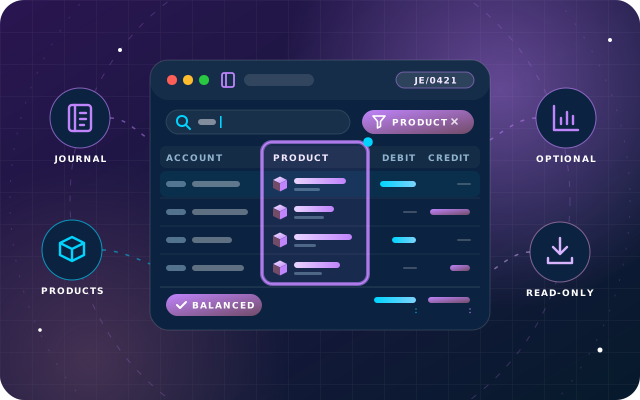
Why teams install View Products in Journal Entries
In Odoo Community, journal items show the account, partner, label and amounts but not the product, so an accountant reviewing an entry has to open the source invoice or bill and match lines up by eye.
Who it is for: Accountants and finance teams on Odoo 19 Community who review journal entries and want to see which product each line relates to without opening the source invoice or bill.
Review entries without detours
Accountants see which product each journal line relates to directly on the entry, instead of opening the source invoice or bill and matching lines by eye.
Edits only where safe
The product can be changed only on ordinary lines of draft manual entries. Invoices, bills, system-generated lines and posted entries stay read-only.
No disruption on install
The column is off by default and Odoo remembers each user's choice, so nobody's screen changes unless they switch it on.
What View Products in Journal Entries adds to Odoo 19
Switch on a Product/Service column in Journal Items: one view record, zero Python.
Optional Product/Service column
Adds a Product/Service column to the Journal Items tab of the journal entry form, reachable through the optional-columns toggle at the right of the list.
Off by default
The column stays hidden until a user ticks it, so nobody's screen changes on the day the module is installed.
Remembered per user
Odoo remembers each user's column choice, so the preference is personal and persists between sessions.
Uses Odoo's own field
Shows the product already stored on every journal item; no new database field is created.
Editable on draft manual entries
An ordinary line on a manual journal entry that is still a draft can have its product set or changed directly from the entry form.
Read-only on invoices and bills
Customer invoices, credit notes, vendor bills, refunds and receipts show the product for reading only.
Read-only on system-generated lines
Tax, payment-term and other system-generated lines keep the column read-only.
Hidden on section and note lines
Section, sub-section and note lines do not show the product column at all.
Read-only once posted
Any posted entry shows the column read-only, like the rest of the Journal Items tab.
Label and amounts preserved
When a product is chosen on a manual entry the line's Label, debit and credit amounts stay exactly as they were.
Unit filled from the product
Once a product is set, the line's Unit is filled in from the product, which is Odoo's own behaviour.
Protects referenced products
Once a journal item references a product, Odoo will not let that product be deleted.
One inherited view record
The whole module is a single inherited view: no Python, no menus, no security groups, no wizards, no reports, no scheduled actions and no configuration.
No new access rights
The only access needed is whatever already lets a user see the Journal Items tab.
Tested on a live Odoo 19 Community database
We tested switching the column on, editing on a draft manual entry, read-only behaviour on a posted invoice and the tax and label behaviour on a live database.
Documented tax caveat
Choosing a product on a manual entry clears that line's taxes; we document this core-Odoo behaviour and advise setting the product first, then the taxes.
From install to everyday use
Install the module; nothing on screen changes until a user opts in.
Open a journal entry and go to the Journal Items tab.
Click the optional-columns toggle at the right of the Journal Items list and tick Product/Service.
Read the product on each line; on invoices, bills, system-generated lines and posted entries the column is read-only.
On a draft manual journal entry, set the product on an ordinary line first, then add taxes, because choosing a product clears any taxes already on that line.
Odoo remembers the column choice per user, so it stays switched on the next time you open an entry.
What you will see in Odoo
- Product column visible
- Optional columns
- Read-only on an invoice
SBS View Products in Journal Entries explained
The answer to "What was this line actually for?" is already in the database: Odoo stores the product on every journal item. This module puts it on the entry form as an optional Product/Service column on the Journal Items tab. It is off by default, on when you want it, and editable only where editing makes sense.
Switching it on. The column is hidden until you ask for it, so nobody's screen changes on the day you install the module. Open the optional-columns toggle at the right of the Journal Items list and tick Product/Service. Odoo remembers the choice for you, per user.
Where you can change it, and where you cannot. Editing is allowed exactly where it is safe: an ordinary line on a manual journal entry that is still a draft. Everywhere else the column is there to read. Customer invoices, credit notes, vendor bills, refunds and receipts: read-only. Tax, payment-term and other system-generated lines: read-only. Section, sub-section and note lines: hidden. Any posted entry: read-only, like the rest of the tab.
One thing to know before you edit: choosing a product on a manual entry clears that line's taxes. On a manual journal entry, if a line already has taxes and you then pick a product, the taxes are removed. In our tests, a line carrying one tax was left with none after a product was chosen. The line's Label is preserved, and so are the debit and credit amounts.
This is Odoo's own behaviour, not this module's. The module contains no Python at all, and the same thing happens when the product is set by any other route. What the module changes is that the field is now reachable from the entry form. Set the product first, then the taxes.
Two smaller consequences of the same mechanism: the line's Unit is filled in from the product, and once a journal item references a product, Odoo will not let that product be deleted.
We tested every workflow on this page on a live Odoo 19 Community database: switching the column on, editing a product on a draft manual entry, confirming it is read-only on a posted invoice, and checking what happens to the label and the taxes.
Requirements and compatibility
Everything your Odoo administrator needs to know before installing SBS View Products in Journal Entries.
- Technical name
sbs_products_in_journal_entries- Odoo version
- 19.0, built and tested on Community Edition
- Price
- Free
- Hosting
- Odoo.sh, On Premise (not available on Odoo Online)
- Required Odoo apps
- Invoicing (account), Discuss (mail)
- Module dependencies
account, mail- Access roles
- Anyone who can already see the Journal Items tab (no new security groups)
Installation
Download SBS View Products in Journal Entries from the Odoo App Store, or add it to your Odoo.sh repository or on-premise addons path.
In Odoo, activate developer mode, open Apps, choose Update Apps List and search for
sbs_products_in_journal_entries.Install the module. Odoo installs the required apps listed above automatically.
Assign the access roles to the right users, then follow the configuration notes.
Configuration and requirements
- No configuration required: install the module, then tick Product/Service in the optional-columns toggle of the Journal Items list; the choice is remembered per user.
Odoo 20 or Odoo Enterprise? Check the Odoo App Store for the Odoo versions SBS View Products in Journal Entries is available for. When we upgrade a database to Odoo 20 we port the SBS modules and other customisations it uses, and we implement Odoo Enterprise as well as Community. See what Odoo 20 changes.
Questions about products in your journal entries?
The engineers who wrote SBS View Products in Journal Entries can install it, configure it for your processes, extend it and support it. The module is free; you only pay for the help you choose.
- Installation on Odoo.sh or your own servers
- Configuration, data migration and user training
- Custom changes and integration with your other modules
- Support from the team that maintains the code
- Running Odoo Enterprise? We implement Enterprise too, and will tell you whether this module or a standard Enterprise app fits better
- Moving to Odoo 20? We port this module and your other customisations as part of the upgrade
Get help with View Products in Journal Entries
Tell us about your Odoo setup and what you need. We reply within one business day.
View Products in Journal Entries, answered
Which Odoo version, edition and hosting does it support, and what does it depend on?
Odoo 19.0. We tested it on Community Edition. It is available for Odoo.sh and on-premise installations, not Odoo Online. It depends on Invoicing (account) and Discuss (mail).
Does it add Python code or new database fields?
No. It is one inherited view record: no Python, no new database fields, no menus, no security groups, no wizards, no reports, no scheduled actions and no configuration. The field it shows is Odoo's own, already stored on every journal item.
Will installing it change what my users see?
No. The column is hidden until a user ticks Product/Service in the optional-columns toggle at the right of the Journal Items list, and Odoo remembers that choice per user.
Where can I actually edit the product?
Only on an ordinary line of a manual journal entry that is still a draft. Customer invoices, credit notes, vendor bills, refunds, receipts, tax and payment-term lines and any posted entry are read-only, and section, sub-section and note lines hide the column.
Why did my taxes disappear after picking a product?
On a manual journal entry, choosing a product clears that line's taxes. That is Odoo's own behaviour, not the module's; the line's Label, debit and credit are preserved. Set the product first, then the taxes.
Can Star Bit Solutions install and customise SBS View Products in Journal Entries for us?
Yes. The engineers who wrote SBS View Products in Journal Entries can install it on Odoo.sh or your own servers, configure it for your processes, extend it and support it. The module itself is free; you only pay for the implementation or support you choose. Call or WhatsApp +971 55 973 4524 or email info@starbitsolutions.com.
Put View Products in Journal Entries to work in your Odoo.
Install it free from the Odoo App Store, or let our engineers deploy, configure and support it alongside the rest of your Odoo setup.