
SBS PO Bill Button: one-click billing back on purchase orders
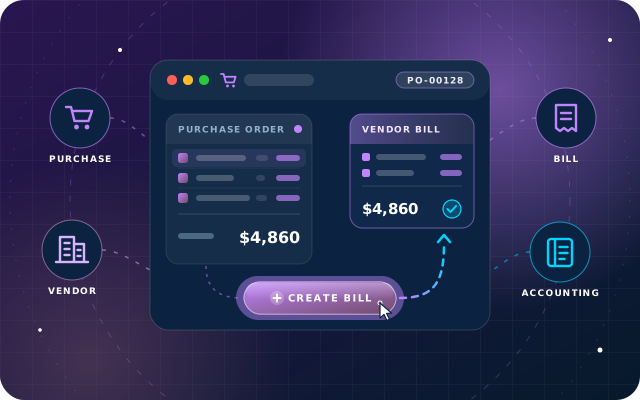
Odoo 19 removed the one-click Create Bill button from the purchase order form, leaving only the Upload Bill file picker. This module puts it back, so a confirmed order becomes a draft vendor bill from its own lines in one click.
Why teams install PO Bill Button
Odoo 19 removed the one-click Create Bill button from the purchase order form, leaving only the Upload Bill file picker that expects a supplier document, so teams that simply want Odoo to draft the bill from the order lines lost their shortcut.
Who it is for: Purchasing and accounts-payable teams on Odoo 19 who bill confirmed purchase orders from the order lines rather than from an uploaded supplier document and want the one-click Create Bill shortcut back.
Bills drafted straight from orders
Press Create Bill and a draft vendor bill opens for the order's vendor with its lines, taxes and currency, ready for the supplier's bill date and reference.
No click that would fail
The button appears only when a confirmed order has something to bill, following the product's Control Policy and billing partial receipts for what was received.
Odoo's billing rules, unchanged
It calls Odoo's own action_create_invoice method and adds no Python, fields or permissions, so there is nothing to migrate and nothing to undo beyond uninstalling.
What PO Bill Button adds to Odoo 19
Create Bill is back on Odoo 19 purchase orders - one view patch, Odoo's own logic.
Create Bill button restored
Adds a one-click Create Bill button to the purchase order header, sitting beside the existing Upload Bill widget.
Odoo's own billing logic
The button calls Odoo's own action_create_invoice method, the identical code the list view's Create Bills action already uses, so the bill it produces is exactly the bill Odoo would have produced anyway.
Appears only when there is something to bill
Hidden on a draft request for quotation, shown on a confirmed order with something waiting to be billed, and hidden again when there is nothing to bill yet or the order is already fully billed, so it never invites a click that would fail.
Respects the product's billing policy
With Odoo's default On received quantities policy the button stays hidden until goods arrive. Set the product's Control Policy to On ordered quantities to bill as soon as the order is placed.
Draft vendor bill in one click
Produces a draft vendor bill for the order's vendor with the order's lines, taxes and currency, opened ready for the supplier's bill date and reference. The order's Vendor Bills count goes up and its billing status moves on.
Partial receipts handled correctly
An order for five units of which two were received bills two, not five. Every rule about what may be billed is Odoo's, unchanged.
Keyboard shortcut Alt+W
The button can be triggered from the keyboard with Alt+W.
Upload Bill and Create Bills keep working
Upload Bill on the order form still works and both buttons sit side by side; the Create Bills action on the order list is untouched, and the way a bill is built from an order remains Odoo's own code, unmodified.
One small view change, no Python
One small inherited view record. No Python, no new fields, no menus, no security groups, no scheduled actions, no configuration.
Grants no rights of its own
Anyone with Purchase access who can already bill an order can use the button; it adds no security groups and no permissions.
Nothing to migrate, nothing to undo
Because it is a single view patch, there is nothing to migrate and nothing to undo beyond uninstalling.
Tested on a live Odoo 19 Community database
We tested the button's appearance and disappearance across all three order states, the bill it creates, and the partial-receipt case on a live Odoo 19 Community database.
Free and lightweight
Free, with a single small view change, and it depends only on the standard Purchase (purchase), Invoicing (account) and Discuss (mail) apps.
From install to everyday use
Install SBS PO Bill Button on Odoo 19; it needs only the Purchase, Invoicing and Discuss apps and has no configuration.
Confirm a purchase order. While it is still a draft request for quotation the Create Bill button stays hidden.
Open the confirmed order: when there is something waiting to be billed, Create Bill appears in the header beside Upload Bill (or press Alt+W).
If the product's Control Policy is On received quantities, receive the goods first; the button appears once there is a received quantity to bill. Use On ordered quantities to bill as soon as the order is placed.
Press Create Bill: a draft vendor bill opens for the order's vendor with the order's lines, taxes and currency.
Add the supplier's bill date and reference to the draft bill.
Back on the order, a Vendor Bills smart button shows the bill, the billing status moves on, and Create Bill steps aside once the order is fully billed.
What you will see in Odoo
- A confirmed, billable purchase order. Create Bill sits in the header beside Upload Bill.
- The same header on an order billed on received quantities with nothing received yet - no Create Bill.
- The draft bill, reached straight from the order.
- Back on the order: a Vendor Bills smart button, and Create Bill has stepped aside.
SBS PO Bill Button explained
SBS PO Bill Button puts the one-click Create Bill button back on the Odoo 19 purchase order form and changes nothing else. The button calls Odoo's own action_create_invoice method - the identical code the list view's Create Bills action already uses - so the bill it produces is exactly the bill Odoo would have produced anyway.
When it appears. The button shows only when there is genuinely something to bill, so it never invites a click that would fail. Still a draft request for quotation: hidden. Confirmed, and there is something waiting to be billed: shown. Confirmed, but nothing to bill yet (billed on received quantities, nothing received): hidden. Already fully billed: hidden.
If you expected the button and it is not there. Odoo's default billing policy is On received quantities. On that setting a confirmed order has nothing to bill until goods arrive, so the button stays hidden - correctly. Set the product's Control Policy to On ordered quantities if you want to bill as soon as the order is placed.
What you get when you press it. A draft vendor bill for the order's vendor, with the order's lines, taxes and currency, opened ready for you to add the supplier's bill date and reference. The order's Vendor Bills count goes up and its billing status moves on.
Partial receipts behave correctly. In our test, an order for five units of which two were received produced a bill for two, not five. Because the button calls Odoo's own method, every rule about what may be billed is Odoo's, unchanged.
What is in the box. Very little, deliberately: one inherited view record. No Python, no new fields, no menus, no security groups, no scheduled actions, no configuration. Upload Bill stays on the order form beside the new button, and Create Bills on the order list keeps working.
It is a view patch, not an application. It appears in Apps as an Application under the Accounting category, but what it installs is one button on the purchase order form.
We tested every workflow on this page on a live Odoo 19 Community database: the button's appearance and disappearance across all three order states, the bill it creates, and the partial-receipt case.
Requirements and compatibility
Everything your Odoo administrator needs to know before installing SBS PO Bill Button.
- Technical name
sbs_po_bill_button- Odoo version
- 19.0, built and tested on Community Edition
- Price
- Free
- Hosting
- Odoo.sh, On Premise (not available on Odoo Online)
- Required Odoo apps
- Purchase (purchase), Invoicing (account), Discuss (mail)
- Module dependencies
purchase, account, mail- Access roles
- Purchase user (anyone with Purchase access who can already bill an order)
Installation
Download SBS PO Bill Button from the Odoo App Store, or add it to your Odoo.sh repository or on-premise addons path.
In Odoo, activate developer mode, open Apps, choose Update Apps List and search for
sbs_po_bill_button.Install the module. Odoo installs the required apps listed above automatically.
Assign the access roles to the right users, then follow the configuration notes.
Configuration and requirements
- No configuration: install the module and the button appears on confirmed purchase orders that have something to bill.
- If the button is missing on a confirmed order, check the product's Control Policy: Odoo's default is On received quantities, which hides the button until goods arrive; set it to On ordered quantities to bill as soon as the order is placed.
Odoo 20 or Odoo Enterprise? Check the Odoo App Store for the Odoo versions SBS PO Bill Button is available for. When we upgrade a database to Odoo 20 we port the SBS modules and other customisations it uses, and we implement Odoo Enterprise as well as Community. See what Odoo 20 changes.
Need help with purchase billing in Odoo 19?
The engineers who wrote SBS PO Bill Button can install it, configure it for your processes, extend it and support it. The module is free; you only pay for the help you choose.
- Installation on Odoo.sh or your own servers
- Configuration, data migration and user training
- Custom changes and integration with your other modules
- Support from the team that maintains the code
- Running Odoo Enterprise? We implement Enterprise too, and will tell you whether this module or a standard Enterprise app fits better
- Moving to Odoo 20? We port this module and your other customisations as part of the upgrade
Get help with PO Bill Button
Tell us about your Odoo setup and what you need. We reply within one business day.
PO Bill Button, answered
Why is Create Bill not showing on my confirmed purchase order?
Odoo's default billing policy is On received quantities. On that setting a confirmed order has nothing to bill until goods arrive, so the button stays hidden - correctly. Set the product's Control Policy to On ordered quantities if you want to bill as soon as the order is placed. The button is also hidden on a draft request for quotation and once the order is fully billed.
Which Odoo apps does SBS PO Bill Button depend on, and where can it run?
It depends on Purchase (purchase), Invoicing (account) and Discuss (mail). It targets Odoo 19.0 and we tested it on Community Edition. It is available for Odoo.sh and on-premise installations, not Odoo Online.
Does it change how vendor bills are created or replace Upload Bill?
No. The button calls Odoo's own action_create_invoice method, the identical code the list view's Create Bills action already uses, so the bill is exactly the one Odoo would have produced. Upload Bill stays on the order form and both buttons sit side by side; Create Bills on the order list keeps working too.
What does the module add to my database?
One small inherited view record. No Python, no new fields, no menus, no security groups, no scheduled actions and no configuration. Anyone with Purchase access who can already bill an order can use the button; it grants no rights of its own, and there is nothing to migrate or undo beyond uninstalling.
Can Star Bit Solutions install and customise SBS PO Bill Button for us?
Yes. The engineers who wrote SBS PO Bill Button can install it on Odoo.sh or your own servers, configure it for your processes, extend it and support it. The module itself is free; you only pay for the implementation or support you choose. Call or WhatsApp +971 55 973 4524 or email info@starbitsolutions.com.
Put PO Bill Button to work in your Odoo.
Install it free from the Odoo App Store, or let our engineers deploy, configure and support it alongside the rest of your Odoo setup.