
SBS Account Community: accountant-grade reports without Enterprise
Odoo Community stops short of the reports an accountant files, so teams rebuild trial balances and aged receivables in spreadsheets every month. This module adds ledgers, trial balance, aged balances, daily books and a tax report, plus asset depreciation, budgets, follow-ups and lock dates.
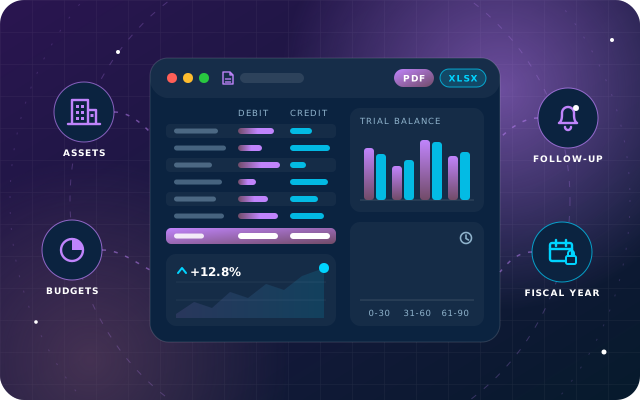
Why teams install Account Community
Odoo Community gives you journals, invoices and payments but stops short of the reports an accountant actually files and reviews, so teams export journal items to a spreadsheet and rebuild a trial balance or an aged receivable listing by hand every month. This module adds those reports back, together with fixed-asset depreciation, budgets, customer follow-ups, fiscal-year lock dates, recurring payments and per-user journal restrictions.
Who it is for: Accountants, finance managers and administrators running Odoo 19 Community who need the reports an accountant files and reviews, and fiscal-year lock dates that keep closed periods closed, without an Enterprise subscription.
Reports straight out of Odoo
Run ledgers, trial balance, aged balances and journal audits in Odoo instead of rebuilding them from journal items exported to a spreadsheet.
Closed periods stay closed
Tax, sales, purchase, general and hard lock dates on the fiscal year stop further postings into a period once it is closed.
Budgets measured against real postings
Compare planned amounts with what was actually posted, and depreciate fixed assets with entries generated rather than keyed in.
What Account Community adds to Odoo 19
Accountant-grade reports and controls for Odoo 19 Community, no Enterprise subscription
Audit reports
General Ledger, Trial Balance, Journals Audit and a Tax Report, each with target-moves, date-range, journal and account filters. The General Ledger groups every movement under its account with a running balance and optional opening balances, sorts by date or by journal and partner, and narrows to particular accounts or partners. The Trial Balance shows debit, credit and balance per account for the chosen period, for every account, only those with movements, or only those with a non-zero balance. The Journals Audit prints one section per journal listing every entry with its lines and tax detail, sorted by date or by entry number. The Tax Report summarises sale and purchase net and tax amounts.
Partner reports
Partner Ledger and an Aged Partner Balance with configurable period length. The Partner Ledger prints one section per partner with every receivable or payable movement and a closing balance; choose receivable, payable or both, optionally include reconciled entries, and show currency. The Aged Partner Balance buckets outstanding balances by age, and dedicated Aged Receivable and Aged Payable menu entries open the same report pre-scoped.
Daily books
Day Book, Cash Book and Bank Book for the daily movement listings that cash-handling businesses rely on. The Day Book lists every movement for a date range; the Cash Book and Bank Book narrow that to the cash and bank accounts.
Balance Sheet and Profit and Loss
Balance Sheet and Profit and Loss statements are printed from a wizard to PDF.
Hierarchical chart of accounts
A CoA tree view with balances, printable to PDF or exportable to XLSX, built on account groups you define. The tree shows debit, credit and balance per line, optionally including opening balances.
Fixed assets
Asset categories drive linear or degressive depreciation: the board is computed once, and the periodic depreciation entries are generated into the accounts you configure rather than keyed in. For example, an 18,000 asset with a 1,500 salvage value over five yearly periods gives 3,300 a year.
Budgets
Budgetary positions group accounts; budget lines then compare planned against actually posted amounts over a period.
Customer follow-ups
A ladder of follow-up levels keyed to days overdue, a manual follow-up worklist, and letter and email sending.
Fiscal years and lock dates
Define fiscal years, and set tax, sales, purchase, general and hard lock dates to stop postings into closed periods.
Recurring payments
Templates define a period and interval; a recurring payment expands into dated lines and generates the payments, driven by a scheduled action.
Per-user journal restrictions
Restrict an individual user to a named set of journals, so clerks only see and post to the journals that concern them.
Accountant tools
Account groups and tags, journal-scoped entry menus, dedicated General and Partner ledger list views, and a printable journal entry report.
Configurable report definitions
Financial report structures are records, not code: build your own statement layouts from account types, sub-reports and sign rules.
PDF and XLSX output
Reports are generated as PDF through wkhtmltopdf, and the chart of accounts tree can also be exported to XLSX via xlsxwriter.
Lives inside the standard Accounting menus
The module adds its menus into Accounting's existing Reporting, Accounting and Configuration menus, so the reports appear where an accountant already looks.
From install to everyday use
Install the module on Odoo 19 Community Edition with the Invoicing (account) and Discuss (mail) apps, with the xlsxwriter Python package and a working wkhtmltopdf installation in place.
Set up the configuration records under Accounting > Configuration: account groups for the chart-of-accounts tree, fiscal years with their lock dates, asset categories, budgetary positions, follow-up levels, recurring payment templates and per-user journal restrictions.
Keep posting journals, invoices and payments in Odoo Community as usual; the reports and budget tracking work from those real postings.
Open a report wizard under Accounting > Reporting (General Ledger, Trial Balance, Journals Audit, Tax Report, Partner Ledger, Aged Partner Balance, Aged Receivable, Aged Payable, Day Book, Cash Book, Bank Book, CoA Tree, Balance Sheet, Profit and Loss), set target moves, date range, journals and accounts plus the report's own options (sort order and opening balances on the General Ledger, account selection on the Trial Balance, receivable/payable scope, reconciled entries and currency on the Partner Ledger, period length on the Aged Partner Balance), then print the PDF or export the CoA tree to XLSX.
Create asset records under an asset category, review the computed linear or degressive depreciation board, and generate the depreciation entries into the accounts you configured.
Create a budget with lines per budgetary position for a period and compare the planned amounts against the achieved amounts posted in the accounts.
Work the manual follow-up worklist: customers are placed on the follow-up ladder by days overdue and receive the letter or email defined for each level.
Create a recurring payment from a template; it expands into dated lines and the scheduled action generates the payments.
At period end, set the tax, sales, purchase, general and hard lock dates on the fiscal year to stop further postings into the closed period.
What you will see in Odoo
- Reporting menu with the added report groups
- Configuration menu with the added configuration groups
- General Ledger wizard
- Generated General Ledger PDF
- Trial Balance wizard
- Generated Trial Balance PDF
SBS Account Community explained
Ledgers, trial balance, aged balances, daily books, journal audits and a tax report, plus asset depreciation, budgets, customer follow-ups, fiscal-year locks, recurring payments and per-user journal restrictions. All in one app, with no Enterprise subscription.
Accountants run ledgers, trial balance, aged balances, day/cash/bank books and journal audits straight out of Odoo. Finance managers track budgets against actual postings, depreciate fixed assets, and chase overdue customers on a defined ladder. Administrators define fiscal years and lock dates, restrict users to particular journals, and organise the chart of accounts.
Nothing changes in how you post: keep entering journals, invoices and payments in Odoo Community as usual, and the reports and budget tracking work from those real postings. The Journals Audit, for example, gives you the entry-by-entry listing an auditor asks for.
We built this module for Odoo 19 and tested it on Odoo 19 Community Edition.
It is not compatible with Odoo Enterprise accounting. The module deliberately excludes account_accountant, account_asset, account_budget, account_followup and account_reports, because it replaces them.
Requirements and compatibility
Everything your Odoo administrator needs to know before installing SBS Account Community.
- Technical name
sbs_account_community- Odoo version
- 19.0, built and tested on Community Edition
- Price
- Free
- Hosting
- Odoo.sh, On Premise (not available on Odoo Online)
- Required Odoo apps
- Discuss (mail), Invoicing (account)
- Module dependencies
account, mail- Access roles
- Accountant; Finance manager; Administrator
- Not compatible with
account_accountant, account_asset, account_budget, account_followup, account_reports- Python packages
xlsxwriter
Installation
Download SBS Account Community from the Odoo App Store, or add it to your Odoo.sh repository or on-premise addons path.
In Odoo, activate developer mode, open Apps, choose Update Apps List and search for
sbs_account_community.Install the module. Odoo installs the required apps listed above automatically.
Assign the access roles to the right users, then follow the configuration notes.
Configuration and requirements
- Define account groups so the hierarchical chart-of-accounts tree can be built on them.
- Define fiscal years and set the tax, sales, purchase, general and hard lock dates.
- Create asset categories with linear or degressive depreciation and the accounts depreciation entries are generated into.
- Create budgetary positions that group accounts, then add budgets with lines for the period.
- Set up the follow-up levels keyed to days overdue, with the letter and email to send at each level.
- Create recurring payment templates defining the period and interval; a scheduled action generates the payments.
- Assign each user the named set of journals they may see and post to (per-user journal restrictions).
- Optionally build your own financial report definitions from account types, sub-reports and sign rules.
- Odoo 19 Community Edition (we tested it on Odoo 19 Community).
- The Invoicing (account) and Discuss (mail) apps.
- The xlsxwriter Python package for the XLSX exports.
- A working wkhtmltopdf installation, as Odoo requires for any PDF report.
Odoo 20 or Odoo Enterprise? Check the Odoo App Store for the Odoo versions SBS Account Community is available for. When we upgrade a database to Odoo 20 we port the SBS modules and other customisations it uses, and we implement Odoo Enterprise as well as Community. See what Odoo 20 changes.
Need help setting up SBS Account Community?
The engineers who wrote SBS Account Community can install it, configure it for your processes, extend it and support it. The module is free; you only pay for the help you choose.
- Installation on Odoo.sh or your own servers
- Configuration, data migration and user training
- Custom changes and integration with your other modules
- Support from the team that maintains the code
- Running Odoo Enterprise? Enterprise has its own apps for this, so this module is for Community; we implement Enterprise too
- Moving to Odoo 20? We port this module and your other customisations as part of the upgrade
Get help with Account Community
Tell us about your Odoo setup and what you need. We reply within one business day.
Account Community, answered
Does SBS Account Community work with Odoo Enterprise?
No. It is not compatible with Odoo Enterprise accounting and deliberately excludes account_accountant, account_asset, account_budget, account_followup and account_reports, because it replaces them. We built it for Odoo 19 and tested it on Odoo 19 Community Edition.
What does the module depend on?
It depends on the Invoicing (account) and Discuss (mail) apps. The XLSX exports use the xlsxwriter Python package, and PDF reports need a working wkhtmltopdf installation, as Odoo requires for any PDF report.
Which reports are included?
General Ledger, Trial Balance, Journals Audit and a Tax Report; Partner Ledger and Aged Partner Balance with dedicated Aged Receivable and Aged Payable entry points; Day Book, Cash Book and Bank Book; a hierarchical chart-of-accounts tree; Balance Sheet and Profit and Loss; and a printable journal entry report.
How does fixed-asset depreciation work?
Asset categories drive linear or degressive depreciation with a computed board. The category computes the board once, and the periodic depreciation entries are generated into the accounts you configure rather than keyed in. For example, an 18,000 asset with a 1,500 salvage value over five yearly periods gives 3,300 a year.
Where do the new menus appear in Odoo?
The module adds its menus into Accounting's existing Reporting, Accounting and Configuration menus, so the reports appear where an accountant already looks.
Is it free?
Yes. The module is free and open source. You can download it from the Odoo App Store or deploy it on Odoo.sh. It is available for Odoo.sh and on-premise installations, not Odoo Online.
Can Star Bit Solutions install and customise SBS Account Community for us?
Yes. The engineers who wrote SBS Account Community can install it on Odoo.sh or your own servers, configure it for your processes, extend it and support it. The module itself is free; you only pay for the implementation or support you choose. Call or WhatsApp +971 55 973 4524 or email info@starbitsolutions.com.
Put Account Community to work in your Odoo.
Install it free from the Odoo App Store, or let our engineers deploy, configure and support it alongside the rest of your Odoo setup.