
SBS Auto Delivery/Invoice: delivery, invoice and payment in one confirmation
A counter sale in standard Odoo still takes seven steps across the delivery, invoice and payment screens, and each one can be left half-finished. Auto Invoice validates the delivery, posts the invoice and registers the payment in a single confirmation on the sales order.
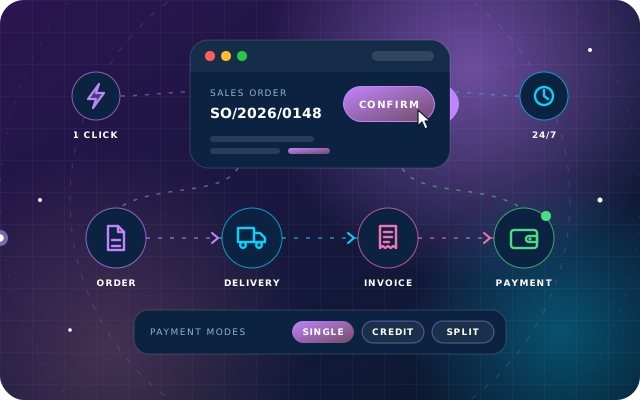
Why teams install Auto Delivery/Invoice
In Odoo Community a counter sale that is delivered and paid on the spot still takes seven separate steps across the delivery, invoice and payment screens, and every step is a chance to leave a half-finished transaction. This module collapses delivery validation, invoice creation and posting, and payment registration into one confirmation on the sales order.
Who it is for: Businesses running over-the-counter sales in Odoo 19 Community, where counter staff deliver, invoice and collect payment dozens of times a day.
No half-finished transactions
Delivery, invoice and payment happen in one transaction, so you do not end up with validated deliveries that were never invoiced or posted invoices nobody collected against.
Split tenders entered once
Part card, part cash or part on account is allocated in one wizard with the arithmetic shown, and each tender becomes its own payment so the bank and cash box reconcile separately.
Controlled and answerable
Only members of the access group see the button, and the history tab shows who processed each sale, when and exactly how it was paid.
What Auto Delivery/Invoice adds to Odoo 19
One confirmation on the sales order: delivery validated, invoice posted, payment registered.
Single payment
The full amount in one journal, pre-filled with the order total. Reduce it to take a part payment and the balance stays as a receivable.
Credit sales
Deliver and invoice with no payment at all. The invoice is posted and left outstanding against the customer, and shows up in the aged receivable listing.
Split across journals
Allocate the total across as many journals as the customer tenders, with Allocated, Unallocated, Paid and Remaining Receivable totals updating as you type.
One payment record per tender
Each allocation becomes its own payment record with its own reference, so the bank and the cash box reconcile separately afterwards.
Stock shortage guard
If anything is short, the wizard lists the products with required, available and shortage quantities and hides Confirm so a partial delivery cannot be pushed through by accident.
Eligibility checks up front
The order must be confirmed, have no existing invoice, contain no combo products, have exactly one active delivery and a positive amount. Each refusal comes with a message explaining why.
Invoices what was actually shipped
Quantities to invoice are taken from the delivery, so the invoice matches the goods that left the building.
Permanent history
An Auto Invoice History tab on the order records the invoice, who processed it, when, the payment mode and every individual payment with its reference.
Its own access group
Only members of the SBS Auto Delivery/Invoice group see the button, and history records are isolated per company.
One button on the sales order
Auto Invoice appears on confirmed sales orders for users who hold the access group, so the whole delivery, invoice and payment sequence becomes a single confirmation.
Four outcomes in one transaction
Delivery validated, invoice created, invoice posted and payment registered together. With Credit Sales the payment step is deliberately skipped and the invoice is left outstanding.
Accounting setup enforced
Each payment journal needs an outstanding receipts account on its inbound payment method. The wizard refuses to run without it and says so.
Works alongside delivery SMS
The wizard answers Odoo's one-time stock_sms confirmation itself, so the delivery completes and the customer still receives their delivery SMS.
From install to everyday use
Confirm the sales order as usual. The Auto Invoice button appears on confirmed orders for users who hold the SBS Auto Delivery/Invoice group.
Press Auto Invoice. The wizard checks that the order is confirmed, has no existing invoice, contains no combo products, has exactly one active delivery and a positive amount, and explains any refusal.
If any storable product is short, review the shortage table showing required, available and shortage quantities. The Confirm button is removed until the goods are available.
Choose how the customer is paying: keep the pre-filled order total for a single payment (or reduce it for a part payment), tick Credit Sales to deliver and invoice without collecting, or tick Multiple Payment and add a line per journal while the Allocated, Unallocated, Paid and Remaining Receivable totals update.
Press Confirm. In one transaction the delivery is validated, the invoice is created and posted from the delivered quantities, and the payment or payments are registered (skipped for credit sales).
Open the Auto Invoice History tab on the order to see the invoice, who processed it, when, the payment mode and each individual payment with its reference.
What you will see in Odoo
- Confirmed sales order with the Auto Invoice button
- Wizard set for a single full payment
- Sales order after the single payment run
- Wizard with Credit Sales ticked
- The resulting invoice, posted and unpaid
- Multiple payment mode with no lines yet
SBS Auto Delivery/Invoice explained
One button on the sales order validates the delivery, creates and posts the invoice, and registers the payment - as a single amount, as a credit sale, or split across several journals - and keeps a permanent record of what was done.
A customer standing at the counter buys goods and pays there and then. In standard Odoo that still takes seven steps: open the delivery, validate it, go back to the order, create the invoice, confirm it, register the payment and confirm again. Counter staff do this dozens of times a day.
Split payments mean repeating the last two steps for every tender. With SBS Auto Delivery/Invoice you press Auto Invoice, choose how the customer is paying and press Confirm. Everything is done in one transaction, and what happened is recorded on the order.
For a sale paid in full in one journal, the wizard opens with the order total already filled in and the remaining receivable at zero, so confirming takes the order from nothing to a fully paid invoice without any further clicks. For a sale on credit, ticking Credit Sales hides the payment fields entirely: the goods still go out and the invoice is still posted, but nothing is collected, and the amount stays outstanding against the customer in the aged receivable listing.
For a split payment, tick Multiple Payment and add a line per tender. The wizard keeps a running Allocated, Unallocated, Paid and Remaining Receivable so you can see at a glance whether the allocation adds up before you commit. For example, 2,300 is settled as 1,500 to Bank and 800 to Petty Cash, and each allocation becomes its own payment record with its own reference.
It refuses to ship what it does not have. If any storable product on the order is not fully available, the wizard shows a shortage table with the required, available and shortage quantities and removes the Confirm button entirely. There is no way to half-complete the transaction and leave a partial delivery, an unposted invoice or an orphaned payment behind.
Every run writes a history entry on the sales order: the invoice it produced, who processed it and when, which payment mode was used, and the amounts allocated, paid and left outstanding, with one line per individual payment. The Auto Invoice button and wizard are restricted to the SBS Auto Delivery/Invoice access group, so the shortcut to posting invoices and registering payments is given deliberately rather than to everyone in Sales.
What changes at the counter: seven steps become one confirmation, a large saving when it happens many times a day. Because it is one operation, you do not end up with validated deliveries that were never invoiced, or posted invoices nobody collected against. Split tenders such as part card, part cash and part on account are entered once with the arithmetic shown, instead of several separate payment registrations. Afterwards, the history tab says who processed the sale, when, and exactly how it was paid, without digging through payment records.
Requirements and compatibility
Everything your Odoo administrator needs to know before installing SBS Auto Delivery/Invoice.
- Technical name
sbs_auto_delivery_invoice- Odoo version
- 19.0, built and tested on Community Edition
- Price
- Free
- Hosting
- Odoo.sh, On Premise (not available on Odoo Online)
- Required Odoo apps
- Invoicing (account), Discuss (mail), Inventory (stock)
- Module dependencies
sale_stock, account- Access roles
- SBS Auto Delivery/Invoice (access group)
Installation
Download SBS Auto Delivery/Invoice from the Odoo App Store, or add it to your Odoo.sh repository or on-premise addons path.
In Odoo, activate developer mode, open Apps, choose Update Apps List and search for
sbs_auto_delivery_invoice.Install the module. Odoo installs the required apps listed above automatically.
Assign the access roles to the right users, then follow the configuration notes.
Configuration and requirements
- Install the module on Odoo 19 Community Edition with the Sales, Inventory (stock) and Invoicing (account) apps in place; it depends on sale_stock and account. It also requires the Discuss (mail) app.
- For every journal used to take payment, set an outstanding receipts account on its inbound payment method. The wizard refuses to run without it and says so.
- Grant the SBS Auto Delivery/Invoice group to the users who should have the Auto Invoice shortcut, in addition to their normal sales and accounting rights.
- Auto Invoice History records are isolated per company.
Odoo 20 or Odoo Enterprise? Check the Odoo App Store for the Odoo versions SBS Auto Delivery/Invoice is available for. When we upgrade a database to Odoo 20 we port the SBS modules and other customisations it uses, and we implement Odoo Enterprise as well as Community. See what Odoo 20 changes.
Need help setting up Auto Invoice for your counter?
The engineers who wrote SBS Auto Delivery/Invoice can install it, configure it for your processes, extend it and support it. The module is free; you only pay for the help you choose.
- Installation on Odoo.sh or your own servers
- Configuration, data migration and user training
- Custom changes and integration with your other modules
- Support from the team that maintains the code
- Running Odoo Enterprise? We implement Enterprise too, and will tell you whether this module or a standard Enterprise app fits better
- Moving to Odoo 20? We port this module and your other customisations as part of the upgrade
Get help with Auto Delivery/Invoice
Tell us about your Odoo setup and what you need. We reply within one business day.
Auto Delivery/Invoice, answered
Which Odoo version and edition does SBS Auto Delivery/Invoice support?
Odoo 19. We tested it on Odoo 19 Community Edition. It is available for Odoo.sh and on-premise installations, not Odoo Online.
What does the module depend on and what has to be configured first?
It depends on sale_stock and account, and requires the Invoicing (account), Discuss (mail) and Inventory (stock) apps. Each journal used for payment needs an outstanding receipts account on its inbound payment method, otherwise the wizard refuses to run and says so. Users also need the SBS Auto Delivery/Invoice group in addition to their normal sales and accounting rights.
Can a customer pay part cash and part card on one order?
Yes. Tick Multiple Payment and add a line per tender. The wizard shows running Allocated, Unallocated, Paid and Remaining Receivable totals so you can see whether the allocation adds up before you commit, and each allocation becomes its own payment record with its own reference so the bank and the cash box reconcile separately.
What happens when there is not enough stock for the order?
If any storable product on the order is not fully available, the wizard shows a shortage table with the required, available and shortage quantities and removes the Confirm button entirely, so a partial delivery, an unposted invoice or an orphaned payment cannot be left behind.
Which orders cannot be processed with Auto Invoice, and who can use it?
Orders with combo products, orders that already have an invoice, orders with more than one active delivery, unconfirmed orders and orders without a positive amount are refused, each with a message explaining why. The button and wizard are visible only to members of the SBS Auto Delivery/Invoice access group, and history records are isolated per company.
Can Star Bit Solutions install and customise SBS Auto Delivery/Invoice for us?
Yes. The engineers who wrote SBS Auto Delivery/Invoice can install it on Odoo.sh or your own servers, configure it for your processes, extend it and support it. The module itself is free; you only pay for the implementation or support you choose. Call or WhatsApp +971 55 973 4524 or email info@starbitsolutions.com.
Put Auto Delivery/Invoice to work in your Odoo.
Install it free from the Odoo App Store, or let our engineers deploy, configure and support it alongside the rest of your Odoo setup.