
SBS Sales Discount Amount: discounts in money, not percent
Customers ask you to knock 250 off, but Odoo's discount column only takes a percentage, so totals land slightly off what was agreed. This module adds a Disc. Amount column that stays in step with the percentage, from quotation to invoice.
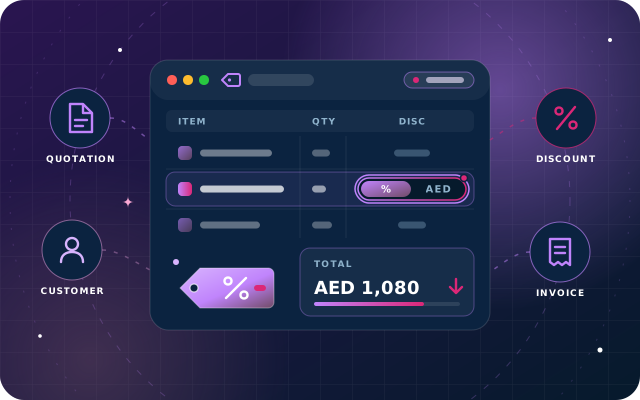
Why teams install Sales Discount Amount
A salesperson who agrees a round discount in money has to convert it to a percentage by hand for the sales order line, and the total ends up slightly off what was promised. We add a Disc. Amount column that stays in sync with the percentage, on quotations and on customer invoices.
Who it is for: Sales teams on Odoo 19 Community who negotiate discounts in currency amounts and want the quotation and invoice totals to match exactly what was agreed with the customer.
Totals match what was agreed
Salespeople type the discount the customer asked for in money, so the line total matches the agreed figure without dividing by hand.
No discount beyond the line
A discount larger than the line, or a negative one, is refused, with the allowed range shown in your own currency.
Consistent from quotation to invoice
The discount carries across to the customer invoice, and partial invoicing discounts only the share of goods being invoiced.
What Sales Discount Amount adds to Odoo 19
Discount in money, not percent - two-way sync from quotation to invoice.
Disc. Amount column beside Disc.%
Adds a discount amount column next to Odoo's percentage field on sales order lines, so a discount can be typed in money. Fill in either one and the other follows.
Two-way synchronisation
Typing an amount works out the matching percentage; typing a percentage works out the matching amount. Both values always stay in step.
Remembers which figure you typed
The module records whether the amount or the percentage was entered and keeps that one steady when the line changes.
Re-sync on quantity or price changes
Change quantity or price after typing an amount and the amount is held while the percentage moves; after typing a percentage, the percentage is held while the amount moves.
Guarded against over-discounting
A discount larger than the line, or a negative one, is refused. The check names the allowed range in your own currency rather than just refusing.
Carries through to the invoice
Invoicing an order carries the discount across, so the amount agreed on the quotation is what appears on the customer invoice.
Amount column on invoices, credit notes and receipts
The same discount amount column is available on customer invoices, credit notes and receipts, editable while the document is a draft, so a late adjustment can be made in money there too.
Honest partial invoicing
On the invoice the discount is expressed as a proportion rather than pinned to a fixed sum, so invoicing half an order discounts half the goods instead of taking the whole discount off the first invoice. We have not yet measured partial invoicing line by line.
Vendor bills untouched
Vendor bills are left alone entirely; this is a selling tool for the customer side only.
Taxes and totals unchanged
The discount still reaches the total through Odoo's own percentage field, so tax computation and totals behave exactly as standard Odoo.
Pricelist aware
Designed so that a pricelist that changes the unit price re-syncs the line according to what you typed. We have not yet tested this with pricelist rules.
Works with SBS Multi UoM
Recognised automatically when installed: the discount is worked out against the packaging quantity rather than the base units.
Appears where Odoo's Discounts setting puts it
The amount column shows exactly where the percentage column does. Turn on Odoo's own Discounts setting first, or neither column is shown.
Verified on a live Odoo 19 Community database
We tested both entry directions, both re-sync directions, the limit check and the carry-through to an invoice on a live Odoo 19 Community database.
Lightweight and open source
A small, open-source module that depends only on the standard Sales, Discuss and Invoicing apps.
From install to everyday use
Install the module and turn on Odoo's own Discounts setting so the Disc.% and Disc. Amount columns appear on order lines.
Open a quotation and add order lines as usual.
Type the discount the customer asked for in the Disc. Amount column, or type a percentage in Disc.%; the other column is worked out automatically.
Change the quantity or unit price if needed: the figure you typed (amount or percentage) is held and the other value is recomputed.
If the discount exceeds the line value or is negative, the entry is refused and the allowed range is shown in your currency.
Confirm the order and create the invoice; the discount carries across, and the amount column remains editable while the invoice is a draft.
For partial invoicing, the discount is applied proportionally to the goods invoiced on each invoice.
What you will see in Odoo
- Disc.% and Disc. Amount side by side on the order lines.
- The check names the range rather than just refusing.
- The invoice created from the order, carrying both discounts.
SBS Sales Discount Amount explained
Give the discount the customer asked for - in money, not percent. Type "take 250 off" and Odoo works out the percentage. Type a percentage and it works out the money. Both stay in step, on quotations and on customer invoices.
Customers negotiate in money. Nobody asks for 17.3% off. They ask you to knock 250 off the price, or to round the line down to a number. Odoo's discount column only takes a percentage, so the salesperson does the division in their head, types something like 16.67, and the total lands a little off what was agreed.
We add a Disc. Amount column beside the percentage, and the module remembers which of the two you typed. That figure is the one it keeps steady: change the quantity or price after typing an amount and it holds the amount and moves the percentage; after typing a percentage it holds the percentage and moves the amount.
We measured this on a live database with a line of 10 × 100.00. Entering an amount of 250 produced 25% and a subtotal of 750. On a second line, entering 15% produced an amount of 150 and a subtotal of 850. Doubling the quantity on the first line kept the discount at 250 and moved the percentage. Doubling it on the second kept 15% and moved the amount. Each line behaved according to what had been typed on it.
It will not let you give away more than the line is worth. A discount larger than the line, or a negative one, is refused with the actual limits spelled out in your own currency.
It follows through to the invoice. Invoicing an order carries the discount across, and the same amount column is available on customer invoices, credit notes and receipts, editable while the invoice is a draft. On the invoice the discount is expressed as a proportion rather than pinned to a fixed sum, so invoicing half an order discounts half the goods rather than taking the whole discount off the first invoice. Vendor bills are left alone entirely - this is a selling tool.
How it fits with what you already have: with Odoo's Discounts setting, the amount column appears exactly where the percentage column does - turn Discounts on first, or neither is shown. Taxes and totals are unchanged; the discount still reaches the total through Odoo's own percentage field. A pricelist that changes the unit price is designed to re-sync the line according to what you typed. SBS Multi UoM is recognised automatically: the discount is worked out against the packaging quantity rather than the base units.
We tested both entry directions, both re-sync directions, the limit check and the carry-through to an invoice on a live Odoo 19 Community database. We have not yet tested multi-currency orders, pricelist rules driving the unit price, or partial invoicing measured line by line.
Requirements and compatibility
Everything your Odoo administrator needs to know before installing SBS Sales Discount Amount.
- Technical name
sbs_sales_discount- Odoo version
- 19.0, built and tested on Community Edition
- Price
- Free
- Hosting
- Odoo.sh, On Premise (not available on Odoo Online)
- Required Odoo apps
- Sales (sale_management), Discuss (mail), Invoicing (account)
- Module dependencies
sale_management, mail, account
Installation
Download SBS Sales Discount Amount from the Odoo App Store, or add it to your Odoo.sh repository or on-premise addons path.
In Odoo, activate developer mode, open Apps, choose Update Apps List and search for
sbs_sales_discount.Install the module. Odoo installs the required apps listed above automatically.
Follow the configuration notes.
Configuration and requirements
- Install SBS Sales Discount Amount on Odoo 19.0 (requires the Sales, Discuss and Invoicing apps).
- Enable Odoo's own Discounts setting; otherwise neither the percentage nor the amount column is shown on order lines.
- Optionally install SBS Multi UoM; it is recognised automatically and the discount is then worked out against the packaging quantity.
Odoo 20 or Odoo Enterprise? Check the Odoo App Store for the Odoo versions SBS Sales Discount Amount is available for. When we upgrade a database to Odoo 20 we port the SBS modules and other customisations it uses, and we implement Odoo Enterprise as well as Community. See what Odoo 20 changes.
Need help setting up discount amounts in Odoo?
The engineers who wrote SBS Sales Discount Amount can install it, configure it for your processes, extend it and support it. The module is free; you only pay for the help you choose.
- Installation on Odoo.sh or your own servers
- Configuration, data migration and user training
- Custom changes and integration with your other modules
- Support from the team that maintains the code
- Running Odoo Enterprise? We implement Enterprise too, and will tell you whether this module or a standard Enterprise app fits better
- Moving to Odoo 20? We port this module and your other customisations as part of the upgrade
Get help with Sales Discount Amount
Tell us about your Odoo setup and what you need. We reply within one business day.
Sales Discount Amount, answered
Which Odoo apps does SBS Sales Discount Amount depend on?
It depends on Sales (sale_management), Discuss (mail) and Invoicing (account). It is built for Odoo 19.0, and we tested it on Community Edition.
Why don't I see the Disc. Amount column after installing?
The amount column appears exactly where Odoo's percentage column does, which requires Odoo's own Discounts setting to be turned on. Enable it first, or neither column is shown.
What happens if I change the quantity or price after entering a discount?
The module remembers which figure you typed. If you typed an amount it holds the amount and moves the percentage; if you typed a percentage it holds the percentage and moves the amount.
Does the discount carry over to invoices, and how does partial invoicing work?
Yes. Invoicing an order carries the discount across, and the amount column is available on customer invoices, credit notes and receipts while they are in draft. On the invoice the discount is expressed as a proportion, so invoicing half an order discounts half the goods rather than taking the whole discount off the first invoice. Vendor bills are not affected.
Does it work with SBS Multi UoM and with pricelists?
SBS Multi UoM is recognised automatically and the discount is worked out against the packaging quantity rather than base units. The module is designed to re-sync the line when a pricelist changes the unit price, but we have not yet tested multi-currency orders or pricelist rules driving the unit price.
Can Star Bit Solutions install and customise SBS Sales Discount Amount for us?
Yes. The engineers who wrote SBS Sales Discount Amount can install it on Odoo.sh or your own servers, configure it for your processes, extend it and support it. The module itself is free; you only pay for the implementation or support you choose. Call or WhatsApp +971 55 973 4524 or email info@starbitsolutions.com.
Put Sales Discount Amount to work in your Odoo.
Install it free from the Odoo App Store, or let our engineers deploy, configure and support it alongside the rest of your Odoo setup.