
SBS Multi UoM: priced by the unit, box or pallet
Odoo prices every product from one figure, so packaging discounts are applied by hand on every line. SBS Multi UoM sets a price per packaging unit once, keeps stock in base units and freezes the price on each document line.
Why teams install Multi UoM
Odoo Community can convert between units of measure but prices every product from a single figure, so a box, carton or pallet discount has to be applied by hand on every order line, every time. SBS Multi UoM stores a price per packaging unit once on the product, derives the base quantity for stock, and freezes the ratio and price onto each document line.
Who it is for: Wholesalers, distributors, retailers and manufacturers on Odoo 19 Community who sell the same item by the unit, pack, box, carton or pallet at different price points and need stock kept in base units.
Packaging discounts set once
Price each pack, box or carton on the product and every sales order line picks up the right price, with no manual discount per line.
Issued documents never shift
The ratio and price in force when a line is written are stored on it, so later configuration changes leave existing documents exactly as they were.
Stock stays in base units
Customers see the packaging they ordered on quotations and invoices, while Odoo keeps base quantities for stock and procurement.
What Multi UoM adds to Odoo 19
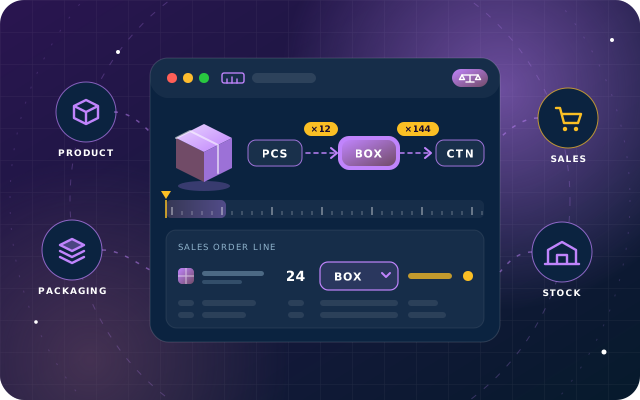
Sell by the unit, box or pallet - one price per packaging, frozen on every document.
Price per packaging unit
Set a price per packaging unit once, on the product, in the Multiple UoMs tab. Each row carries its ratio to the base unit and its own price.
Stock stays in base units
Odoo keeps the base quantity for stock and procurement while the customer sees the packaging they ordered: ordering 3 Boxes of 12 produces a line of 36 Units for stock, priced at 54.00 per box.
Price fallback
Leave a packaging price at zero and that packaging falls back to the ordinary product price. Pricelist interaction has not been tested yet.
Ratio and price snapshotted on the document
The ratio and the price in force when a line is written are stored on that line. Documents already issued stay exactly as they were when the product configuration changes; new lines pick up the new configuration.
Sales order entry by packaging
Enter Multi Qty and Multi UoM on the order line; Quantity, Unit of Measure and price are derived, and discounts and taxes compute from the packaging price through Odoo's own tax pipeline.
Invoice from order
Invoices created from an order carry the Multi UoM and Multi Qty across, with the Multi Qty prorated when you invoice only part of the order.
Manual customer invoices convert both ways
On a manual invoice the conversion also runs in reverse: choose a packaging against a base quantity and the Multi Qty is derived for you, with the configured packaging price applied.
Vendor bills convert quantity only
A vendor bill converts the quantity but leaves your price alone; the sales ladder is not applied to what a supplier charges you.
Reports print the packaging
Quotation and invoice reports print the Multi Qty and Multi UoM in the quantity column, for example "3.0 Box of 12". Products without a Multi UoM print exactly as they always did.
Server-side validation
A zero or negative ratio, a duplicate packaging unit, or a unit that does not reference the product's base UoM is rejected with a clear message before it can be saved.
One-tick setup with Need Multiple UoM's
Ticking Need Multiple UoM's on a product fills the tab in for you: the base unit and every unit that already references it, with ratios worked out.
Safe product duplication
Duplicating a product copies the Multi UoM configuration into independent rows, so editing the copy never disturbs the original.
Built on Odoo's own units of measure
Packaging units come from Odoo's own units of measure: each is defined as a unit whose reference is the product's base unit, which is why Units of Measure and Packagings must be enabled in the settings.
Role-based configuration
Multi UoM rows are configured by the Product Manager group; internal users have read access.
Verified on a live Odoo 19 Community database
We tested the workflows on this page, including the price-snapshot test, on a live Odoo 19 Community database. Variant-level configuration, multi-company behaviour and pricelist interaction have not been tested yet.
Open source and lightweight
A small, open-source module that depends only on the standard Sales (sale_management), Discuss (mail) and Invoicing (account) apps.
From install to everyday use
Enable Units of Measure and Packagings in Odoo settings and define each packaging (for example Pack of 6, Box of 12, Carton of 144) as a unit of measure whose reference is the product's base unit.
On the product, tick Need Multiple UoM's; the Multiple UoMs tab is filled with the base unit and every unit that references it, ratios worked out.
Enter a price for each packaging row, or leave it at zero to fall back to the ordinary product or pricelist price.
On a sales order line, choose the Multi UoM and enter the Multi Qty; Odoo derives the base Quantity for stock and the packaging price, and computes discounts and taxes from it.
The ratio and price in force when the line is written are stored on that line, so later configuration changes never alter documents you have already issued; only new lines pick up the new configuration.
Create the invoice from the order; the packaging is carried across and the Multi Qty is prorated for partial invoicing. On a manual customer invoice, pick a packaging against a base quantity and the Multi Qty is derived for you.
Print the quotation or invoice; the customer sees the packaging they ordered, for example "3.0 Box of 12", in the quantity column.
What you will see in Odoo
- The Multiple UoMs tab. Each row carries its ratio to the base unit and its own price.
- The order line: Multi Qty and Multi UoM are what you enter; Quantity and Unit of Measure are derived.
- The invoice created from the order carries the Multi UoM and Multi Qty across.
- On a manual invoice the conversion also runs in reverse: choose a packaging against a base quantity and the Multi Qty is derived for you.
- The quotation and the invoice, both showing "3.0 Box of 12" in the quantity column.
SBS Multi UoM explained
Sell the same product by the unit, the box or the pallet. Each packaging unit carries its own ratio and its own price. Odoo keeps the base quantity for stock and procurement, the customer sees the packaging they ordered, and the price they were quoted is frozen onto the document.
A box is not just twelve units. Plenty of businesses sell the same item several ways: a customer buying one cartridge pays the single price, while a customer buying a carton of 144 pays less per cartridge. With this module you set a price per packaging unit once, on the product. The salesperson picks the packaging and the quantity, and Odoo works out the base quantity for stock and the correct price for the document.
A worked example. A cartridge with a list price of 5.00 per unit is configured with its base unit and three packaging units: Units (ratio 1, 5.00 per unit), Pack of 6 (ratio 6, price 27.00, 4.50 per unit), Box of 12 (ratio 12, price 54.00, 4.50 per unit) and Carton of 144 (ratio 144, price 600.00, 4.17 per unit). Ordering 3 Boxes of 12 then produces a line of 36 Units for stock, priced at 54.00 per box, a subtotal of 162.00. Leave a price at zero and that packaging falls back to the ordinary product or pricelist price.
Yesterday's order does not change when today's price does. The ratio and the price in force when a line is written are stored on that line, so documents you have already issued stay exactly as they were and only new lines pick up a new configuration. We checked this on a live database: an order line of 3 Boxes of 12 at 54.00 was written, then the Box configuration was changed to a ratio of 24 and a price of 99.00. The existing line stayed at 36 units and 54.00; a new line on the same order came out at 24 units and 99.00.
The packaging follows the paperwork. On a sales order you enter Multi Qty and Multi UoM; base quantity and price are derived, and discounts and taxes compute from the packaging price through Odoo's own tax pipeline. An invoice created from an order carries the packaging across, with the Multi Qty prorated when you invoice only part of the order. A manual customer invoice converts in both directions and applies the configured packaging price. A vendor bill converts the quantity but leaves your price alone, because the sales ladder is not applied to what a supplier charges you.
The printout shows the packaging, not the base units. A customer who ordered three boxes should see three boxes, not thirty-six units, so the quotation and invoice reports print the Multi Qty and Multi UoM in the quantity column. Products without a Multi UoM print exactly as they always did.
Configuration is checked on the server. A zero or negative ratio is rejected with the message that the Multi UoM ratio must be greater than zero. Adding the same packaging unit twice tells you that this Unit of Measure already exists in the template Multi UoM list. A unit that does not reference the product's base unit tells you that the Multi UoM must use the product's base UoM as its reference unit.
We tested every workflow on this page on a live Odoo 19 Community database. Variant-level configuration on attributed products, multi-company behaviour and pricelist interaction have not been tested yet.
Requirements and compatibility
Everything your Odoo administrator needs to know before installing SBS Multi UoM.
- Technical name
sbs_multi_uom- Odoo version
- 19.0, built and tested on Community Edition
- Price
- Free
- Hosting
- Odoo.sh, On Premise (not available on Odoo Online)
- Required Odoo apps
- Sales (sale_management), Discuss (mail), Invoicing (account)
- Module dependencies
sale_management, mail, account- Access roles
- Product Manager; Internal user (read access)
Installation
Download SBS Multi UoM from the Odoo App Store, or add it to your Odoo.sh repository or on-premise addons path.
In Odoo, activate developer mode, open Apps, choose Update Apps List and search for
sbs_multi_uom.Install the module. Odoo installs the required apps listed above automatically.
Assign the access roles to the right users, then follow the configuration notes.
Configuration and requirements
- Enable Units of Measure and Packagings under Settings.
- Define each packaging unit as an Odoo unit of measure whose reference unit is the product's base unit; a zero or negative ratio, a duplicate unit, or a unit that does not reference the base unit is rejected by the server.
- Open the product, tick Need Multiple UoM's, and review the auto-filled Multiple UoMs tab (base unit plus every unit that references it, with ratios).
- Enter the price for each packaging row; a zero price falls back to the ordinary product or pricelist price.
- Configuration is done by users in the Product Manager group; internal users have read access.
- If you create invoice lines programmatically through the API, set the unit price on the line yourself: quantity conversion still runs but the packaging price is not applied (sales order lines are unaffected).
Odoo 20 or Odoo Enterprise? Check the Odoo App Store for the Odoo versions SBS Multi UoM is available for. When we upgrade a database to Odoo 20 we port the SBS modules and other customisations it uses, and we implement Odoo Enterprise as well as Community. See what Odoo 20 changes.
Need help setting up packaging prices in Odoo?
The engineers who wrote SBS Multi UoM can install it, configure it for your processes, extend it and support it. The module is free; you only pay for the help you choose.
- Installation on Odoo.sh or your own servers
- Configuration, data migration and user training
- Custom changes and integration with your other modules
- Support from the team that maintains the code
- Running Odoo Enterprise? We implement Enterprise too, and will tell you whether this module or a standard Enterprise app fits better
- Moving to Odoo 20? We port this module and your other customisations as part of the upgrade
Get help with Multi UoM
Tell us about your Odoo setup and what you need. We reply within one business day.
Multi UoM, answered
Which Odoo apps does SBS Multi UoM depend on?
It depends on Sales (sale_management), Discuss (mail) and Invoicing (account). Units of Measure and Packagings must also be enabled in the settings, because the packaging units come from Odoo's own units of measure and each must reference the product's base unit.
What happens to existing orders when I change a packaging ratio or price?
Nothing changes on them. The ratio and price in force when a line is written are stored on that line. We tested this on a live database: an order line of 3 Boxes of 12 at 54.00 stayed at 36 units and 54.00 after the Box was changed to a ratio of 24 and a price of 99.00; only a new line picked up 24 units and 99.00.
Does the packaging price apply to vendor bills?
No. A vendor bill converts the quantity but leaves your price alone; the sales ladder is not applied to what a supplier charges you.
Does it work on Odoo Enterprise or Odoo Online?
The module targets Odoo 19.0 and we tested it on Community Edition. It is available for Odoo.sh and on-premise installations, not Odoo Online. Variant-level configuration on attributed products, multi-company behaviour and pricelist interaction have not been tested yet.
Is the packaging price applied when invoice lines are created through the API?
The packaging price is applied by the form's own logic, so invoice lines built programmatically get the quantity conversion but not the ladder price; set the price on the line yourself. Sales order lines are unaffected.
Can Star Bit Solutions install and customise SBS Multi UoM for us?
Yes. The engineers who wrote SBS Multi UoM can install it on Odoo.sh or your own servers, configure it for your processes, extend it and support it. The module itself is free; you only pay for the implementation or support you choose. Call or WhatsApp +971 55 973 4524 or email info@starbitsolutions.com.
Put Multi UoM to work in your Odoo.
Install it free from the Odoo App Store, or let our engineers deploy, configure and support it alongside the rest of your Odoo setup.