
SBS Auto Return - Multi-UoM Integration: returns in the packs you sold
Once you sell by the pack with SBS Multi UoM, a return still has to be converted to base units by hand and priced at the unit list price. This bridge makes return lines use the packing units, ratios and prices the sale used.
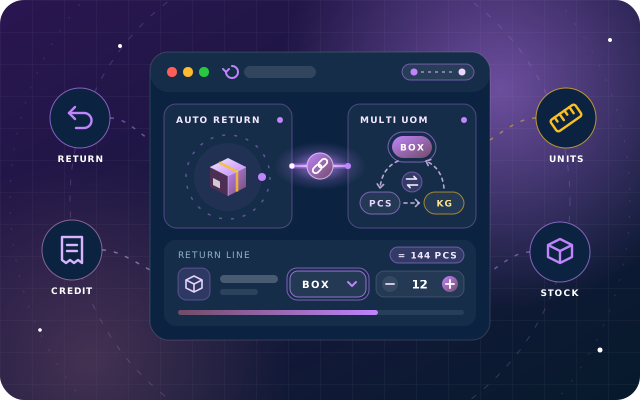
Why teams install Auto Return - Multi-UoM Integration
In Odoo Community, once SBS Multi UoM lets you sell by the pack, a customer return still has to be converted to base units by hand and is priced from the unit list price. This bridge makes return lines use the same packing units, ratios and prices the sale used.
Who it is for: Businesses on Odoo 19 Community that sell products by the box, carton or pack with SBS Multi UoM and process customer returns with SBS Auto Return.
Returns in the unit sold
A return line is entered as two packs rather than converted to twelve units by hand, and the dropdown lists only the packing units configured on that product.
Refunds at the pack price
The credit uses the price set for that packing unit rather than the product's unit list price, so the customer is refunded what a pack was actually worth.
Stock quantities that agree
If the pack quantity and base quantity on a line do not match the configured ratio, saving is refused, so a return cannot put the wrong number of units back into stock.
What Auto Return - Multi-UoM Integration adds to Odoo 19
Return goods in the packs you sold them in: right units, right ratio, right refund.
Auto-installing bridge
No menus and no settings of its own. Odoo installs it automatically when the second of SBS Auto Return and SBS Multi UoM is installed (if both already were, install it once from Apps), and removes it if either is uninstalled.
Return lines in packing units
A return line can be entered in a packing unit - a box, a carton, a pack - instead of being converted to base units by hand.
The right list of units
The Multi UoM dropdown offers exactly the packing units configured on that product, rather than every unit in the category.
The configured ratio
The conversion from packs to base units comes from the product's own configuration, so the stock quantity returned is right.
The configured price
The credit uses the price set for that packing unit, so the customer is refunded what a pack was actually worth.
Reads the Multiple UoMs tab
SBS Multi UoM adds a Multiple UoMs tab to the product where each packing unit gets a ratio to the base unit and its own price; the bridge makes return lines read that same table.
Priced from the sale's configuration
A return entered as 2 packs is converted to 12 base units using the configured ratio of six and priced at the configured pack price rather than the product's unit list price.
Ratio consistency guard
A return line carries both a pack quantity and a base quantity. If they do not match the configured ratio, saving is refused with "The base quantity does not match the configured Multi UoM ratio."
No stock discrepancies from returns
Because the two quantities must agree with the ratio, a line can never claim to be two packs while returning eleven units into stock.
Zero configuration
Nothing to set up. The module reads the Multiple UoMs table you already maintain on the product for selling.
Built for Odoo 19 Community
We built it for Odoo 19 and tested it on Odoo 19 Community Edition. It is free and open source.
From install to everyday use
Install SBS Auto Return and SBS Multi UoM on Odoo 19 with this bridge in your addons path, and Odoo installs the bridge automatically as soon as both are installed. If both were already installed, install the bridge once from Apps.
On each product, maintain the Multiple UoMs tab added by SBS Multi UoM: every packing unit (box, carton, pack) with its ratio to the base unit and its own price.
When a customer brings goods back, enter the return line in the packing unit they bought (for example 2 packs); the Multi UoM dropdown lists only the packing units configured on that product.
The bridge converts the pack quantity to base units using the configured ratio (2 packs at a ratio of six become 12 base units) and prices the credit at the configured pack price.
On save, the module checks that the pack quantity and the base quantity agree with the configured ratio; if they do not, saving is refused with "The base quantity does not match the configured Multi UoM ratio."
What you will see in Odoo
- Multiple UoMs configuration on a product
- Return line entered in a packing unit
- The return carrying a multi-UoM line
SBS Auto Return - Multi-UoM Integration explained
When SBS Auto Return and SBS Multi UoM are both installed, this bridge lets a return line be entered in a packing unit - a box, a carton, a pack - and prices it from the same configuration the sale used.
SBS Multi UoM lets you sell a product by the pack as well as by the unit, with the pack carrying its own ratio and its own price. If a customer bought two packs and brings two packs back, the return should say "two packs" and credit them at the pack price, without anyone looking up what a pack was worth.
A return line gains three things: the right list of units, the configured ratio and the configured price. The dropdown offers only the packing units set up on that product, the stock quantity returned follows the product's own conversion, and the customer is refunded what a pack was actually worth.
SBS Multi UoM adds a Multiple UoMs tab to the product, where each packing unit gets a ratio to the base unit and its own price. This bridge simply makes return lines read the same table.
It will not let the two quantities disagree: a return line carries both a quantity in packs and a quantity in base units, and saving is refused if they do not match the configured ratio. A line can never claim to be two packs while returning eleven units into stock.
Requirements and compatibility
Everything your Odoo administrator needs to know before installing SBS Auto Return - Multi-UoM Integration.
- Technical name
sbs_auto_return_multi_uom- Odoo version
- 19.0, built and tested on Community Edition
- Price
- Free
- Hosting
- Odoo.sh, On Premise (not available on Odoo Online)
- Required Odoo apps
- Invoicing (account), Discuss (mail), Inventory (stock), Sales (sale_management)
- Module dependencies
sbs_auto_return, sbs_multi_uom, account, mail, stock, sale_management
Installation
Download SBS Auto Return - Multi-UoM Integration from the Odoo App Store, or add it to your Odoo.sh repository or on-premise addons path.
In Odoo, activate developer mode, open Apps, choose Update Apps List and search for
sbs_auto_return_multi_uom.Install the module. Odoo installs the required apps listed above automatically.
Follow the configuration notes.
Configuration and requirements
- None of its own: there is nothing to switch on, and the bridge is removed automatically if either SBS Auto Return or SBS Multi UoM is uninstalled.
- Keep the Multiple UoMs tab on each product up to date (a ratio to the base unit and a price for every packing unit); return lines read this same table.
Odoo 20 or Odoo Enterprise? Check the Odoo App Store for the Odoo versions SBS Auto Return - Multi-UoM Integration is available for. When we upgrade a database to Odoo 20 we port the SBS modules and other customisations it uses, and we implement Odoo Enterprise as well as Community. See what Odoo 20 changes.
Need help setting up returns in packing units?
The engineers who wrote SBS Auto Return - Multi-UoM Integration can install it, configure it for your processes, extend it and support it. The module is free; you only pay for the help you choose.
- Installation on Odoo.sh or your own servers
- Configuration, data migration and user training
- Custom changes and integration with your other modules
- Support from the team that maintains the code
- Running Odoo Enterprise? We implement Enterprise too, and will tell you whether this module or a standard Enterprise app fits better
- Moving to Odoo 20? We port this module and your other customisations as part of the upgrade
Get help with Auto Return - Multi-UoM Integration
Tell us about your Odoo setup and what you need. We reply within one business day.
Auto Return - Multi-UoM Integration, answered
Do I have to install SBS Auto Return - Multi-UoM Integration by hand?
Only if SBS Auto Return and SBS Multi UoM were both already installed when you added it; then install it once from Apps. Otherwise, with its code in your addons path or Odoo.sh repository, Odoo installs it automatically when the second of the two is installed. It is a bridge with no menus or settings of its own, and Odoo removes it if either module is uninstalled.
Which modules does it depend on?
sbs_auto_return and sbs_multi_uom, and both must be present. It also requires the standard Odoo apps Invoicing (account), Discuss (mail), Inventory (stock) and Sales (sale_management).
Where do the pack ratio and pack price on a return come from?
From the Multiple UoMs tab that SBS Multi UoM adds to the product, where each packing unit gets a ratio to the base unit and its own price. The bridge makes return lines read that same table, so no separate configuration is needed.
What happens if the pack quantity and the base quantity on a return line disagree?
Saving is refused with the message "The base quantity does not match the configured Multi UoM ratio." so a line can never claim to be two packs while returning eleven units into stock.
Which Odoo version, edition and hosting does it support?
Odoo 19. We tested it on Odoo 19 Community Edition. It is available for Odoo.sh and on-premise installations, not Odoo Online.
Can Star Bit Solutions install and customise SBS Auto Return - Multi-UoM Integration for us?
Yes. The engineers who wrote SBS Auto Return - Multi-UoM Integration can install it on Odoo.sh or your own servers, configure it for your processes, extend it and support it. The module itself is free; you only pay for the implementation or support you choose. Call or WhatsApp +971 55 973 4524 or email info@starbitsolutions.com.
Put Auto Return - Multi-UoM Integration to work in your Odoo.
Install it free from the Odoo App Store, or let our engineers deploy, configure and support it alongside the rest of your Odoo setup.