
SBS Auto Return - Auto Delivery Integration: no double invoicing on exchanges
With SBS Auto Return and SBS Auto Delivery/Invoice both installed, an exchange's replacement order still offers Auto Invoice, inviting a duplicate invoice. This bridge hides that button whenever the order carries return lines, so the exchange invoices the goods once.
Why teams install Auto Return - Auto Delivery Integration
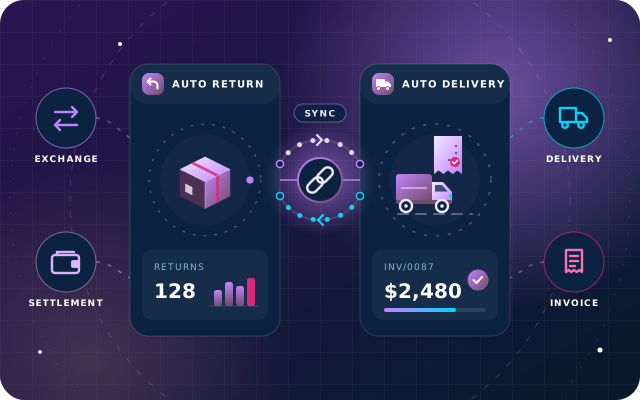
With both SBS Auto Return and SBS Auto Delivery/Invoice installed on Odoo Community, the replacement order of an exchange still shows an Auto Invoice button, so the same goods can be delivered and invoiced a second time outside the exchange, leaving a duplicate invoice and a payment that matches nothing.
Who it is for: Odoo 19 Community businesses that handle customer exchanges with SBS Auto Return and also use SBS Auto Delivery/Invoice to deliver, invoice and take payment in one confirmation.
Each exchange invoiced once
The replacement invoice comes only from SBS Auto Return when the exchange is finalised, so the same goods are not delivered and invoiced a second time.
Payments that match
No stray duplicate invoice means no payment left matching nothing; the exchange settles with a credit note and a single payment for the difference.
Nothing to set up
There are no settings to switch on. Odoo installs the bridge automatically when the second SBS module is installed (if both already are, install it once from Apps) and removes it if either is uninstalled.
What Auto Return - Auto Delivery Integration adds to Odoo 19
Stops exchange replacement orders from being invoiced twice, with zero setup.
Hides Auto Invoice on exchange orders
Hides the Auto Invoice button on any sales order that is acting as the replacement order of an exchange, so the same goods are never invoiced twice.
One extra visibility condition
SBS Auto Delivery/Invoice already hides its button unless the order is confirmed and has no invoice; this bridge adds a third condition: the order must not carry any return lines.
Existing button rules preserved
The button is shown when the order is confirmed, has no invoice and no return lines; it stays hidden when the order is already invoiced or not yet confirmed.
Return lines mark the exchange
An order picks up return lines when goods being handed back are entered on its Return tab, which is exactly what makes it an exchange.
Instantly reversible
Remove the return lines and the Auto Invoice button comes straight back. Nothing else about the order changes.
Installs itself
Odoo installs the bridge automatically when the second of SBS Auto Return and SBS Auto Delivery/Invoice is installed. If both were already installed when you added it, install it once from Apps.
Removes itself
If you uninstall either dependency, this module goes with it.
Zero configuration
There is nothing to set up and nothing to switch on.
Single view inheritance
One view inheritance on the sales order form. No models, no fields, no data, no access rules.
A bridge, not an application
No menus, no models and no settings; it exists only to make two other SBS modules behave sensibly together.
Fits the SBS Auto Return exchange flow
The replacement invoice is produced by SBS Auto Return when the exchange is finalised, together with the credit note for the returned goods and a single payment for the difference.
Prevents mismatched payments
Avoids the duplicate invoice and unmatched payment that a second Auto Invoice press would create.
Odoo.sh and on-premise
Available for Odoo.sh and on-premise installations, not Odoo Online. We tested it on Odoo 19 Community Edition.
From install to everyday use
Install SBS Auto Return and SBS Auto Delivery/Invoice with this bridge in your addons path, and Odoo installs the bridge automatically as soon as both are installed. If both were already installed, install the bridge once from Apps.
Create an ordinary sales order for the goods the customer is taking away (the replacement sale).
On the order's Return tab, record what the customer is handing back as part of the same transaction; this gives the order return lines and makes it an exchange.
Confirm the order. The return lines become an exchange return automatically, and the Auto Invoice button stays hidden on this order.
Approve and finalise the exchange through SBS Auto Return, which produces the replacement invoice, the credit note for the returned goods and a single payment for the difference.
On confirmed, not-yet-invoiced orders with no return lines, the Auto Invoice button from SBS Auto Delivery/Invoice appears as usual.
What you will see in Odoo
- Auto Invoice hidden because the order carries return lines
- Auto Invoice shown once the return lines are removed
- The Return tab on a sales order
SBS Auto Return - Auto Delivery Integration explained
When SBS Auto Return and SBS Auto Delivery/Invoice are both installed, this small bridge hides the Auto Invoice button on any sales order that is acting as the replacement order of an exchange, so the same goods are never invoiced twice.
This is a bridge, not an application: it has no menus, no models and no settings. It exists only to make two of our other modules behave sensibly together. Odoo installs it automatically when the second of them is installed; if both were already installed when you added it, install it once from Apps. If you uninstall either one, this module goes with it.
In an exchange, the customer hands goods back and takes different goods away. The replacement sale is an ordinary Odoo sales order, but its invoice is produced by SBS Auto Return when the exchange is finalised, together with the credit note for the returned goods and a single payment for the difference.
SBS Auto Delivery/Invoice already hides its button unless the order is confirmed and has no invoice. This bridge adds a third condition: the order must not carry any return lines either. With return lines present the Auto Invoice button is gone; remove them and it comes straight back. Nothing else about the order changes.
The Return tab on a sales order is where you record what the customer is handing back as part of the same transaction, and entering goods there is exactly what makes the order an exchange. Confirming the order turns those lines into an exchange return automatically, which is then approved and finalised through SBS Auto Return.
We tested this module on Odoo 19 Community Edition.
Requirements and compatibility
Everything your Odoo administrator needs to know before installing SBS Auto Return - Auto Delivery Integration.
- Technical name
sbs_auto_return_auto_delivery_invoice- Odoo version
- 19.0, built and tested on Community Edition
- Price
- Free
- Hosting
- Odoo.sh, On Premise (not available on Odoo Online)
- Required Odoo apps
- Invoicing (account), Discuss (mail), Inventory (stock)
- Module dependencies
account, mail, stock, sbs_auto_delivery_invoice, sbs_auto_return
Installation
Download SBS Auto Return - Auto Delivery Integration from the Odoo App Store, or add it to your Odoo.sh repository or on-premise addons path.
In Odoo, activate developer mode, open Apps, choose Update Apps List and search for
sbs_auto_return_auto_delivery_invoice.Install the module. Odoo installs the required apps listed above automatically.
Follow the configuration notes.
Configuration and requirements
- None. There is nothing to set up and nothing to switch on.
Odoo 20 or Odoo Enterprise? Check the Odoo App Store for the Odoo versions SBS Auto Return - Auto Delivery Integration is available for. When we upgrade a database to Odoo 20 we port the SBS modules and other customisations it uses, and we implement Odoo Enterprise as well as Community. See what Odoo 20 changes.
Need help setting up exchanges in Odoo 19?
The engineers who wrote SBS Auto Return - Auto Delivery Integration can install it, configure it for your processes, extend it and support it. The module is free; you only pay for the help you choose.
- Installation on Odoo.sh or your own servers
- Configuration, data migration and user training
- Custom changes and integration with your other modules
- Support from the team that maintains the code
- Running Odoo Enterprise? We implement Enterprise too, and will tell you whether this module or a standard Enterprise app fits better
- Moving to Odoo 20? We port this module and your other customisations as part of the upgrade
Get help with Auto Return - Auto Delivery Integration
Tell us about your Odoo setup and what you need. We reply within one business day.
Auto Return - Auto Delivery Integration, answered
Do I need to install this module manually?
Only if SBS Auto Return and SBS Auto Delivery/Invoice were both already installed when you added it; then install it once from Apps. Otherwise, with its code in your addons path or Odoo.sh repository, Odoo installs it automatically when the second of the two is installed. Odoo removes it if either module is uninstalled.
What exactly does it change in Odoo?
One view inheritance on the sales order form. It adds no models, no fields, no data, no menus, no settings and no access rules.
When is the Auto Invoice button hidden?
When the order carries return lines, meaning goods being handed back have been entered on its Return tab, which is what makes it an exchange. On orders that are not confirmed or are already invoiced, SBS Auto Delivery/Invoice hides the button anyway.
Is there anything to configure?
No. There is nothing to set up and nothing to switch on.
Which Odoo version, edition and hosting does it support?
Odoo 19. We tested it on Odoo 19 Community Edition. It is available for Odoo.sh and on-premise installations, not Odoo Online.
Can Star Bit Solutions install and customise SBS Auto Return - Auto Delivery Integration for us?
Yes. The engineers who wrote SBS Auto Return - Auto Delivery Integration can install it on Odoo.sh or your own servers, configure it for your processes, extend it and support it. The module itself is free; you only pay for the implementation or support you choose. Call or WhatsApp +971 55 973 4524 or email info@starbitsolutions.com.
Put Auto Return - Auto Delivery Integration to work in your Odoo.
Install it free from the Odoo App Store, or let our engineers deploy, configure and support it alongside the rest of your Odoo setup.