
SBS Pharmacy Management: medicine data and one end-of-day report
A standard Odoo Community product form has no place for a medicine's active ingredient, strength, manufacturer or dispensing mode. This module adds a Medicine Details tab and a Daily Sales Report that splits each day's takings by the journals that actually paid.
Why teams install Pharmacy Management
A standard Odoo Community product form has no place for a medicine's active ingredient, strength, pack size, manufacturer, source or dispensing mode, and at the end of the day a pharmacy owner still wants one number for cash, one for card, one for what went out on credit and one for insurance, with the customer counts behind them.
Who it is for: Pharmacies and medicine retailers running Odoo 19 Community who need proper medicine master data on their products and an end-of-day sales report split by cash, card, credit, insurance and branch.
Consistent medicine records
Active ingredients, manufacturers, sources and dispensing modes are picked from master lists you maintain, so the same ingredient is spelled the same way every time.
One number per payment type
The Daily Sales Report gives separate totals for cash, card, credit, insurance and branch, with the customer counts behind them, as a one-page PDF or an Excel workbook.
No money left out
If a payment journal has no Pharmacy Payment Category, the report refuses to run and names the journal instead of quietly producing incomplete figures.
What Pharmacy Management adds to Odoo 19
Medicine master data on every Odoo product, plus a fail-closed end-of-day sales report
Is Medicine flag with a Medicine Details tab
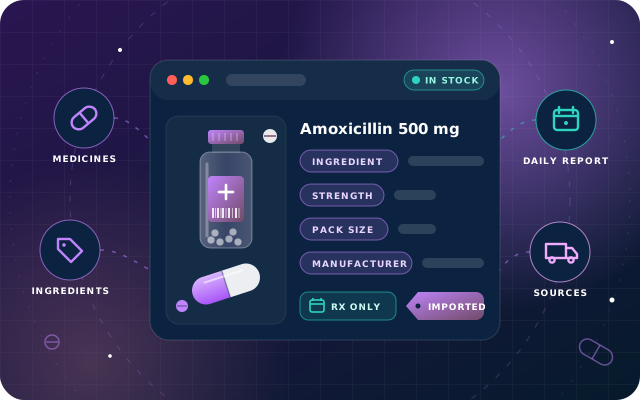
Tick Is Medicine on any ordinary Odoo product and a Medicine Details tab appears with the active ingredient, strength, pack size, manufacturer, import status and prescription requirement.
Active Ingredients master list
Records what the medicine actually contains, so you can find every brand of the same thing and the same ingredient is spelled the same way every time.
Companies master list
Holds the manufacturers, so who made each medicine is picked from a list rather than typed freely.
Sources master list
Classifies supply as local, imported, or however you choose to categorise it.
Dispensing Modes master list
Marks whether a medicine is over the counter, prescription only or controlled.
Archive instead of delete
Each of the four master lists can be archived rather than deleted.
Daily Sales Report with five payment buckets
Splits the day's takings into Cash, Credit Card, Credit, Insurance and Branch, with the customer counts behind each number.
One-page PDF or Excel workbook
The report is produced as a one-page PDF on the company letterhead or as an Excel workbook (xlsxwriter).
Pharmacy Payment Category on payment journals
Each payment journal carries a Pharmacy Payment Category, and the report reads the journals that actually paid each invoice. Whatever is still outstanding is reported as credit.
Sales dated by the order date
A sale belongs to the sales order's own order date, not the invoice date.
Proportional allocation of part-paid invoices
Part-paid invoices are allocated proportionally across the categories that paid; the remainder is credit.
Stable historical reports
A payment made after the To Date stays credit, so re-running last week's report gives last week's answer again.
Credit notes handled
Credit notes are filtered on their accounting date and inherit the original invoice's proportions.
Invoices without a sales order excluded
An invoice with no sales order is excluded entirely from the report.
Fail-closed guard on both routes
If any payment journal has no category, both the PDF and the Excel export refuse to run and name the journal, e.g. 'Set a Pharmacy Payment Category on these payment journals before generating the report: Bank'.
Cost of Goods Sold, Closing Stock and Gross Profit lines
Read from Odoo's stock valuation; they produce real numbers only when product categories use Automated (perpetual) valuation.
Invoice-based sales, tax and customer counts
The sales, tax and customer-count figures come from your invoices and are correct whatever your inventory settings.
SBS Pharma User and SBS Pharma Manager roles
Two access groups; sales reporting menus are re-scoped so a Pharma Manager sees the Daily Sales Report rather than the full sales reporting set.
Optional SBS Account Community integration
An optional integration with SBS Account Community's restricted journals. We have not tested it yet.
From install to everyday use
Install the module on Odoo 19 Community; it depends on account, stock, stock_account, product, sale and sale_stock (Odoo apps: Inventory, Invoicing and Discuss) and adds the pharmacy master data and the Daily Sales Report.
Under the Inventory configuration menus (Inventory administrator rights plus the pharmacy role are needed), fill the four master lists: Active Ingredients, Companies, Sources and Dispensing Modes.
Set a Pharmacy Payment Category on every bank, cash and credit payment journal; the category is required on those journals.
Open a product, tick Is Medicine and complete the Medicine Details tab from the master lists.
Sell as usual through sales orders and invoices; the report classifies each sale by the sales order's order date and by the journals that actually paid the invoice.
At the end of the day, run the Daily Sales Report as a one-page PDF on the company letterhead or as an Excel workbook; a payment made after the report's To Date stays credit, so re-running an earlier day gives the same answer.
If a payment journal still has no category, the report refuses to run and names the journal; set the category and run it again.
For real Cost of Goods Sold, Closing Stock and Gross Profit lines, switch product categories to Automated (perpetual) valuation first.
What you will see in Odoo
- The Medicine Details tab on an ordinary Odoo product.
- The Active Ingredients list. Each master list can be archived rather than deleted.
- The Daily Sales Report as a one-page PDF on the company letterhead.
- The Pharmacy Payment Category on a payment journal.
SBS Pharmacy Management explained
Pharmacy master data on the ordinary Odoo product form, and a Daily Sales Report that splits the day's takings into Cash, Credit Card, Credit, Insurance and Branch by reading the journals that actually paid each invoice.
Tick Is Medicine and a Medicine Details tab appears with the active ingredient, strength, pack size, manufacturer, import status and prescription requirement - drawing on four small master lists you maintain yourself, so the same ingredient or manufacturer is spelled the same way every time.
The end-of-day report comes as a one-page PDF or an Excel workbook, and it does not classify sales by guesswork: each payment journal carries a Pharmacy Payment Category, and the report reads the journals that actually paid each invoice. Whatever is still outstanding is reported as credit.
Fail-closed, on both routes. We tested it with an uncategorised journal: the Excel export refused with “Set a Pharmacy Payment Category on these payment journals before generating the report: Bank”, and the PDF refused with the same message. It will not quietly produce a report that leaves money out of a bucket.
Read this before relying on the figures: cost and stock need automated valuation. The sales, tax and customer-count figures come from your invoices and are correct whatever your inventory settings. Cost of Goods Sold, Closing Stock and Gross Profit are read from Odoo's stock valuation, which only produces real numbers when your product categories use Automated (perpetual) valuation. On the default periodic valuation, Cost of Goods Sold comes out as zero, Gross Profit Margin reads 100%, and Closing Stock can be a large negative number. The report prints whatever the valuation engine returns and does not warn you, so switch your categories to Automated valuation before treating those three lines as real.
Things it changes across the database. This module is built for a pharmacy, and it makes a few changes that reach beyond pharmacy records, listed here so nothing surprises you after installing: Pharmacy Payment Category becomes required on every bank, cash and credit journal in the database, for every user - not only pharmacy ones. The Taxes column is hidden on sale order lines on every sales order; anyone who relies on it can switch it back on through the column chooser. Sales reporting menus are re-scoped so a Pharma Manager sees the Daily Sales Report rather than the full sales reporting set. Configuration lives under Inventory, so reaching it needs Inventory administrator rights as well as the pharmacy role.
We tested this on a live Odoo 19 Community database. Three sales on one day - one settled in cash, one by card, one left outstanding - split correctly into 48.00 cash, 85.00 card and 63.00 credit, totalling 196.00 net sales with three customers and 29.40 of tax, in both the PDF and the Excel workbook. We also tested the master data, the Medicine Details tab and the fail-closed guard. We have not yet tested insurance and branch categories with real data, partial payments, credit notes, multi-company use, or the optional integration with SBS Account Community's restricted journals, and we have seen the cost and stock lines only on a periodic-valuation database.
Requirements and compatibility
Everything your Odoo administrator needs to know before installing SBS Pharmacy Management.
- Technical name
sbs_pharmacy_management- Odoo version
- 19.0, built and tested on Community Edition
- Price
- Free
- Hosting
- Odoo.sh, On Premise (not available on Odoo Online)
- Required Odoo apps
- Inventory (stock), Invoicing (account), Discuss (mail)
- Module dependencies
account, stock, stock_account, product, sale, sale_stock- Access roles
- SBS Pharma User; SBS Pharma Manager
- Python packages
xlsxwriter
Installation
Download SBS Pharmacy Management from the Odoo App Store, or add it to your Odoo.sh repository or on-premise addons path.
In Odoo, activate developer mode, open Apps, choose Update Apps List and search for
sbs_pharmacy_management.Install the module. Odoo installs the required apps listed above automatically.
Assign the access roles to the right users, then follow the configuration notes.
Configuration and requirements
- Set a Pharmacy Payment Category on every bank, cash and credit payment journal; it becomes required for every user, not only pharmacy ones.
- Maintain the four master lists (Active Ingredients, Companies, Sources, Dispensing Modes) under Inventory configuration; this needs Inventory administrator rights as well as the pharmacy role.
- Give users the SBS Pharma User or SBS Pharma Manager role.
- Switch product categories to Automated (perpetual) valuation before relying on Cost of Goods Sold, Closing Stock and Gross Profit.
- Install the xlsxwriter Python package for the Excel export.
- If the Taxes column is needed on sale order lines, switch it back on through the column chooser (the module hides it on every sales order).
Odoo 20 or Odoo Enterprise? Check the Odoo App Store for the Odoo versions SBS Pharmacy Management is available for. When we upgrade a database to Odoo 20 we port the SBS modules and other customisations it uses, and we implement Odoo Enterprise as well as Community. See what Odoo 20 changes.
Need help setting up SBS Pharmacy Management?
The engineers who wrote SBS Pharmacy Management can install it, configure it for your processes, extend it and support it. The module is free; you only pay for the help you choose.
- Installation on Odoo.sh or your own servers
- Configuration, data migration and user training
- Custom changes and integration with your other modules
- Support from the team that maintains the code
- Running Odoo Enterprise? We implement Enterprise too, and will tell you whether this module or a standard Enterprise app fits better
- Moving to Odoo 20? We port this module and your other customisations as part of the upgrade
Get help with Pharmacy Management
Tell us about your Odoo setup and what you need. We reply within one business day.
Pharmacy Management, answered
Which Odoo version and edition does SBS Pharmacy Management support?
Odoo 19.0, tested on Community Edition. It is available for Odoo.sh and on-premise installations, not Odoo Online.
What does the module depend on?
It depends on account, stock, stock_account, product, sale and sale_stock, and uses the Inventory, Invoicing and Discuss apps. The Excel export needs the xlsxwriter Python package.
How does the Daily Sales Report decide whether a sale was cash, card, credit, insurance or branch?
Each payment journal carries a Pharmacy Payment Category, and the report reads the journals that actually paid each invoice. Whatever is still outstanding is reported as credit, and part-paid invoices are allocated proportionally across the categories that paid.
What happens if a payment journal has no Pharmacy Payment Category?
The report refuses to run and names the journal, on both the PDF and the Excel route, with a message such as 'Set a Pharmacy Payment Category on these payment journals before generating the report: Bank'. It will not quietly produce a report that leaves money out of a bucket.
Why do Cost of Goods Sold, Closing Stock and Gross Profit look wrong?
Those three lines are read from Odoo's stock valuation and only produce real numbers when product categories use Automated (perpetual) valuation. On the default periodic valuation, Cost of Goods Sold comes out as zero, Gross Profit Margin reads 100% and Closing Stock can be a large negative number, so switch to Automated valuation before treating them as real.
Can Star Bit Solutions install and customise SBS Pharmacy Management for us?
Yes. The engineers who wrote SBS Pharmacy Management can install it on Odoo.sh or your own servers, configure it for your processes, extend it and support it. The module itself is free; you only pay for the implementation or support you choose. Call or WhatsApp +971 55 973 4524 or email info@starbitsolutions.com.
Put Pharmacy Management to work in your Odoo.
Install it free from the Odoo App Store, or let our engineers deploy, configure and support it alongside the rest of your Odoo setup.