
SBS HR Payroll: payroll computed, posted and kept auditable
Odoo Community ships no payroll, so salaries end up in spreadsheets and totals are retyped into journal entries. SBS HR Payroll computes payslips from salary rules inside Odoo, posts the journal entry on confirmation and keeps the computed figure beside every manual override.
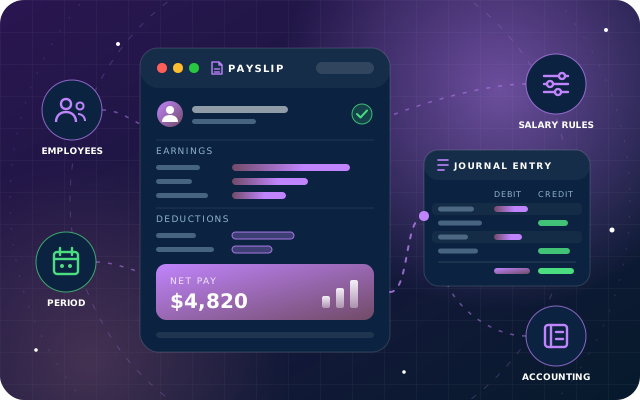
Why teams install HR Payroll
Odoo Community ships no payroll app, so salaries end up calculated in spreadsheets and retyped into journal entries with no auditable record of how a figure was reached. SBS HR Payroll puts salary rules, structures, payslips and batches inside Odoo and posts the resulting journal entry on confirmation.
Who it is for: HR and finance teams running Odoo 19 Community who want payroll computed inside Odoo, posted to the ledger on confirmation, and manual corrections that remain auditable, instead of spreadsheets.
Payroll calculated inside Odoo
Salary rules and structures replace the spreadsheet, and every payslip line is traced to the rule that produced it.
Payroll reaches the ledger
Confirming a payslip builds and posts the journal entry from each rule's debit and credit accounts, so nobody retypes a total.
Corrections you can audit
A manual override keeps the rule's own figure beside it, and a confirmed payslip is reversed rather than deleted.
What HR Payroll adds to Odoo 19
Real payroll for Odoo 19 Community, posted to the ledger, with overrides you can audit
Salary rules
Each salary rule has a condition, an amount type (fixed, percentage or Python), a category, and its own debit and credit accounts.
Salary structures with inheritance
A salary structure collects the rules that apply to a person and can inherit a parent structure's rules.
Employee Payroll tab
The employee record gains a Payroll tab holding the salary structure, wage and the monthly cash allowances.
Computed payslips
A payslip runs the structure's rules in order, producing the basic, the allowances, the gross and the net, each line traced to the rule that produced it.
Manual override that keeps the computed figure
When a line is corrected by hand, the rule's own figure stays in a Computed Amount column beside the typed value; the line is flagged Manual and renders in bold.
Manager-only overrides, enforced server-side
Only an SBS Payroll Manager may override. For anyone else the amount, quantity and rate columns are read-only, and a direct write is refused server-side.
Overrides survive recomputation
Pressing Compute Sheet again keeps the manual value instead of silently discarding it.
Dependants follow
Gross and Net recalculate from the corrected figure, so the payslip stays internally consistent.
Reset to Computed Amounts
One button discards every override on the payslip, behind a confirmation.
Confirmed payslips post themselves
On confirmation the payslip builds and posts the journal entry from each rule's debit and credit accounts, so payroll reaches the ledger without anyone retyping a total.
Cancellation reverses, it does not delete
Cancelling a confirmed payslip posts a reversing entry and keeps the original; reopening or deleting an accounted payslip is refused, so payroll history cannot be quietly rewritten.
Payslip batches
A payslip batch groups the period's run, with every generated payslip listed against it.
Generate Payslips
Generate Payslips creates one payslip per selected employee and carries the batch's salary journal onto each.
Refund action
A Refund action is available on payslips; when the optional Payslip Name is empty, it builds the refund's name from the payslip reference, so Refund works whether or not a name was entered.
Three access groups
SBS Payroll User works with payslips for their own and their subordinates' employee records and cannot override a computed amount; SBS Payroll Manager adds the manual override and reset; SBS Payroll Administrator also maintains salary rules, structures, categories and contribution registers.
Three PDF reports
Pay Slip and Pay Slip Details print from a payslip; Pay Slip Lines by Contribution Register prints a date range across a register.
Payslip email template
A mail template is included for sending the payslip to the employee.
Account validation on confirmation
Confirmation is refused with a clear message if a rule has only a debit or only a credit account; each rule needs both accounts or neither.
Community-only payroll
It declares excludes: hr_payroll, so it cannot be installed alongside Odoo Enterprise Payroll. It gives Odoo Community users a payroll app; on Odoo Enterprise we implement the standard Payroll app instead.
From install to everyday use
Install SBS HR Payroll on Odoo 19 Community (it excludes the Enterprise hr_payroll app) with a chart of accounts and at least one general journal in place.
As SBS Payroll Administrator, maintain salary rule categories and contribution registers, then create salary rules with a condition, an amount type (fixed, percentage or Python), a category, and debit and credit accounts.
Build salary structures that collect the rules that apply, inheriting a parent structure's rules where useful.
On each employee's Payroll tab, set the salary structure, wage and monthly cash allowances.
Create a payslip batch for the period and run Generate Payslips to create one payslip per selected employee, carrying the batch's salary journal onto each.
Compute each sheet and review basic, allowances, gross and net, each traced to the rule that produced it.
If a figure must change, an SBS Payroll Manager overrides the line: the Computed Amount is kept, the line is flagged Manual, and Gross and Net recalculate from the manual figure. Reset to Computed Amounts undoes every override after a confirmation.
Confirm the payslip; it builds and posts the journal entry to accounting, visible on the Accounting Information tab.
Print Pay Slip or Pay Slip Details, send the payslip to the employee with the included mail template, or print Pay Slip Lines by Contribution Register for a date range.
To correct a confirmed payslip, cancel it (a reversing entry is posted and the original is kept) and create a new corrected payslip; use the Refund action where a refund is needed.
What you will see in Odoo
- A computed payslip: basic, five allowances, gross and net, each traced to the rule that produced it.
- Basic Salary overridden to 6,500. The rule still says 6,000, and Gross and Net have recalculated from the manual figure - 8,300, not 7,800.
- The reset asks before it discards anything.
- The Accounting Information tab on a confirmed payslip, showing the posted entry.
- A payslip batch for the period, with every generated payslip listed against it.
- Generate Payslips creates one payslip per selected employee and carries the batch's salary journal onto each.
SBS HR Payroll explained
Salary rules, structures, payslips, batches and the journal entries that post payroll to accounting. When a figure has to be corrected by hand, the rule's own number is kept beside it, and a confirmed payslip is never deleted - it is reversed.
This module is a payroll option for Odoo Community. It declares excludes: hr_payroll, so it cannot be installed alongside Odoo Enterprise Payroll, and Enterprise Payroll cannot be installed alongside it. This is deliberate: Odoo Enterprise has its own Payroll app, which we also implement, and this module gives Community users a payroll app.
SBS HR Payroll puts the calculation in Odoo. Salary rules hold the arithmetic, structures group the rules that apply to a person, and a payslip runs them in order - producing the basic, the allowances, the gross and the net, with a journal entry posted on confirmation.
Every payroll has the month where a number has to be changed by hand. In most systems that means the calculation is gone. Here the rule's own figure is kept in a Computed Amount column beside the value you typed, the line is flagged Manual, and it renders in bold.
Cancelling a confirmed payslip posts a reversing entry and keeps the original. Reopening an accounted payslip is refused - "Keep the original and its reversal for audit, then create a new corrected payslip" - and so is deleting one. Payroll history cannot be quietly rewritten.
We tested every workflow on this page on a live Odoo 19 Community database. Multi-company payroll and the contribution-register report over multiple registers have not been tested yet, so we do not claim them.
Requirements and compatibility
Everything your Odoo administrator needs to know before installing SBS HR Payroll.
- Technical name
sbs_hr_payroll- Odoo version
- 19.0, built and tested on Community Edition
- Price
- Free
- Hosting
- Odoo.sh, On Premise (not available on Odoo Online)
- Required Odoo apps
- Discuss (mail), Invoicing (account), Time Off (hr_holidays), Calendar (calendar), Employees (hr)
- Module dependencies
account, hr_holidays, mail, calendar, hr- Access roles
- SBS Payroll User; SBS Payroll Manager; SBS Payroll Administrator
- Not compatible with
hr_payroll
Installation
Download SBS HR Payroll from the Odoo App Store, or add it to your Odoo.sh repository or on-premise addons path.
In Odoo, activate developer mode, open Apps, choose Update Apps List and search for
sbs_hr_payroll.Install the module. Odoo installs the required apps listed above automatically.
Assign the access roles to the right users, then follow the configuration notes.
Configuration and requirements
- Install on Odoo 19.0 Community Edition; the module cannot be installed alongside Enterprise hr_payroll.
- Have a chart of accounts and at least one general journal (the Invoicing/account app is a dependency).
- Assign users to SBS Payroll User, SBS Payroll Manager or SBS Payroll Administrator: only an SBS Payroll Manager may override computed amounts and reset them, and an SBS Payroll Administrator also maintains salary rules, structures, categories and contribution registers.
- Create salary rule categories and contribution registers.
- Create salary rules with a condition, an amount type (fixed, percentage or Python), a category, and debit and credit accounts. Each rule needs both accounts or neither; the usual arrangement is to leave the earning rules informational and let the Net rule carry the posting.
- Create salary structures and, where needed, set a parent structure so its rules are inherited.
- Fill each employee's Payroll tab with the salary structure, wage and monthly cash allowances.
- Set the salary journal on the payslip batch so Generate Payslips carries it onto each payslip.
Odoo 20 or Odoo Enterprise? Check the Odoo App Store for the Odoo versions SBS HR Payroll is available for. When we upgrade a database to Odoo 20 we port the SBS modules and other customisations it uses, and we implement Odoo Enterprise as well as Community. See what Odoo 20 changes.
Need help setting up payroll in Odoo 19?
The engineers who wrote SBS HR Payroll can install it, configure it for your processes, extend it and support it. The module is free; you only pay for the help you choose.
- Installation on Odoo.sh or your own servers
- Configuration, data migration and user training
- Custom changes and integration with your other modules
- Support from the team that maintains the code
- Running Odoo Enterprise? Enterprise has its own apps for this, so this module is for Community; we implement Enterprise too
- Moving to Odoo 20? We port this module and your other customisations as part of the upgrade
Get help with HR Payroll
Tell us about your Odoo setup and what you need. We reply within one business day.
HR Payroll, answered
Does SBS HR Payroll work alongside Odoo Enterprise Payroll?
No. It declares excludes: hr_payroll, so it cannot be installed alongside the Enterprise payroll application and the Enterprise app cannot be installed alongside it. We built it to give Community users a payroll app.
Which Odoo apps and setup does it require?
It depends on account (Invoicing), hr_holidays (Time Off) and mail (Discuss), and it also requires the standard Calendar (calendar) and Employees (hr) apps. You also need a chart of accounts and at least one general journal.
What happens to the calculated value when a manager overrides a payslip line?
The rule's own figure is kept in a Computed Amount column beside the typed value, the line is flagged Manual and renders in bold, and Gross and Net recalculate from the manual figure. The override survives Compute Sheet, and Reset to Computed Amounts discards every override behind a confirmation.
Can a confirmed payslip be deleted or reopened?
No. Cancelling a confirmed payslip posts a reversing entry and keeps the original; reopening or deleting an accounted payslip is refused, so you keep the original and its reversal for audit and create a new corrected payslip.
Which Odoo version, edition and hosting does it support?
It is built for Odoo 19.0 Community Edition. It is available for Odoo.sh and on-premise installations, not Odoo Online.
Can Star Bit Solutions install and customise SBS HR Payroll for us?
Yes. The engineers who wrote SBS HR Payroll can install it on Odoo.sh or your own servers, configure it for your processes, extend it and support it. The module itself is free; you only pay for the implementation or support you choose. Call or WhatsApp +971 55 973 4524 or email info@starbitsolutions.com.
Put HR Payroll to work in your Odoo.
Install it free from the Odoo App Store, or let our engineers deploy, configure and support it alongside the rest of your Odoo setup.