
SBS Menu Manager: menus and model operations under control
Odoo's groups decide which apps a user reaches, but not that one person should not see Discuss or that nobody may delete a contact. SBS Menu Manager hides menus per user and locks create, update, delete, archive and export per model, enforced on the server.
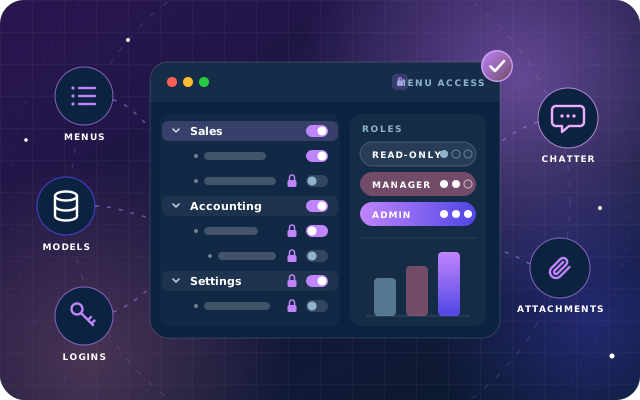
Why teams install Menu Manager
Odoo's groups decide which applications a user reaches, but they cannot say that one person should not see Discuss, or that nobody may delete a contact while everyone may edit one, without inventing a new group and a stack of record rules.
Who it is for: Administrators of Odoo 19 Community databases who need to restrict what particular users or groups can see and change without writing record rules, and who need look-but-never-touch accounts for auditors, consultants or board members.
Restrictions that hold everywhere
A locked model stays locked whether the request comes from the interface, an import or the API, because model restrictions are enforced on the server.
Safe accounts for auditors
Give an auditor, consultant or board member an account that reads normally and can comment in the chatter, but cannot create, update, delete, archive or export.
Menus each user actually needs
Hide menus per user, redirect pasted URLs away from hidden actions, and put your menu order back after a module upgrade moves it.
What Menu Manager adds to Odoo 19
Per-user menus, per-model locks and a read-only role, all enforced on the server
Model access policies per model
One policy line per model, applied to a chosen user or to a group, with four restriction switches: Create / Update, Delete, Archive / Unarchive and Export.
Create / Update lock
Blocks creating a record and saving a change to one, including through an import.
Delete lock
Blocks deleting a record on the restricted model.
Archive / Unarchive lock
Blocks the archive toggle, the usual way people work around a delete restriction.
Export lock
Blocks exporting the model's data out of Odoo.
Interface and server agree
For a restricted model the New, Edit, Delete, Archive and Export controls are removed from the list, form and kanban views, and the same restriction is applied in the server, which makes it a control rather than a courtesy.
Server-side enforcement
Restrictions are enforced in the server on the abstract base model, so they hold whether a request arrives from the interface, an import or the API.
Read-only User group
One tick blocks every create, update, delete, archive and export across the database for accounts that should look but never touch, such as an auditor, a consultant or a board member.
Read-only users can still comment
Reading works normally and so does posting a message in the chatter: an allow-list keeps the session, chatter and automation models writable, so a read-only reviewer can leave a comment on the record they are reviewing.
Per-user Hide Menus tab
A Hide Menus tab on the user record lists the menus that person should not see; parent menus that no longer lead anywhere are pruned automatically, so no empty app is left in the switcher.
Block Direct Navigation
Hiding a menu does not stop somebody pasting the URL; with Block Direct Navigation ticked the server redirects them away, and the Automatically Blocked Actions list shows exactly which actions are covered, resolved from the hidden menus including sub-menus and actions contributed by other modules.
Menu order that survives upgrades
Populate records the menu order you want; the overview shows the current order beside it, flags anything a module upgrade has moved, and one action puts your order back.
30-day login history
Every interactive login is recorded with the user, the time and the IP address, and a daily scheduled action clears entries older than thirty days so the log stays useful without growing without limit.
Hide Chatter on Models
A database-wide setting in General Settings that removes the chatter from the models you list.
Attachment toolbar
Included, not yet tested by us: Download All as a ZIP, upload from a device, webcam capture, screen recording, offline document preview, image editing and QR printing on chatter attachments.
Attachment tags
Included, not yet tested by us: tag attachments and group the attachment list by tag.
Preference hardening
Name, photo, PIN, contact fields and API keys become administrator-only.
Custom Author register
Included, not yet tested by us: a small register of content authors and their profiles.
SBS Menu Tools roles
The module adds Manager and Read-only User roles, assigned on a user's Access Rights tab.
From install to everyday use
Install SBS Menu Manager on Odoo 19 Community with the Discuss (mail) and Employees (hr) apps it depends on.
On each user's Access Rights tab, assign the SBS Menu Tools roles, Manager and Read-only User. Read-only User is for accounts that should look but never touch, such as an auditor, a consultant or a board member.
Create a model access policy for each model you want to restrict, apply it to a user or to a group, and tick the switches you need: Create / Update, Delete, Archive / Unarchive and Export.
Restricted users then see the New, Edit, Delete, Archive and Export controls removed from the list, form and kanban views, while the server refuses the same operations when they arrive through an import or the API.
Open the Hide Menus tab on a user record and list the menus that person should not see; parent menus that no longer lead anywhere are pruned automatically. Tick Block Direct Navigation so pasted URLs are redirected away, and review the Automatically Blocked Actions list to see which actions that covers.
Arrange your menus the way you want them and use Populate to record the order; after a module upgrade, open the overview to see anything that has drifted and put your order back with one action.
Check the login history to see who signed in, when and from which IP address; the daily scheduled action keeps only the last thirty days.
Optionally list models under Hide Chatter on Models in General Settings.
What you will see in Odoo
- Model access policies: one line per model, applied to a user or to a group.
- Policy form: A policy applied to one user on Contacts, restricting create/update, delete and export.
- New button removed: The Contacts list for a restricted user: every record is still readable, but there is no New button.
- Access rights: The SBS Menu Tools roles on a user's Access Rights tab.
- Hide menus tab: The Hide Menus tab, with Block Direct Navigation and the actions it covers.
- User menu: The same user's app menu with a hidden application gone from it.
SBS Menu Manager explained
Decide what each person can see, and what they can change. Hide menus per user, lock create, delete, archive and export per model, keep your menu order stable across upgrades, and keep a login history. Model restrictions are enforced on the server, not just hidden in the interface, and Block Direct Navigation redirects pasted URLs away from hidden menus.
Access rights get you most of the way, then stop. SBS Menu Manager adds the missing layer: menus hidden per user, and create, update, delete, archive and export restricted per model for a chosen user or group. Both are answered in the server, so a restriction holds whether the request arrives from the interface, an import, or the API.
The interface and the server agree. For a restricted model the New, Edit, Delete, Archive and Export controls are removed from the list, form and kanban views, so a user is not invited to do something that will then fail. Behind that, the same restriction is applied in the server, which is what makes it a control rather than a courtesy.
One switch for a whole account: the read-only user. Some accounts should look but never touch: an auditor, a consultant, a board member. The Read-only User group blocks every create, update, delete, archive and export across the database in one tick. It stops short of making the account useless: reading works normally, and so does posting a message in the chatter, because an allow-list keeps the session, chatter and automation models writable. A read-only reviewer can still leave a comment on the record they are reviewing.
Per-user menus: hide what somebody does not need. A Hide Menus tab on the user record lists the menus that person should not see. Parent menus that no longer lead anywhere are pruned automatically, so you do not end up with an empty app in the switcher. Hiding a menu does not stop somebody pasting the URL. Tick Block Direct Navigation and the server redirects them away. The Automatically Blocked Actions list shows exactly which actions that covers, resolved from the hidden menus, including sub-menus and actions contributed by other modules.
Menu order: the arrangement that survives the next upgrade. Reordering menus in Odoo works until a module upgrade puts them back. Populate records the order you want; the overview then shows the current order beside it and flags anything an upgrade has moved, and one action puts your order back.
Before you install: what we tested. We tested the menu sequence store, per-user menu hiding, Block Direct Navigation, model access policies, the read-only user group and the login history on a live Odoo 19 Community database, including checking that restrictions hold against direct API calls and imports, not only in the interface. We have not yet tested the chatter attachment toolbar (ZIP download, webcam capture, screen recording, offline document preview, image editor and QR printing), attachment tags in use, or the Custom Author register. They ship with the module, but we make no claim here about how they behave.
Take care with the read-only group and broad policies. They are deliberately sweeping. Apply them to a test account first, and never to your only administrator.
Requirements and compatibility
Everything your Odoo administrator needs to know before installing SBS Menu Manager.
- Technical name
sbs_menu_manager- Odoo version
- 19.0, built and tested on Community Edition
- Price
- Free
- Hosting
- Odoo.sh, On Premise (not available on Odoo Online)
- Required Odoo apps
- Discuss (mail), Employees (hr)
- Module dependencies
mail, hr- Access roles
- Manager; Read-only User
Installation
Download SBS Menu Manager from the Odoo App Store, or add it to your Odoo.sh repository or on-premise addons path.
In Odoo, activate developer mode, open Apps, choose Update Apps List and search for
sbs_menu_manager.Install the module. Odoo installs the required apps listed above automatically.
Assign the access roles to the right users, then follow the configuration notes.
Configuration and requirements
- Install the module together with its dependencies, the Discuss (mail) and Employees (hr) apps, on Odoo 19 Community Edition.
- Assign the SBS Menu Tools roles (Manager, Read-only User) on the Access Rights tab of each user record that needs them.
- Create model access policies, one line per model, applied to a user or to a group, and tick the Create / Update, Delete, Archive / Unarchive and Export switches as required.
- On the Hide Menus tab of a user record, list the menus to hide and tick Block Direct Navigation; the Automatically Blocked Actions list shows the actions that are covered.
- Use Populate to record the intended menu order so the overview can flag anything a later upgrade moves.
- In General Settings, set Hide Chatter on Models with the models whose chatter should be removed database-wide.
- A daily scheduled action clears login history entries older than thirty days.
- Apply the Read-only User group and broad policies to a test account first, and never to your only administrator.
Odoo 20 or Odoo Enterprise? Check the Odoo App Store for the Odoo versions SBS Menu Manager is available for. When we upgrade a database to Odoo 20 we port the SBS modules and other customisations it uses, and we implement Odoo Enterprise as well as Community. See what Odoo 20 changes.
Need help setting up SBS Menu Manager?
The engineers who wrote SBS Menu Manager can install it, configure it for your processes, extend it and support it. The module is free; you only pay for the help you choose.
- Installation on Odoo.sh or your own servers
- Configuration, data migration and user training
- Custom changes and integration with your other modules
- Support from the team that maintains the code
- Running Odoo Enterprise? We implement Enterprise too, and will tell you whether this module or a standard Enterprise app fits better
- Moving to Odoo 20? We port this module and your other customisations as part of the upgrade
Get help with Menu Manager
Tell us about your Odoo setup and what you need. We reply within one business day.
Menu Manager, answered
Are the restrictions only hidden in the interface, or actually enforced?
Every model restriction is enforced on the server, on the abstract base model, not just hidden in the interface. For a restricted model the New, Edit, Delete, Archive and Export controls are removed from the list, form and kanban views, and the same restriction is applied in the server, so it holds whether the request arrives from the interface, an import or the API.
What does SBS Menu Manager depend on, and which Odoo edition does it support?
It depends on the Discuss (mail) and Employees (hr) apps. It is built for Odoo 19.0 and we tested it on a live Odoo 19 Community database. It is available for Odoo.sh and on-premise installations, not Odoo Online.
Can a read-only user still post in the chatter?
Yes. The Read-only User group blocks every create, update, delete, archive and export across the database, but reading works normally and so does posting a message in the chatter, because an allow-list keeps the session, chatter and automation models writable. A read-only reviewer can still leave a comment on the record they are reviewing.
Does hiding a menu stop someone who has bookmarked the URL?
Not on its own: hiding a menu does not stop somebody pasting the URL. Tick Block Direct Navigation and the server redirects them away. The Automatically Blocked Actions list shows exactly which actions that covers, resolved from the hidden menus, including sub-menus and actions contributed by other modules.
How long is the login history kept?
Every interactive login is recorded with the user, the time and the IP address, and a daily scheduled action clears entries older than thirty days, so the log stays useful without growing without limit.
Can Star Bit Solutions install and customise SBS Menu Manager for us?
Yes. The engineers who wrote SBS Menu Manager can install it on Odoo.sh or your own servers, configure it for your processes, extend it and support it. The module itself is free; you only pay for the implementation or support you choose. Call or WhatsApp +971 55 973 4524 or email info@starbitsolutions.com.
Put Menu Manager to work in your Odoo.
Install it free from the Odoo App Store, or let our engineers deploy, configure and support it alongside the rest of your Odoo setup.