QuickBooks to Odoo Migration: What Transfers and What Does Not
Star Bit Solutions9 min read
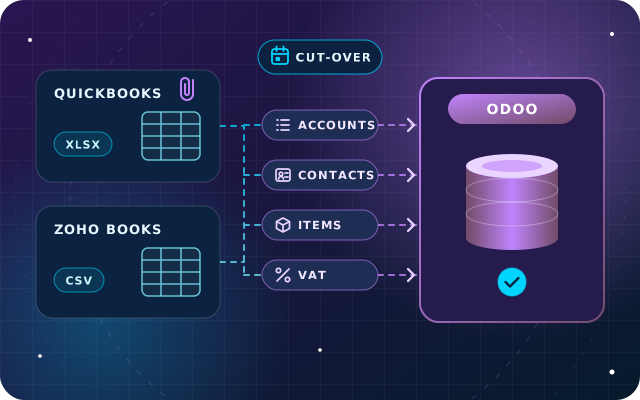
Planning a QuickBooks to Odoo migration, or leaving Zoho Books? Start with what each product can export. This guide covers exports, mapping accounts, contacts, items and tax codes, open items versus history, attachments and the cut-over.
QuickBooks Online exports reports and lists to Excel; Zoho Books exports each module to CSV or Excel and offers full data and documents backups.
Move the opening trial balance, open invoices and bills, stock and fixed assets to Odoo, and keep closed history in the exports.
Map every QuickBooks or Zoho Books tax rate to an Odoo UAE tax, and record each customer's emirate so fiscal positions apply.
Import open items at the amount due against clearing accounts, without tax, and go live only when the clearing accounts are at zero.
Export everything, attachments included, before you cancel, even though both products offer read-only access afterwards.
QuickBooks and Zoho Books do their core job well: invoicing, bills, bank feeds and value added tax (VAT) returns for a small finance team. Businesses usually start looking at Odoo when the books are no longer the whole story, and stock, purchasing, manufacturing, projects or payroll need to share one database with accounting.
A QuickBooks to Odoo migration, or a move from Zoho Books, turns on two questions: what can you take out of the old product, and what should Odoo receive? Both products export more than people expect, but neither hands over a database Odoo can simply open. This guide covers the exports, the mapping, what to leave behind and how to cut over, with Odoo 19 as the target.
What QuickBooks and Zoho Books Let You Export
Check what your product and edition offer first, because it decides how much reshaping the migration needs.
QuickBooks Online
The Export data tool, under Settings, exports reports and lists to Excel in a single zip file. Intuit's help pages list the Profit and Loss, Balance Sheet, Trial Balance and General Ledger reports and the customer, vendor and employee lists, and the account list and products and services can be exported from their own screens. Attachments export separately, also as a zip file.
Intuit also says that after you cancel a paid subscription, you keep read-only access for one year and can still export. Treat that as a safety net, not a plan, and export everything before you cancel.
QuickBooks Desktop
Desktop exports lists, such as the chart of accounts, customers, vendors and items, to IIF (Intuit Interchange Format) files through File > Utilities > Export. Intuit states that transactions cannot be exported to IIF, so transaction detail leaves Desktop as reports exported to Excel.
Zoho Books
Each module, such as invoices, bills, contacts or items, exports from its list view to CSV, XLS or XLSX, up to the first 25,000 rows. Beyond that, the Data Backup feature under Settings produces one compressed file of CSV files across modules. Zoho's help pages add two timing rules: the download link expires 30 days after the backup, and another backup is not possible for 15 days. Attachments have their own Backup Documents tab, which covers documents added since the last documents backup.
Export
QuickBooks Online
Zoho Books
Lists and masters
Excel, through the Export data tool
CSV, XLS or XLSX from each module
Transaction detail
Reports such as the General Ledger and Trial Balance, in Excel
Module exports up to 25,000 rows, or a full backup in CSV files
Attachments
A separate zip file
Backup Documents, for files added since the last backup
After you cancel
Read-only for one year, with export
Read-only
Mapping Accounts, Contacts, Items and Tax Codes
Exports arrive in QuickBooks or Zoho shapes. The real work is reshaping them for Odoo's import tool, which reads Excel and CSV files, offers templates and has a Test button, and loading them in dependency order: accounts and taxes, then contacts, then products, then open documents. Give every record an External ID built from its old code, so later files can refer to it without ambiguity.
Accounts
Map each account to the Odoo chart of accounts from the UAE localization, or create it with the right Odoo type, such as Current Assets, Fixed Assets, Income or Expenses. Odoo tracks who owes what through the partner on each journal item, so one receivable and one payable account normally cover all customers and suppliers. Classes and locations in QuickBooks, or reporting tags in Zoho Books, become analytic accounts.
Contacts
Bring the legal name, address, TRN (Tax Registration Number), payment terms and currency. Zoho Books stores a tax treatment, such as VAT Registered or GCC VAT Registered, and a place of supply on each contact. In Odoo, the emirate goes in the address state, where the UAE localization's fiscal positions pick it up, and customers abroad fall under the non-UAE position. Zoho's designated zone treatments have no ready-made fiscal position in Odoo's UAE localization, so model them deliberately with your tax adviser.
Items
Inventory items become Goods with Track Inventory switched on, non-inventory items become Goods without it, and services become Services. Bundles need a decision: a kit, built with a bill of materials of the Kit type from the Manufacturing app, or separate lines. Bring the cost, sales price, barcode, unit of measure and default taxes with each product.
Tax Codes
Odoo's UAE localization provides 5% sales taxes per emirate, because the VAT return reports standard-rated supplies emirate by emirate, plus zero-rated, export, exempt, import, reverse charge and out-of-scope taxes. Map each old rate separately for sales and purchases. For Zoho Books, the usual mapping is:
Standard Rate [5%]: Odoo's 5% purchase tax, and on sales the 5% tax for the customer's emirate, chosen by the fiscal position.
Zero Rate [0%]: the zero-rated tax, or the zero-rated export tax for exports.
Exempt: the exempt tax.
Out of Scope: on sales, the out-of-scope tax. Odoo's UAE localization has no out-of-scope purchase tax, so agree the purchase treatment with your tax adviser.
Test every mapping on real transactions from your last VAT period before loading anything else.
Open Items versus History
Move what is still open, and archive what is closed. For most businesses, Odoo should receive:
the opening trial balance at the cut-over date;
every open customer invoice and credit note, at the amount still due;
every open supplier bill and refund, at the amount still due;
stock quantities by product and location, at agreed costs;
the fixed asset register, with depreciation to date.
Odoo's own accounting documentation recommends importing each open invoice or bill with only the total amount due, posted to a clearing account, so tax accounts are not affected twice. In the opening trial balance, the receivable and payable lines are replaced with the same clearing accounts. Once both sides are loaded, the clearing accounts net to zero, and Odoo suggests changing their type to Off-Balance Sheet so they drop out of reports.
History stays in the exports and, while it lasts, in the old product's read-only access. Keep the exported reports for every closed year, because UAE law requires corporate tax records to be kept for seven years after each tax period. If you need last year's figures for comparison, load monthly totals per account rather than every transaction. Our guide to opening balances and cut-over covers the method in depth.
A Worked Example: One Zoho Books Customer
Say Zoho's receivables reports show a customer owing AED 18,900: two unpaid invoices of AED 12,600 and AED 7,350, and an unused credit note of AED 1,050. In Odoo, import two customer invoices with single lines of AED 12,600 and AED 7,350 against the receivable clearing account, with no tax, and one customer credit note of AED 1,050 against the same account. The customer owes AED 18,900 in Odoo too, and each document keeps its Zoho number as a reference and its original due date for follow-ups.
Have a question about this guide? Ask the engineers who wrote it.
Attachments are the part teams forget until an auditor asks for a supplier invoice from two years ago. Export them while you still have full access: the QuickBooks Online attachments zip, or Zoho's Backup Documents, taken after the last documents are added.
Then decide how much linking you need. The simplest option is an archive: on Odoo Enterprise, upload the files to a dedicated folder in the Documents app, organized by year and document type, so finance can find them from Odoo. Attaching each old file to its migrated invoice or bill is possible, but it needs a script that matches files to records by number, so it is usually worth doing only for documents that are still open.
Planning the Cut-over for a QuickBooks to Odoo Migration
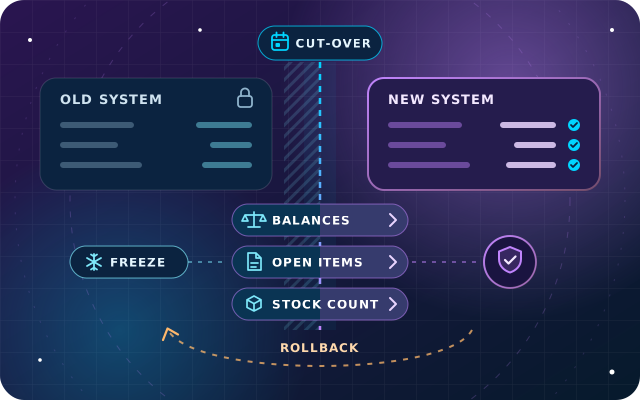
Odoo's documentation describes three transition points: the end of a fiscal year, which is easiest, the end of a tax period, or the middle of a tax period, which it does not recommend because the tax filing then combines two systems. In the UAE, that means aiming for the first day of a financial year or of a VAT period.
Agree the cut-over date and the last day of entries in the old product.
Finish reconciling every bank account there, and export the final reports.
Freeze new customers, suppliers and items, or log them for re-entry.
Count stock on the cut-over date if you hold inventory.
Load and validate the opening trial balance, open items and stock in Odoo.
Set each bank journal's opening statement to the balance before the first Odoo transaction, and delete any synchronized bank transactions dated before the cut-over.
Check that the clearing accounts are at zero and that aging matches by customer and supplier, then lock the period.
Rehearse the whole sequence on a copy of the Odoo database first. On Odoo.sh or on-premise, our free SBS Data Remove module, tested on Odoo 19 Community, clears a company's test transactions in one all-or-nothing run while keeping master data, so a rehearsal database can be reset without rebuilding the configuration. Removal cannot be undone, so take a verified backup before every run.
Tip: take the final Zoho Books data backup after the last entries, close to the cut-over date. Each backup blocks the next for 15 days and its download link expires after 30 days, so one taken too early can leave you without a fresh one. Keep every documents backup too, because each covers only documents added since the previous one.
How Star Bit Solutions Can Help
Our OdooStar team runs QuickBooks and Zoho Books migrations as part of an Odoo implementation. We export and clean your data, map accounts, contacts, items and VAT codes, test-load everything on a copy and reconcile the opening balances with your finance team before go-live.
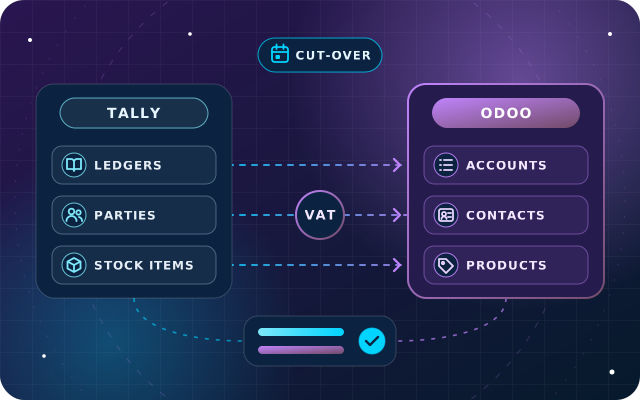
For most businesses leaving QuickBooks or Zoho Books, Odoo Enterprise is the natural target, with full Accounting, bank reconciliation and UAE VAT reporting next to the operational apps you are moving for. If Odoo Community fits, our free SBS Account Community module, for Odoo.sh or your own server, adds the trial balance, partner ledger and aged balances that Community leaves out, so the tie-out checks can still run. Coming from Tally instead? See our Tally to Odoo migration plan.
Send us your current product, edition and target go-live date through the contact page or on +971 55 973 4524, and we will outline a migration plan.
Written by the Star Bit Solutions team
Star Bit Solutions is a software company in Ajman, UAE, founded in 2014. We implement and customize Odoo Enterprise and Odoo Community, and build StarBiz (AI-driven ERP), StarHub (life super app), StarBot (conversational AI), StarLearn (adaptive learning) and StarSense (AI and IoT platform). About us
Balances versus open items, choosing the cut-over date, the freeze, the stock count, validation checks, a rollback plan and when parallel running pays off.
Can Odoo import QuickBooks or Zoho Books files directly?
Not as they are. Odoo's import tool reads Excel and CSV files, so exports from QuickBooks or Zoho Books are reshaped into Odoo's import templates first: accounts, contacts and products, then open invoices, bills and the opening trial balance. Scripting that reshaping means every rehearsal and the final load follow exactly the same steps.
Should we move our full QuickBooks history into Odoo?
Usually not. Load the opening trial balance, open invoices and bills, stock and fixed assets, and keep the closed history in the exported reports and the old product's read-only access. Importing years of transactions is costly to validate and can distort closed periods. If you need comparisons with last year, load monthly totals per account.
What happens to QuickBooks Online data after we cancel?
Intuit's help pages say that after canceling a paid QuickBooks Online subscription you keep read-only access for one year, during which you can still export data, for example to Excel. Do not rely on that window: export reports, lists and attachments before you cancel, and store them where your finance team can find them.
How do Zoho Books tax rates map to Odoo?
Map each Zoho Books rate to a tax from Odoo's UAE localization, separately for sales and purchases. Standard Rate maps to Odoo's 5% taxes, with the sales tax for each emirate chosen by fiscal position, Zero Rate to the zero-rated or export tax, Exempt to the exempt taxes and Out of Scope to Odoo's out-of-scope sales tax. Test each mapping on real transactions.
Can attachments move from QuickBooks or Zoho Books to Odoo?
Yes, with planning. QuickBooks Online exports attachments as a zip file, and Zoho Books has a separate documents backup. The simplest approach is an archive folder in the Documents app of Odoo Enterprise, organized by year. Linking each file to its migrated record needs a script, so it is usually worth doing only for open documents.
OdooStar by Star Bit Solutions
Leave QuickBooks or Zoho Books with Nothing Left behind.
Tell us your product, edition and target go-live date. We will plan the exports, map your data to Odoo and reconcile the opening balances with you.