
SBS Project Extension: every delivery fact on the project record
In stock Odoo Community, the client's contact, the lead consultant, the contract value and this month's biggest risk end up in a spreadsheet. This module gives each a field on the project, adds cross-project lists and review sessions, and measures task time on the server.
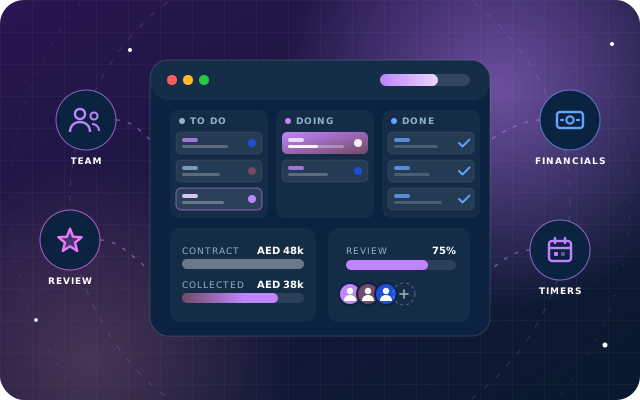
Why teams install Project Extension
Implementation teams track client contacts, lead consultants, contract values and collections, staging environments, support end dates and monthly risks for every project. Stock Odoo Community has no field for any of these, so delivery facts live in spreadsheets instead of on the project record.
Who it is for: Odoo implementation partners, delivery managers and PMO teams running several client projects at once who need risk, team, client, technical, AMC, credential and contract-collection facts on the project record instead of in spreadsheets.
Every project read at once
Seven cross-project lists, ordered by priority, gather risk, team, client, AMC and financial details so a delivery manager can read every project in one place.
Signed-off deliveries stay frozen
Locking a project stops changes to its fields and linked detail records, while review sessions stay writable so a frozen project can still be reviewed.
Timesheets you can trust
Task time is measured by the server and can only be reduced before it is logged. Every timesheet line shows whether it was timed or entered by hand.
What Project Extension adds to Odoo 19
Every delivery fact on the project record: risk, team, client, AMC, money, timers.
Summary tab
Risk level and risk factor, delivery type, the next action and free notes, right on the project form.
Team tab
The delivery roles - sales, functional consultants, developers, coordinators and key account managers - with a named lead developer and lead consultant.
Client Details tab
Industry, client name, address, website, and the client's single point of contact (SPOC).
Technical Info tab
Git repository with its creator and privacy setting, the tech stack and the cloud storage used by the project.
AMC Details tab
Support status plus both the free and the paid maintenance windows, so the team knows when free support ends.
Credentials tab (role-restricted)
Production and staging environment details, visible only to holders of the credentials role. Passwords are stored and displayed as ordinary text under access control, not encrypted; use a dedicated vault for secrets that need encryption at rest.
Financials tab
Proposed, locked and revised contract values, a collection plan and what has actually been collected, with the collection history beneath it.
Seven cross-project master lists
Project Summary, Project Master, Team Engagement, Client and Technical, AMC, Credentials and Financials - the same data gathered across every project, ordered by priority.
Review sessions
One session covers several projects, a line each: high-level review, internal assessment, completion percentage, remarks, next action and the customer's own view alongside.
Written review trail in chatter
Every review line added, changed or removed posts a chatter message naming the fields and their old and new values.
Project lock
When a delivery is signed off an administrator can Lock the project; its fields and linked detail records stop accepting changes, and an attempted edit is refused by name. Only the Lock and Unlock buttons can change the lock field.
Reviews stay open on locked projects
A lock freezes what the project is, not what is said about it: review sessions and review lines remain fully writable on a locked project. We confirmed this in testing.
Start/End task timer
Each task gains Start and End buttons; the elapsed time is measured by the server rather than remembered and typed in.
Dialog when the timer stops
When the timer stops, a dialog shows the counted time and lets the user log less (never more), keep it for later, or discard it before it becomes a timesheet line.
Timesheet Through Start/End Only
A Project Manager can tick this on a task; typing hours by hand is refused, and so is moving an existing timesheet line onto the task. Enforced in the server rather than merely hidden.
Entry Source on every timesheet
Each timesheet line carries an Entry Source of either Manual or Start/End Button, so hand-entered and timed lines are visible at a glance.
Four SBS Project roles
SBS Project User (delivery tabs and master lists), SBS Project Credentials User (Credentials tab and list), SBS Project Financial User (Financials tab and list) and SBS Project Admin (everything, plus creating and locking projects).
Three task-access levels
Task visibility is set separately from project access - Standard, Read Only, or No Task Access, which removes the task menus entirely while leaving the project lists working.
Admin-only project creation
Only an SBS Project Admin can create a project; anyone else is refused, including other applications creating a project on a user's behalf, such as from a sales order.
Tested on a live Odoo 19 Community database
We tested the tabs, master lists, review sessions and chatter, the lock with its review exemption, the timer through to a timesheet line, the Start/End-only restriction, the Entry Source column and the role behaviour. Multi-company use and the Odoo Enterprise task timer have not been tested yet.
From install to everyday use
Install on Odoo 19 with Discuss, Project and Employees, then give each user an SBS Project role (User, Credentials User, Financial User or Admin) and a task-access level (Standard, Read Only or No Task Access).
An SBS Project Admin creates the project - only that role can, including for other applications that create projects on a user's behalf.
The team fills the seven tabs: Summary, Team, Client Details, Technical Info, AMC Details, Credentials (only holders of the credentials role can open it) and Financials (added by the financial role); an SBS Project Admin sees everything.
Delivery managers read the cross-project lists - Project Summary, Project Master, Team Engagement, Client and Technical, AMC, Credentials and Financials - ordered by priority.
Management runs a review session covering several projects, one line each with the high-level review, internal assessment, completion percentage, remarks, next action and the customer's view; the chatter records every added, changed or removed line with old and new values.
On tasks, users press Start when they begin and End when they stop; the dialog shows the server-counted time and they log it, log less, keep it for later, or discard it, producing a timesheet line whose Entry Source is Start/End Button.
Where guesswork is not acceptable, the Project Manager ticks Timesheet Through Start/End Only on the task so hand-typed hours and moved timesheet lines are refused.
When the delivery is signed off, an administrator clicks Lock; the project's fields and linked detail records freeze while review sessions stay writable, and Unlock reopens it when needed.
What you will see in Odoo
- The Summary tab: risk level, risk factor, delivery type and the next action.
- The Financials tab: contract values, the collection plan, and the collection history beneath it.
- Project Summary: risk, delivery type and next action for every project at once.
- The AMC list - which support contracts are running and when they end.
- A review session, with its chatter recording exactly what changed.
- A task with its timer running.
SBS Project Extension explained
A project is more than a list of tasks. An implementation team needs to know who the client's single point of contact is, which consultant leads it, what the contract is worth and how much has been collected, where the staging environment lives, when the free support period ends, and what the biggest risk is this month. In stock Odoo none of that has a home, so it ends up in a spreadsheet.
The module gives each of those a field on the project, across seven tabs, and gathers the same information into cross-project lists ordered by priority, so a delivery manager can read every project in one place on a Monday morning. Review sessions cover several projects at once, and every review line added, changed or removed is recorded in the session's chatter with its old and new values.
The Credentials tab is a convenient place to record which server and database a project uses, not a vault. Its environment passwords are stored and displayed as ordinary text. Only holders of the credentials role can open the tab or the Credentials list, but the passwords are not encrypted and anyone who can reach the database can read them. For secrets that need encryption at rest, an identity check before revealing, and an audit trail, use a dedicated credential vault instead.
When a delivery is signed off, an administrator can Lock the project. Its fields and its linked detail records stop accepting changes, and an attempt to edit one is refused by name. A lock freezes what the project is, not what is said about it: review sessions and review lines remain fully writable, so a frozen project can still be reviewed.
Time on tasks is counted rather than remembered. The elapsed time between Start and End is measured by the server, and when the timer stops the user can reduce it, never increase it, before it becomes a timesheet line. Where guesswork is not acceptable, a Project Manager can require that time reaches a task only through the buttons.
Access is split by role, so credentials and financials are visible only to the people who need them. Task visibility is set separately from project access, so somebody can read project information without touching tasks at all.
Two consequences are worth planning for. Only an SBS Project Admin can create a project: anyone else is refused, including other applications creating a project on a user's behalf, such as from a sales order, so grant the role to whoever, or whatever, needs to create projects. And the lock field can only be changed by the Lock and Unlock buttons: writing it directly is refused even when the value is unchanged, so an import or data load that writes a project's full field set will fail. Exclude that field from such loads.
We tested every workflow on this page on a live Odoo 19 Community database, including the Start/End-only restriction, which the server enforces rather than merely hiding. Multi-company use and the interaction with Odoo Enterprise's own task timer have not been tested yet. Enterprise ships a competing Start/Stop control in the same task header, so expect two timers if you install this module on Enterprise.
Requirements and compatibility
Everything your Odoo administrator needs to know before installing SBS Project Extension.
- Technical name
sbs_project_extension- Odoo version
- 19.0, built and tested on Community Edition
- Price
- Free
- Hosting
- Odoo.sh, On Premise (not available on Odoo Online)
- Required Odoo apps
- Discuss (mail), Project (project), Employees (hr)
- Module dependencies
mail, project, hr- Access roles
- SBS Project User; SBS Project Credentials User; SBS Project Financial User; SBS Project Admin
Installation
Download SBS Project Extension from the Odoo App Store, or add it to your Odoo.sh repository or on-premise addons path.
In Odoo, activate developer mode, open Apps, choose Update Apps List and search for
sbs_project_extension.Install the module. Odoo installs the required apps listed above automatically.
Assign the access roles to the right users, then follow the configuration notes.
Configuration and requirements
- Assign each user one of the SBS Project roles: SBS Project User, SBS Project Credentials User, SBS Project Financial User or SBS Project Admin.
- Set each user's task visibility separately: Standard, Read Only, or No Task Access.
- Grant SBS Project Admin to every user or application that must create projects - for example a sales-order flow that creates a project automatically.
- For the task timer, link the user to an employee and enable timesheets on the project.
- As Project Manager, tick Timesheet Through Start/End Only on tasks that must only receive timed entries.
- Exclude the lock field from imports or data loads that write a project's full field set; it can only be changed by the Lock and Unlock buttons.
Odoo 20 or Odoo Enterprise? Check the Odoo App Store for the Odoo versions SBS Project Extension is available for. When we upgrade a database to Odoo 20 we port the SBS modules and other customisations it uses, and we implement Odoo Enterprise as well as Community. See what Odoo 20 changes.
Need help rolling out SBS Project Extension?
The engineers who wrote SBS Project Extension can install it, configure it for your processes, extend it and support it. The module is free; you only pay for the help you choose.
- Installation on Odoo.sh or your own servers
- Configuration, data migration and user training
- Custom changes and integration with your other modules
- Support from the team that maintains the code
- Running Odoo Enterprise? We implement Enterprise too, and will tell you whether this module or a standard Enterprise app fits better
- Moving to Odoo 20? We port this module and your other customisations as part of the upgrade
Get help with Project Extension
Tell us about your Odoo setup and what you need. We reply within one business day.
Project Extension, answered
Which Odoo apps does SBS Project Extension depend on?
It depends on Discuss (mail), Project (project) and Employees (hr), and builds on Project, Timesheets and Employees. The task timer needs the user linked to an employee and timesheets enabled on the project.
Does it run on Odoo Enterprise as well as Community?
We tested it on a live Odoo 19 Community database. It is available for Odoo.sh and on-premise installations, not Odoo Online. We have not yet tested the interaction with Odoo Enterprise's own task timer; Enterprise ships a competing Start/Stop control in the same task header, so expect two timers if you install it on Enterprise.
Are the passwords in the Credentials tab encrypted?
No. They are stored and displayed as ordinary text, protected only by access control - holders of the credentials role can open the tab and the Credentials list - and they are readable by anyone who can reach the database. For secrets that need encryption at rest, an identity check before revealing and an audit trail, use a dedicated credential vault.
Can a locked project still be reviewed?
Yes. A lock freezes the project's own fields and linked detail records, but review sessions and review lines remain fully writable. We confirmed this in testing: with the project locked, we created and edited a review line normally, while renaming the project was refused.
Who can create projects once the module is installed?
Only an SBS Project Admin. Anyone else is refused, including other applications creating a project on a user's behalf, such as from a sales order, so grant the role to whoever or whatever needs to create projects.
Can Star Bit Solutions install and customise SBS Project Extension for us?
Yes. The engineers who wrote SBS Project Extension can install it on Odoo.sh or your own servers, configure it for your processes, extend it and support it. The module itself is free; you only pay for the implementation or support you choose. Call or WhatsApp +971 55 973 4524 or email info@starbitsolutions.com.
Put Project Extension to work in your Odoo.
Install it free from the Odoo App Store, or let our engineers deploy, configure and support it alongside the rest of your Odoo setup.