Odoo Bank Reconciliation: Faster Matching with Rules and Bank Feeds
Star Bit Solutions10 min read
Odoo bank reconciliation should take minutes a day, not days at month end. Here is how bank feeds, statement imports and reconciliation models work in Odoo 19 Enterprise, how to handle partial payments and write-offs, and the routine that keeps the bank clean.
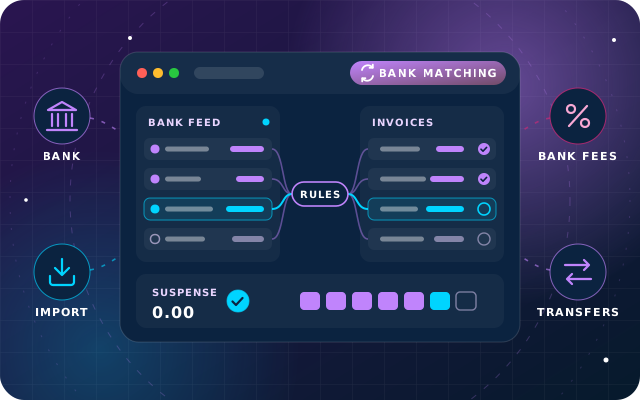
Every bank line sits in a suspense account until it is matched, so a zero suspense balance is the simplest proof the bank is reconciled.
Bank feeds need an Enterprise subscription and a supported bank; CAMT.053, CSV, XLSX, OFX and QIF statement imports cover the rest.
Reconciliation models turn repeat decisions, such as bank fees, internal transfers and partner mapping, into buttons or automatic rules.
A short daily review of unmatched lines keeps month end a check rather than a hunt, and keeps cash figures trustworthy.
The bank balance is the one number in your books that an outside party confirms every day. When Odoo and the bank disagree, every other figure becomes suspect: receivables look higher than they are, supplier payments seem to vanish, and cash forecasts start from the wrong place.
Odoo bank reconciliation is built to keep that gap small. Transactions arrive from a bank feed or a statement file, built-in rules match what they can, and reconciliation models handle the cases that repeat. This guide covers how it works in Odoo 19 Enterprise, the rules worth setting up first, and a daily routine that turns the month-end close into a check rather than a hunt.
How Odoo Bank Reconciliation Works in Odoo 19
Each bank account in Odoo has its own bank journal and ledger account. Every transaction that arrives creates a journal entry between the bank account and a suspense account. Reconciling the transaction replaces the suspense line with the real counterpart: a customer invoice, a vendor bill, a payment, or an account such as bank charges.
That design gives you a simple test. If the suspense account is zero, every bank line has been explained.
The work happens in the Bank Matching view. Open it from the Accounting dashboard by clicking the journal name to see every transaction, or the button that counts the lines left to reconcile to see only the open ones. Each line shows the date, label, partner, amount and up to two suggested actions, with the rest under the ellipsis menu:
Reconcile against open invoices, bills and payments, filtered to the partner when one is set.
Batches to match one deposit or withdrawal to a batch payment.
Set Account, Receivable or Payable to write the line off to an account or to the partner.
Upload bills to digitize a missing bill, then match it.
Buttons for any manual reconciliation models that fit the line.
Odoo 19 simplified this view, added keyboard shortcuts and lets you match draft entries: any automatic entries, such as exchange differences, are created in draft and confirmed when the original entry is posted. The Bank Matching view comes with the Accounting app in Odoo Enterprise. On Odoo 19 Community, our guide to the accounting reports Community leaves out covers the free route for reporting.
Payments Registered before the Bank Line Arrives
When someone clicks Pay on an invoice, what happens next depends on your outstanding accounts. Without them, Odoo creates no journal entry yet, and the invoice shows as paid once the bank transaction is reconciled. With outstanding receipts and payments accounts configured, the payment posts to that account straight away and reduces the amount due, then moves to the bank account when it is matched. Either way, the bank line has the final word.
Getting Transactions in: Bank Feeds or Statement Imports
Bank Synchronization
Odoo's bank synchronization imports transactions automatically through third-party providers such as Salt Edge, Plaid, Yodlee and Ponto, depending on your country and bank. It needs a valid Odoo Enterprise subscription, and coverage varies by institution, so check Odoo's list of supported institutions before you plan around a feed. Odoo's bank synchronization guide covers connection and troubleshooting.
A few behaviors are worth knowing before you connect:
After the first connection, journals synchronize every twelve hours by default, and Fetch Transactions on the journal pulls new lines on demand.
Only posted transactions are imported, never pending ones, and some banks need an extra authentication step before new transactions arrive.
If the journal has no transactions yet, all available history is retrieved. Set a Lock Everything date under Accounting > Accounting > Lock Dates first if you only want recent lines.
Some banks only allow fetching up to three months back, so import older statements from files.
Statement Imports
If your bank is not supported, or you prefer files, Odoo imports CAMT.053 (an ISO 20022 statement format), CSV and XLSX spreadsheets, OFX (Open Financial Exchange) and QIF (Quicken Interchange Format) files, plus CODA for Belgian banks. Drag the file onto the bank journal on the dashboard or onto the Bank Matching view. CSV and XLSX files need their columns mapped to Odoo fields, with a test run before the import.
Whichever route you use, record an opening transaction for the balance on the day you start, so Odoo's statement balances can match the bank's. Group transactions into statements with a starting balance, an ending balance and the bank's PDF attached; Odoo warns you when a statement does not follow on from the previous one or does not add up. After any overlap between a feed and a file, run Find Duplicate Transactions from the Actions menu.
Reconciliation Models: Rules That Match for You
Odoo has fixed matching rules of its own. If a transaction has no partner, its label is compared with the numbers and references of open invoices, bills and payments. If a partner is set, Odoo looks for an exact amount first, then a discounted amount for early-payment terms, then an invoice amount quoted in the label.
Reconciliation models add your own rules on top. You find them in the bank journal's menu under the Reconciliation section. Each model is either manual, appearing as a button on transactions it fits, or automated, applying by itself. When several automated models fit one transaction, the first in the sequence wins, so order them deliberately.
Matching Conditions and Counterpart Items
Conditions narrow where a model applies: journals, partners, an amount range, and the label, which can contain or not contain a text, or match a regular expression (regex), a pattern language for text. Counterpart items then say what to create: a partner, an account, an amount type (a fixed amount, a percentage of the remaining balance, a percentage of the transaction, or an amount read from the label), taxes, an analytic distribution and a label. A model can also schedule a Next Activity on the transaction.
Start with the models Odoo provides in most localizations, then add your own:
Bank Fees, which moves the remaining balance to a bank fees account for lines labeled as bank fees. Copy it for the wording your own bank uses, and add the tax your bank charges on fees, if any.
Internal Transfers, used on both sides of a transfer between your own accounts.
Cash Discount, for early-payment discounts.
Partner mapping, a model with a partner and no account, which assigns the right customer whenever a label contains their reference, so the built-in matching can do the rest.
Have a question about this guide? Ask the engineers who wrote it.
Customers do not always pay the exact amount. Odoo 19 handles the common cases cleanly:
Situation
What Odoo does
What to do
Payment lower than the invoice
The transaction is fully reconciled and the difference stays open on the invoice
Leave it open for the next payment, or mark the invoice as fully paid and book the difference
Payment higher than the invoice
The transaction is only partly reconciled
Match the rest to another invoice, or use Receivable to keep it as customer credit
Bank fee added to a supplier payment
A small remainder is left on the transaction
Use your bank charges model button, or Set Account on the remainder
One deposit for many payments
No single invoice matches
Use Batches to match the batch payment
Customer who is also a supplier
Debts on both sides stay open
Net the receivable and payable items, with or without a bank line
To mark an invoice as fully paid, edit the matched line and choose fully paid; to undo it, choose partial payment. Odoo 19 also lets you fully reconcile or write off items that were partly reconciled earlier, so old small balances stop lingering on the aged receivable report.
A Worked Example: A Short Payment from Abroad
An invoice for 10,000 is paid by a customer abroad, and the bank line shows 9,950 because an intermediary bank deducted 50 in charges. The label quotes the invoice number.
Match. With no partner set on the line, Odoo compares the label with open invoice numbers and finds the invoice. If a partner is set, the amounts differ, so click Reconcile and select the invoice.
Check the difference. The transaction is fully reconciled, and 50 remains open on the invoice.
Decide. Your policy is to absorb foreign bank charges, so edit the matched line and mark the invoice as fully paid.
Book the 50. Check which account the 50 difference posts to, and set it to your bank charges account if it is not already. If this happens every week, a manual reconciliation model that books the remaining balance to bank charges saves choosing the account each time.
Confirm. The invoice shows as paid, the bank line is reconciled, and nothing is left in suspense.
A Daily Routine and the Month-End View
Reconciliation is quickest when it is small. A routine of a few minutes each morning keeps it that way:
Fetch transactions, or import yesterday's statement file.
Let automatic matching and automated models run, then open the lines still to reconcile.
Work the exceptions: set partners, match invoices, bills and batches, and use model buttons for fees and transfers.
Upload missing bills straight from the Bank Matching view, and schedule an activity for anything that needs an answer from a colleague.
Note patterns that repeat, and turn them into reconciliation models at the end of the week.
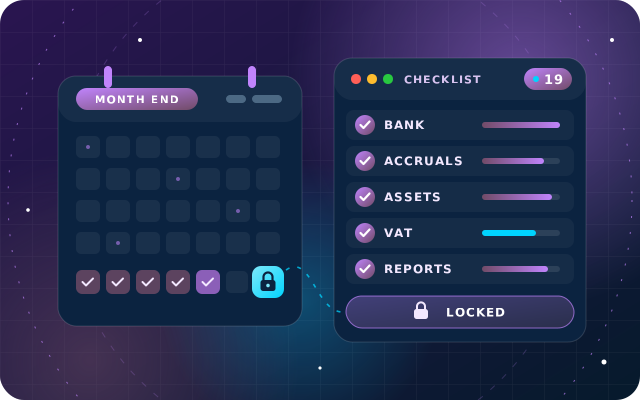
At month end, the bank review becomes a short checklist that feeds straight into your close:
Nothing left to reconcile on any bank journal, or only items you can explain.
The bank suspense account is zero.
Each statement in Odoo ends on the balance shown in the bank's own statement, with no warnings.
Outstanding receipts and payments accounts, if you use them, hold only genuine items in transit, such as checks not yet cleared.
Foreign currency balances are revalued with the unrealized currencies report under Accounting > Review.
A lock date is set once the month is closed, so nobody posts into it by accident.
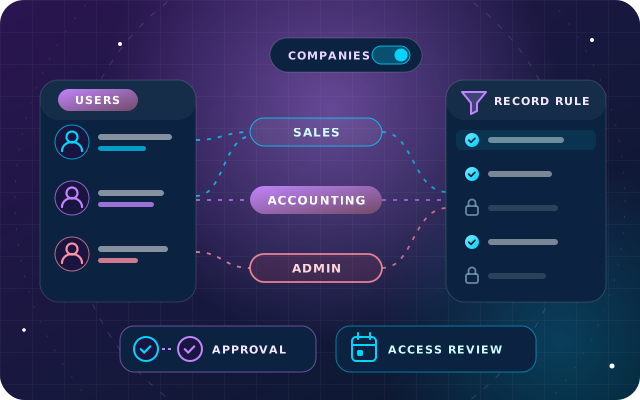
Tip: Where you can, keep the people who register payments separate from the people who reconcile the bank. Reconciliation is a control, and it works best when the reviewer did not create the entries being reviewed. Our guide to access rights in Odoo shows how to set that up.
How Star Bit Solutions Can Help
Through OdooStar, our Odoo practice in Ajman, we implement Odoo Enterprise Accounting for UAE businesses: bank journals, feeds or statement imports, outstanding accounts, reconciliation models tuned to your banks' wording, and a routine your team can keep. When a bank cannot be connected, we set up file imports with the column mapping worked out for your bank's files.
Star Bit Solutions is a software company in Ajman, UAE, founded in 2014. We implement and customize Odoo Enterprise and Odoo Community, and build StarBiz (AI-driven ERP), StarHub (life super app), StarBot (conversational AI), StarLearn (adaptive learning) and StarSense (AI and IoT platform). About us
Does Odoo bank synchronization work with banks in the UAE?
Odoo connects to banks through third-party providers, and availability depends on the individual bank and account type, so check Odoo's list of supported institutions for yours before relying on a feed. Bank synchronization needs a valid Odoo Enterprise subscription. If your bank is not supported, import statements in CAMT.053, CSV, XLSX, OFX or QIF format instead; reconciliation then works the same way.
How often does Odoo fetch bank transactions?
After the first synchronization, bank journals are synchronized every twelve hours by default, and you can click Fetch Transactions on the journal at any time. Some providers limit refreshes to once a day, some banks need an extra authentication step before new transactions arrive, and only posted transactions are imported, never pending ones.
What is a reconciliation model in Odoo?
A reconciliation model is a rule that adds to Odoo's built-in matching. It has matching conditions, such as journal, partner, amount range or label text, and counterpart items that say which account, partner, tax and analytic distribution to use. Manual models appear as buttons on matching transactions, while automated models apply by themselves to transactions that meet their conditions.
Can I reconcile a bank transaction with a draft invoice in Odoo 19?
Yes. In Odoo 19, draft entries can be matched during bank reconciliation. Any automatic entries, such as currency exchange differences, are created in draft at the same time, and posting the original entry confirms the reconciliation as well. It helps when a payment arrives before the invoice has been reviewed and posted.
What should be zero at month end?
The bank journal should have nothing left to reconcile, or only items you have explained. The bank suspense account should be zero, the statement's ending balance in Odoo should equal the bank's own statement, and any outstanding receipts or payments accounts should hold only genuine items in transit, such as checks that have not cleared yet.
OdooStar by Star Bit Solutions
Reconcile the Bank Daily in Odoo, Not at Month End.
Tell us which banks and payment channels you use. Our engineers will set up feeds or imports, reconciliation models and a routine your finance team can keep.