Month-End Close Checklist for Odoo 19: Steps, Owners and Timing
Star Bit Solutions10 min read
Closing the month in Odoo 19 should be a routine, not a rescue. This month-end close checklist sets out each step, who owns it and when it happens, from bank matching to lock dates, on Odoo Enterprise or Community.
Close in a fixed order: cut-off and bank first, then accruals, depreciation and stock, then VAT, reports and lock dates.
Odoo 19 Enterprise adds accrual lists for orders not yet billed or delivered, an inventory valuation review and automatic tax return checks.
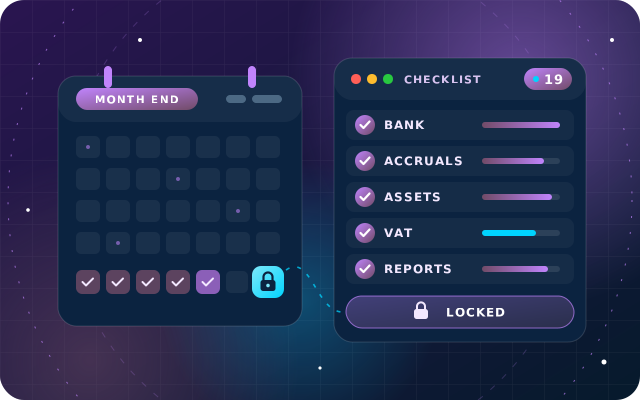
Lock sales and purchases once the sub-ledgers agree, let the tax return move the tax lock date, then lock everything after sign-off.
On Odoo 19 Community, the free SBS Account Community module adds the ledgers, aged balances, asset boards and lock dates a close needs.
Most month-end problems are not accounting problems. They are sequencing problems: depreciation posted before the asset bill arrived, a VAT figure prepared while bank lines were still unmatched, or a period locked before the accruals went in. A good month-end close checklist fixes the order of work, names an owner for every step and gives each step a deadline.
This guide walks through a close in Odoo 19 Enterprise Accounting, released in September 2025: who does what, on which working day, and which Odoo screen does the heavy lifting. If you run Odoo 19 Community, the later sections show how to run the same close with SBS Account Community, our free accounting module.
A Five-Day Month-End Close Calendar for Odoo 19
Smaller teams may close faster and groups more slowly, but the order rarely changes: adjust the days, not the sequence.
Working day
Step
Owner
Where in Odoo 19
Day 1
Cut-off: post invoices, bills and expenses, clear drafts
Receivable and payable clerks
Customers and Vendors menus, dashboard draft links
Day 1 to 2
Reconcile bank, cash and card accounts
Accountant
Bank Matching view and reconciliation models
Day 2
Accruals and deferrals
Accountant
Review menu lists, deferred revenue and expense reports
Day 3
Depreciation and stock valuation
Accountant with the inventory controller
Assets, Inventory Valuation review
Day 3
Receivables, payables and follow-ups
Credit controller
Aged receivable and payable, follow-up report
Day 4
VAT checks, and the return at quarter end
Tax accountant
Tax Returns
Day 4 to 5
Reports and management review
Finance manager
Trial balance, balance sheet, profit and loss
Day 5
Lock the period
Finance manager or controller
Lock Dates
Step 1: Cut off Sales, Purchases and Draft Entries
The close starts with completeness. Every customer invoice, vendor bill and expense dated in the month should be posted, and every draft should be posted, re-dated or canceled. A draft left in the period is a number that may or may not be in your report.
Odoo 19 helps here. Miscellaneous journals on the Accounting dashboard link straight to draft entries waiting for validation, including entries imported through an email alias. Duplicate detection flags likely duplicate bills in red and possible ones in yellow, and flagged bills are excluded from automatic posting.
If clerks post invoices with Invoicing-only access rights, Odoo 19 marks those entries To review for users with Bookkeeper or Administrator rights. Clearing that queue is a natural day-one task for the accountant.
Step 2: Reconcile Every Bank and Cash Account
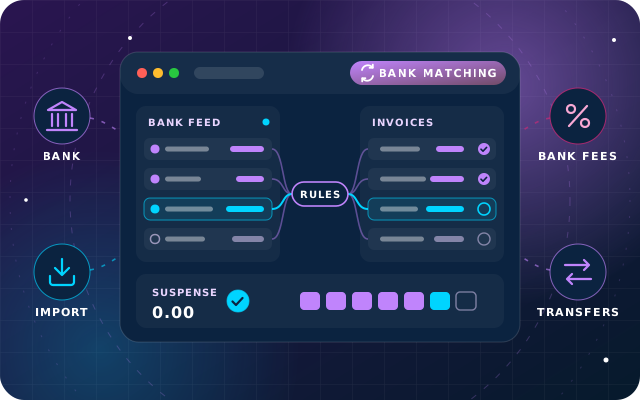
Bank reconciliation proves that the cash in your books is the cash in the bank. In Odoo 19 Enterprise, open each bank journal from the Accounting dashboard and work through the Bank Matching view, where Odoo proposes matches against invoices, bills and payments using its default matching rules and your reconciliation models.
Odoo 19 simplified the reconciliation screen, added keyboard shortcuts, allowed draft entries to be reconciled and made partially reconciled items easy to fully reconcile or write off. Reconciliation models are where the real time savings sit: a model for bank charges or card fees turns a recurring manual write-off into one click, or no click at all when the model is automated.
The step is finished when three things are true: every transaction up to month end is matched, the journal's suspense account carries no balance, and the ending balance in Odoo agrees with the bank statement.
Have a question about this guide? Ask the engineers who wrote it.
Accruals bring in income and costs that belong to the month but have not been invoiced yet. Deferrals do the opposite, moving invoiced amounts out of the month until they are earned or used. Missing either one distorts the monthly profit.
In Odoo 19 the Review menu of the Accounting app lists the orders that need attention: Bill To Receive, Invoices To Be Issued, Billed Not Received and Invoiced Not Delivered. Select the lines and click Create Accrual Entries. For one-off cases, purchase and sales orders also offer Accrued Expense Entry and Accrued Revenue Entry actions, which by default date the entry on the last day of the previous month and reverse it the next day.
Deferrals start on the document itself. Put a start date and an end date on each invoice or bill line that covers several months, and Odoo spreads the amount according to your settings: deferral entries are generated when the document is validated, or manually and grouped at month end from the Deferred Revenue and Deferred Expense reports. Odoo 19 also adds start and end dates to miscellaneous entries, so accruals for bills to receive and invoices to issue can be spread the same way.
Step 4: Run Depreciation and Check Stock Valuation
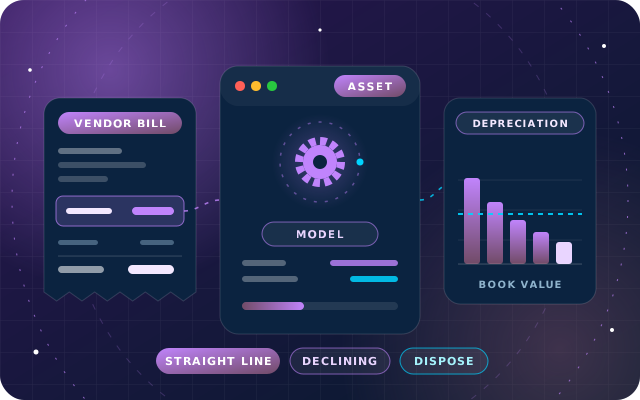
Each fixed asset in Odoo Enterprise carries its own depreciation board. Depreciation entries are created in draft, and Odoo posts each one when its date arrives, checking once a day. At month end, make sure assets bought this month have been created from their bills and confirmed, and that no depreciation due is still sitting in draft.
Stock needs its own check. From Odoo 19, perpetual valuation updates the stock valuation account at invoice level instead of posting an entry for every stock move, and a closing entry handles the gaps between inventory and accounting values. Go to Accounting > Review > Inventory Valuation to see the difference between the two, then click Generate Entry to create the closing entry for review.
Before posting it, check the value in Inventory > Reporting > Stock at month end, because that is the balance the stock account should show afterwards. A large or unexpected adjustment usually points to receipts without bills, bills without receipts, or stock adjustments booked in the wrong period.
Step 5: Review Receivables, Payables and Follow-Ups
Run the aged receivable and aged payable reports at month end and check that each total agrees with the balance of its control account. If they differ, look for entries posted to receivable or payable accounts without a partner.
Then work the follow-ups. Odoo 19 adds a follow-up report that separates overdue invoices from those not yet due, lets you exclude specific entries from follow-up, and can send WhatsApp messages on follow-up levels. Review long-overdue balances with the finance manager and decide whether a provision for doubtful debts is needed.
Step 6: Check VAT and Prepare the Tax Return
The standard UAE VAT tax period is three calendar months, although the Federal Tax Authority (FTA) can assign a different one. The return and any payment must reach the FTA by the 28th day after the period ends, so check VAT every month and file it every quarter. The FTA's VAT pages set out the rules, and our quarter-end VAT return workflow covers the review in depth.
Odoo 19 introduces a Tax Returns view, opened from the Tax Returns journal on the Accounting dashboard. Once the periodicity and deadline are set in the settings, each pending return appears with its period, deadline and three steps: review, submit and pay. The review runs automatic checks, such as draft entries left in the period, bills without attached documents, missing company data and taxes that do not match the customer's country.
Validating the review posts the tax closing entry in the Tax Returns journal and moves the tax return lock date forward, so later changes cannot alter a filed period; corrections belong in the following period. For UAE companies, Odoo 19 also rebuilt the VAT201 report on its new reporting engine. Odoo's tax return documentation covers each step.
Step 7: Run the Reports and the Management Review
With the sub-ledgers closed, reporting becomes a review. Start with the trial balance, then read the balance sheet and profit and loss against last month and budget, clicking through any surprising balance to its journal items.
Odoo 19 makes that review easier to evidence. Annotations made on reports now appear in the report's chatter, and a light audit trail is available by default. At year end, the new Annual Statements composite report prints the balance sheet, profit and loss and trial balance together.
Step 8: Lock the Period
Locking is the last step, not an afterthought. Under Accounting > Accounting > Lock Dates, Odoo 19 lets you set separate lock dates for sales, purchases and tax returns, a global date the window calls Lock Everything, and a hard lock date. A sensible order is to lock sales and purchases once the sub-ledgers are reconciled, let the tax return review move the tax lock date, and lock everything when the reports are signed off.
Locked periods behave predictably. Posted entries dated on or before a lock date cannot be changed, and a new entry dated in a locked period is moved to the day after the lock date. If a correction is unavoidable, a user with Administrator rights can grant an exception for themselves or for everyone, for a chosen duration and with a reason, and Odoo logs it in the company's chatter.
Tip: The hard lock date cannot be changed or overridden, whatever the user's access rights. Keep it for periods your auditors have signed off or where local rules require proven inalterability, and use the Lock Everything date for the monthly close.
Running the Same Close on Odoo 19 Community
Odoo 19 Community records journals, invoices, bills and payments, but stops short of the reports and controls a close relies on. SBS Account Community, one of our free modules, adds them inside the standard Accounting menus: general ledger, trial balance, partner ledger, aged receivable and payable, day, cash and bank books, a journals audit, a tax report, and a balance sheet and profit and loss printed to PDF.
It also brings asset categories with linear or degressive depreciation boards, budgets compared with actual postings, a follow-up ladder and fiscal years with tax, sales, purchase, general and hard lock dates. The eight steps stay the same: print the Bank Book and Cash Book to agree balances with statements, generate depreciation from each asset's board, and set the fiscal year's lock dates last.
Two limits matter. The module is built for Odoo 19, tested on Odoo 19 Community and not compatible with Odoo Enterprise accounting, and it is listed for Odoo.sh and on-premise installations, not Odoo Online. For a gap-by-gap comparison, read the accounting reports Odoo Community leaves out.
Your Printable Month-End Close Checklist
Post all customer invoices, vendor bills and expenses dated in the month.
Post, re-date or cancel every draft entry, and clear the To review queue.
Reconcile every bank, cash and card journal to the statement ending balance.
Confirm that suspense and clearing accounts are at zero.
Create accruals for bills to receive and invoices to be issued.
Check start and end dates on deferred lines, and generate grouped deferral entries if you use them.
Create and confirm assets from the month's bills, and check that no due depreciation is still in draft.
Review the inventory valuation difference and post the closing entry.
Agree aged receivables and payables to their control accounts, and work the follow-ups.
Run the VAT checks and, at quarter end, review, submit and pay the tax return.
Review the trial balance, balance sheet and profit and loss, and annotate the variances.
Lock sales and purchases, then lock everything once the reports are approved.
How Star Bit Solutions Can Help
Through OdooStar, our Odoo practice in Ajman, we implement and customize Odoo Enterprise, and Odoo Community where it fits, for businesses in the UAE and the GCC. For finance teams on Odoo 19 that usually means reconciliation models, deferral and accrual settings, the tax return periodicity, access rights and a lock date policy, followed by the first closes run alongside your team.
On Community, we install and configure SBS Account Community, and plan a later move to Enterprise if it becomes the better fit. Tell us how your close runs today through the contact page, or on WhatsApp at +971 55 973 4524, and we will show you where Odoo can shorten it.
Written by the Star Bit Solutions team
Star Bit Solutions is a software company in Ajman, UAE, founded in 2014. We implement and customize Odoo Enterprise and Odoo Community, and build StarBiz (AI-driven ERP), StarHub (life super app), StarBot (conversational AI), StarLearn (adaptive learning) and StarSense (AI and IoT platform). About us
It is the ordered list of tasks a finance team completes to finish a month: cutting off transactions, reconciling bank accounts, booking accruals, deferrals and depreciation, checking stock and VAT, reviewing the reports and locking the period. Giving every task an owner and a deadline turns the close into a routine instead of a scramble.
How long should a month-end close take in Odoo?
It depends on transaction volume, the number of companies and how much is automated, so there is no single answer. The five-day calendar in this guide is a practical starting point for one company. Reconciliation models, scheduled depreciation and deferrals, and the automatic tax return checks in Odoo 19 all shorten the slowest steps.
How do I lock a period in Odoo 19?
Go to Accounting, then Accounting, then Lock Dates, and set the dates you need: sales, purchases, tax return, the global Lock Everything date and, rarely, the hard lock date. Entries on or before a lock date cannot be posted or changed, and an Administrator can grant a logged exception for a chosen duration. The hard lock date cannot be undone or overridden.
Can I run a proper month-end close on Odoo Community?
Yes, with the right add-on. Odoo 19 Community records journals, invoices and payments, but it lacks the ledgers, aged balances and asset boards a close needs and has no screen for lock dates. The free SBS Account Community module adds them for Odoo 19 Community on Odoo.sh or on-premise. It is not compatible with Odoo Enterprise accounting, which already includes these tools.
Do UAE businesses file VAT every month?
Not usually. The standard UAE VAT tax period is three calendar months, although the Federal Tax Authority can assign a different period, so check yours in EmaraTax. The return and any payment must reach the FTA by the 28th day after the period ends. Checking VAT at every month end makes the quarterly return a confirmation, not an investigation.
OdooStar by Star Bit Solutions
Turn Month-End into a Routine in Odoo 19.
We configure reconciliation models, accruals, deferrals, tax returns and lock dates in Odoo 19 Enterprise, or SBS Account Community on Odoo 19 Community, and run the first closes with your team.