Free Odoo 19 Community Modules: What We Publish and How to Install Them
Star Bit Solutions10 min read
Odoo 19 Community covers a great deal, but finance, HR and operations teams keep reaching the same gaps. Here is what our free Odoo 19 Community modules add, area by area, and how to install them safely on Odoo.sh or your own server.
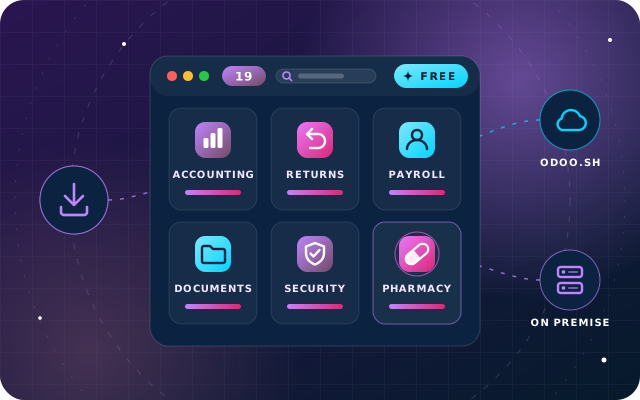
Our free Odoo 19 Community modules close common gaps in accounting, sales and returns, HR, purchasing, documents, security and pharmacy.
They install on Odoo.sh or your own server; Odoo Online does not accept third-party Python modules.
SBS Account Community and SBS HR Payroll replace Enterprise apps, so they cannot be installed beside Enterprise Accounting or Payroll.
Install one module at a time on a staging copy, read its test notes and assign its access groups before going live.
Odoo 19 Community runs sales, purchasing, inventory and invoicing well, but finance, HR and operations teams soon reach its edges. There is no trial balance, no payroll, nothing to stop one person processing a refund unsupervised and no register that warns you before a trade license expires. Our free Odoo 19 Community modules were written to close gaps like these, one module for each problem.
Odoo Enterprise covers several of the same areas with its own apps, including Accounting, Payroll, Documents and Approvals, and when you need most of them it is usually the shorter road. This guide is for teams that run Community or are weighing it up. It explains why we publish the modules, tours them by business area, flags the ones that cannot sit beside Enterprise apps and walks through installation on Odoo.sh and on your own server.
Why We Publish Free Odoo Modules
Community implementations tend to run into the same handful of gaps. Rebuilding the same fix for each client would be slow and hard to maintain, so we write it once as a proper module, test it on Odoo 19 Community and publish it on the official Odoo App Store, where anyone can download it.
Three principles run through all of them. Each module starts from a clearly described problem. Each keeps the Odoo core standard and adds its capability as an ordinary add-on, with its own access groups where it needs them, which keeps future upgrades possible. And each module page says what we tested on Odoo 19 Community and, where it applies, what we have not tested yet.
Publishing in the open also lets you judge our engineering before you hire us. If a module solves your problem on its own, install it and carry on. If you want help, the engineers who wrote it can configure it for you.
A Tour of Our Free Odoo 19 Community Modules by Area
The catalog on our OdooStar modules page is grouped the same way as this tour. Each module name below links to its own page, with features, dependencies, workflow and screenshots.
Accounting
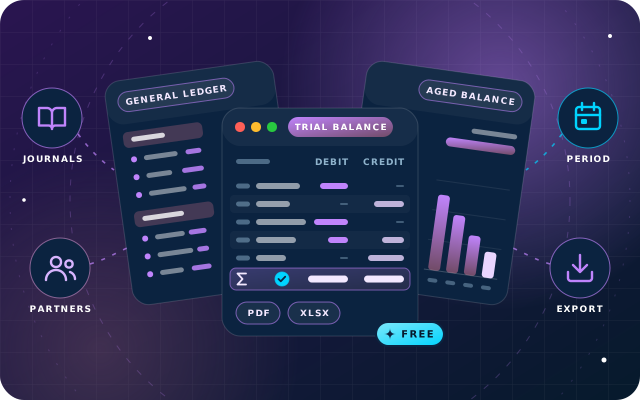
SBS Account Community adds the reports and controls an accountant expects: general ledger, trial balance, partner ledger, aged balances, day, cash and bank books, a journals audit and a tax report. It also brings fixed-asset depreciation, budgets, customer follow-ups, fiscal-year lock dates, recurring payments and per-user journal restrictions. Our guide to the accounting reports Odoo Community leaves out covers each one.
SBS View Products in Journal Entries adds an optional Product/Service column to the Journal Items tab, so an accountant can see which product a line came from without opening the source invoice or bill.
Sales and Returns
SBS Auto Return puts identified returns, unidentified returns and exchanges on one record, and posts nothing to stock or the ledger until a manager finalizes it. SBS Auto Delivery/Invoice turns a counter sale into one confirmation: delivery validated, invoice posted and payment registered, as a single amount, a credit sale or a split across journals.
SBS Sales Discount Amount lets salespeople type a discount in money, with the percentage kept in step. SBS Multi UoM, named for multiple units of measure, sells one product by the unit, box or pallet, with a price for each packaging unit and stock kept in base units. Small bridge modules connect SBS Auto Return to these, so discounts and packing units carry through to the credit note, and to SBS Auto Delivery/Invoice, so an exchange's replacement order is not invoiced twice.
HR and Payroll
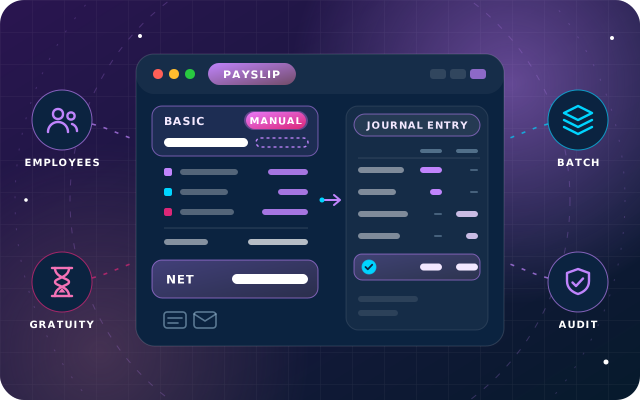
SBS HR Payroll gives Community a payroll app: salary rules, structures, payslips and batches, with the journal entry posted when a payslip is confirmed. A manual correction keeps the rule's own figure beside it, and a confirmed payslip is reversed rather than deleted.
SBS Employee Master Extension adds the details many HR teams keep in a spreadsheet, such as family details, passport and other identity numbers, nominees, bank details, qualifications and employment history. They sit behind three access tiers, with a read-only My Profile view for staff.
Inventory and Purchasing
SBS Employee Purchase Requisition lets staff request goods, requires two different approvers, then has Odoo create one purchase order per vendor and an internal transfer for stockroom items. SBS PO Bill Button restores the one-click Create Bill button that Odoo 19 removed from the purchase order form, using Odoo's own billing logic.
Documents and Projects
SBS Document Management provides workspaces with access levels, business documents that work out their own reminder dates before they expire, document requests, letter templates with approval and expiring share links. SBS Project Extension keeps delivery facts on the project record: team, client contact, technical details, maintenance periods, financials, review sessions and task timers.
Security and Administration
SBS Menu Manager hides menus per user and locks create, update, delete, archive and export per model, enforced on the server rather than only on screen, and adds a read-only role for accounts that should look but never touch, such as an auditor. SBS Password Manager stores business credentials encrypted, with the key held outside the database, an identity check before every reveal and an audit log nobody can edit.
SBS Automatic Database Backup schedules backups to local or remote storage without ever storing the master password, and records a SHA-256 checksum, a digital fingerprint of the file, for every run. SBS Data Remove lets an administrator permanently clear test transactions for the active company in one all-or-nothing run, keeping master data intact, so take a verified backup before every run.
Healthcare
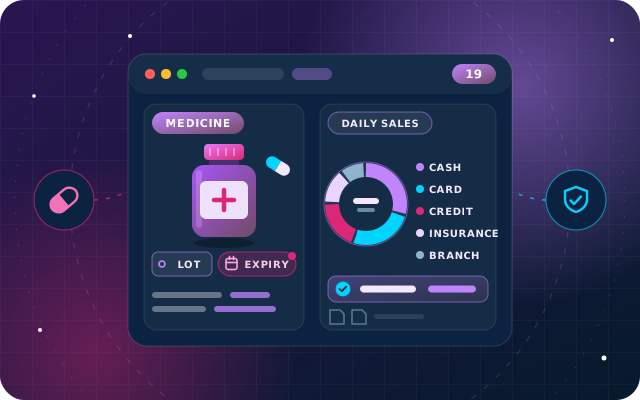
SBS Pharmacy Management adds medicine details to the ordinary product form, such as active ingredient, strength, manufacturer and dispensing mode, plus a daily sales report that splits takings into cash, card, credit, insurance and branch.
Read the test notes first. Our module pages say what we tested on Odoo 19 Community and, where it applies, what we have not tested yet, such as multi-company use. If your setup depends on an untested case, try it on a copy of your database before go-live.
Community plus Modules, or Odoo Enterprise?
Before installing anything, settle the edition. Odoo Enterprise is a paid, per-user subscription that adds apps Community does not include, along with Odoo's own support and upgrade service. Where the gap you face is covered by an Enterprise app, compare the two routes honestly.
Gap in Odoo 19 Community
Free SBS module
Odoo Enterprise app for the area
Financial reports, assets, budgets and follow-ups
SBS Account Community
Accounting
Payroll
SBS HR Payroll
Payroll
Document workspaces and sharing
SBS Document Management
Documents
Approval of staff purchase requests
SBS Employee Purchase Requisition
Approvals
No-code changes to forms and reports
Not covered: changes are made in code
Studio
As a rule of thumb, when you need several of these Enterprise apps at once, or Odoo's upgrade service matters to you, Enterprise is usually the better investment. When one or two specific gaps stand between you and a working system, Community plus the relevant free modules is often enough. Our guide to choosing between Odoo Enterprise and Community goes deeper.
Modules That Cannot Sit beside Enterprise Apps
SBS Account Community and SBS HR Payroll are deliberately Community-only, because they replace Enterprise apps rather than extend them:
SBS Account Community excludes the Enterprise accounting modules account_accountant, account_asset, account_budget, account_followup and account_reports, so it cannot be installed alongside Enterprise Accounting.
SBS HR Payroll excludes hr_payroll, so it cannot be installed alongside Enterprise Payroll, and Enterprise Payroll cannot be installed alongside it.
The other modules declare no conflicts with Enterprise apps. They are built and tested on Odoo 19 Community, though, so if you run Enterprise, try any of them on a staging copy before production. SBS Project Extension, for example, notes that Enterprise ships its own task timer, so expect two timers on Enterprise.
Have a question about this guide? Ask the engineers who wrote it.
Every module is a free download for Odoo 19.0 from its page on the Odoo App Store, and the page also offers a Deploy on Odoo.sh option. Where your database runs decides the remaining steps.
Check Your Hosting First
Our modules are listed for Odoo.sh and on-premise installations, not Odoo Online. Odoo.sh is Odoo's cloud platform for Enterprise databases, so a Community database runs on your own server or a private cloud. Odoo's own App Store FAQ explains that third-party apps cannot be used on Odoo Online unless they are data-only modules with no Python code. If your database is on Odoo Online, the hosting has to change before any of these modules can be installed, and our guide to choosing where Odoo runs compares the options.
On Your Own Server
Back up the database and its filestore before changing anything.
Download the module for version 19.0 from its App Store page and unzip it.
Copy the module folder into a directory listed in your server's addons path.
Install any Python packages the module lists into the environment Odoo runs in. For example, the Excel exports in SBS Account Community and SBS Pharmacy Management use xlsxwriter, and SBS Automatic Database Backup lists the libraries for each storage destination. PDF reports also need a working wkhtmltopdf, as Odoo requires for any PDF report.
Restart the Odoo service so it reads the new code.
Activate developer mode, open Apps and click Update Apps List.
Search for the module, clearing the default Apps filter if it is not listed, and install it. Odoo installs the standard apps it depends on at the same time.
Assign the module's access groups to the right users.
On Odoo.sh
Add the module folder to your project's Git repository, directly or as a Git submodule, or start from the Deploy on Odoo.sh option on the App Store page.
List any extra Python packages in a requirements.txt file at the root of the repository, and Odoo.sh installs them in each build.
Push to a development branch and try the module on the demo database Odoo.sh builds for it.
Move the branch to staging, which runs on a copy of your production data. Update the apps list in developer mode and install the module from Apps, because staging builds do not install new modules automatically.
Merge into production and install the module there in the same way.
Bridge Modules Install Themselves
Bridges such as SBS Auto Return - Sales Discount Integration have no menus or settings. With their code in your addons path or Odoo.sh repository, Odoo installs a bridge automatically when the second of its two parent modules is installed, and removes it if either parent is uninstalled. If both parents were already installed, install the bridge once from Apps.
A Safe Rollout Checklist
Confirm the database runs Odoo 19 and is hosted on Odoo.sh or your own server.
Read each module page: dependencies, required settings, access groups and test notes.
Check for Enterprise conflicts if you run Enterprise or plan to move to it.
Install on a staging copy with real data, one module at a time.
Assign access groups deliberately, for example the manager role that finalizes returns.
Run your own scenarios end to end and compare the documents produced with what you expected.
Back up production, install, and brief the users who will see new menus or buttons.
Review the setup a few weeks after go-live and adjust any settings that need it.
How Star Bit Solutions Can Help
We write and maintain 50+ free modules on the Odoo App Store, and we implement both editions through OdooStar, our Odoo practice in Ajman. If Enterprise fits better, we deliver an Odoo Enterprise implementation around your processes. If Community fits, we install and configure the modules you need, write custom modules for any remaining gaps and support the database after go-live.
Star Bit Solutions is a software company in Ajman, UAE, founded in 2014. We implement and customize Odoo Enterprise and Odoo Community, and build StarBiz (AI-driven ERP), StarHub (life super app), StarBot (conversational AI), StarLearn (adaptive learning) and StarSense (AI and IoT platform). About us
General ledger, trial balance, partner ledger, aged balances, cash and bank books, fixed assets, budgets and fiscal-year locks for Odoo 19 Community, from a free module.
Are the SBS Odoo 19 Community modules really free?
Yes. Each module is a free download for Odoo 19.0 from its page on the official Odoo App Store, and the page also offers a Deploy on Odoo.sh option. You can install and use them without paying us anything. If you want help choosing, configuring or supporting them, our engineers offer that as a separate service.
Can I install these modules on Odoo Online?
No. Our modules are listed for Odoo.sh and on-premise installations only. Odoo's App Store FAQ explains that third-party apps cannot be used on Odoo Online unless they are data-only modules without Python code. If your database is on Odoo Online, it has to move to Odoo.sh or your own server before you can install them.
Do the free modules work with Odoo Enterprise?
SBS Account Community and SBS HR Payroll do not, because they exclude the Enterprise accounting and payroll modules they replace. The other modules declare no conflicts with Enterprise apps, but they are built and tested on Odoo 19 Community, so try any of them on a staging copy of an Enterprise database before using them in production.
How do I install a module downloaded from the Odoo App Store?
Unzip the download, copy the module folder into a directory in your addons path and install any Python packages it lists. Restart the Odoo service, activate developer mode, open Apps and click Update Apps List. Then search for the module, clearing the default Apps filter if it is not listed, and install it. Odoo installs the standard apps it depends on at the same time.
Which Odoo version do the modules support?
They are built for Odoo 19.0 and tested on Odoo 19 Community Edition, and their App Store pages offer them for version 19.0. Each module page lists its dependencies, the settings it needs and any Python packages, along with what we tested and, where it applies, what we have not tested yet.
OdooStar by Star Bit Solutions
Fill the Gaps in Odoo Community, One Module at a Time.
Tell us where Odoo 19 Community falls short for you. We will recommend Enterprise apps or free modules, install them on a staging copy and train your team.