Odoo Community
Odoo Community Payroll: What You Can Run on Odoo 19 without Enterprise
What SBS HR Payroll runs on Odoo 19 Community, how to set up a UAE gratuity provision, and when Enterprise Payroll is the better choice.
· 9 min read
A pharmacy needs to know what every product contains, which batch expires next and how the day's takings split by payment type. Here is how to set that up in Odoo 19, with Inventory and the free SBS Pharmacy Management module.
Key takeaways
Pharmacy management in Odoo comes down to three questions a pharmacy owner asks every day. What exactly is this product? Which batch expires next? And how did today's takings split between cash, card, credit and insurance? Standard Odoo 19 answers the second question well. The first and third need more than an ordinary product form and a sales report.
This guide sets out what a pharmacy needs from its system, how Odoo 19 Inventory handles batches and expiry dates, and how our free SBS Pharmacy Management module adds medicine master data and a daily closing report. It ends with the rollout steps our team follows when it sets up a pharmacy.
Running Odoo Enterprise, or planning to? Enterprise adds apps such as Barcode for scanning at receipt and Documents for licenses and supplier certificates, around the same Inventory setup, and our guide to Odoo Documents and approvals shows how the Documents side works. The pharmacy module is built and tested on Odoo 19 Community, so on Enterprise we try it on a staging copy first.
A pharmacy is a retailer with stricter master data. Before choosing modules, list what the system must do. A typical list looks like this:
A standard Odoo product form has no place for an active ingredient or a dispensing mode. SBS Pharmacy Management adds an Is Medicine checkbox to the ordinary product. Tick it and a Medicine Details tab appears with the active ingredient, strength, pack size, manufacturer, import status and prescription requirement.
The values come from four small master lists that you maintain under the Inventory configuration menus:
Each list can be archived rather than deleted, so an entry you stop using is hidden without being lost. Because staff pick values instead of typing them, the same ingredient is spelled the same way every time, which is what makes a search by ingredient reliable. The dispensing mode is recorded on the product, so keep your prescription checks in your dispensing procedure.
Batch and expiry control is standard Odoo 19 Inventory, not part of the pharmacy module. It works on products tracked by lots, and Odoo's expiration dates documentation covers it in detail. The setup takes five steps:
From then on, a receipt cannot be validated until each line has a lot number, and the expiry date fills itself in from the product settings. For example, with an Expiration Date of 730 days and a Removal Date of 60 days, a lot received on 1 June 2026 expires on 31 May 2028 and should leave the shelf by 1 April 2028. When the date printed on the pack differs, overwrite it on the lot at receipt.
To review stock by expiry, open Inventory > Products > Lots/Serial Numbers, group the list by expiration date, and apply the Expiration Alerts filter to see the lots whose alert date has been reached. A weekly look at both is a habit worth building into the dispensary routine.
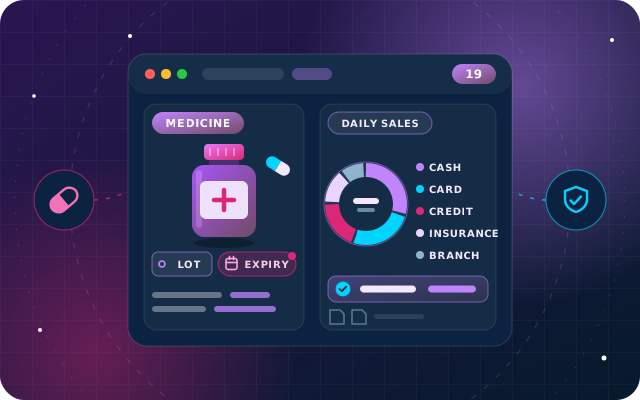
At the end of the day an owner wants one number for cash, one for card, one for what went out on credit and one for insurance. The module's Daily Sales Report gives exactly that, with Cash, Credit Card, Credit, Insurance and Branch buckets and the customer counts behind each, as a one-page PDF on the company letterhead or as an Excel workbook.
It does not guess. Each payment journal carries a Pharmacy Payment Category, and the report reads the journals that actually paid each invoice:
| Situation | How the report treats it |
|---|---|
| Invoice paid through a categorized journal | Counted in that journal's bucket |
| Invoice still outstanding | Reported as credit |
| Part-paid invoice | Shared proportionally across the categories that paid; the rest is credit |
| Payment made after the report's To Date | Stays credit, so re-running an earlier day gives the same answer |
| Credit note | Filtered on its accounting date, with the original invoice's proportions |
| Invoice with no sales order | Left out of the report |
Sales are dated by the sales order's order date, not the invoice date. The part-payment and credit note rules are how the report is designed to work; the rollout tips below list what we have not yet tested with real data. If any payment journal has no category, both the PDF and the Excel export refuse to run and name the journal, for example "Set a Pharmacy Payment Category on these payment journals before generating the report: Bank". The report will not quietly leave money out of a bucket.
In our test on a live Odoo 19 Community database, three sales on one day, one in cash, one by card and one left outstanding, split into 48.00 cash, 85.00 card and 63.00 credit: 196.00 of net sales from three customers, with 29.40 of tax at that database's 15% rate, in both the PDF and the workbook. Because the report reads sales orders and their invoices, run every sale you want in the closing figures through a sales order and an invoice.
Check your valuation first. Cost of Goods Sold, Closing Stock and Gross Profit are read from Odoo's stock valuation, which only produces real numbers when your product categories use Automated (perpetual) valuation, the option Odoo 19 labels Perpetual (at invoicing). On the default periodic valuation, Cost of Goods Sold comes out as zero, Gross Profit Margin reads 100% and Closing Stock can be a large negative number, and the report does not warn you. We have seen these three lines only on a periodic-valuation database so far, so check them on a staging copy after switching. Sales, tax and customer counts come from invoices and are right either way.
SBS Pharmacy Management is built for a pharmacy, and a few of its changes reach beyond pharmacy records. Know them before you install:
The module depends on account, stock, stock_account, product, sale and sale_stock, and the Excel export needs the xlsxwriter Python package. It is listed for Odoo.sh and on-premise installations, not Odoo Online. Our tour of free Odoo 19 Community modules explains how to install it on either.
If you keep medicines that must stay cold, StarSense, our AI and IoT platform, logs the temperature of medicine fridges and cold rooms continuously, with a time-stamped record of every excursion and an audit trail ready for inspections.
We wrote SBS Pharmacy Management, and our OdooStar team sets up pharmacies on both editions. On Odoo Enterprise we add apps such as Barcode and Documents around the same Inventory setup. On Community we install and configure the free module, load your medicines and lots, and test the daily report against your till. Our healthcare industry page shows how this fits with the rest of our work for pharmacies and clinics.
To plan a rollout, contact us, call +971 55 973 4524 or message us on WhatsApp with your number of branches, products and payment types, and an engineer will suggest a setup and an order of work.

Star Bit Solutions is a software company in Ajman, UAE, founded in 2014. We implement and customize Odoo Enterprise and Odoo Community, and build StarBiz (AI-driven ERP), StarHub (life super app), StarBot (conversational AI), StarLearn (adaptive learning) and StarSense (AI and IoT platform). About us
Medicine master data on every product and a fail-closed daily sales report for Odoo 19.
Learn MoreHow we configure Odoo, StarBiz and StarBot for pharmacies, clinics and other healthcare providers.
Learn MoreContinuous temperature logging for medicine fridges and cold rooms, with a time-stamped record of every excursion.
Learn MoreWhat SBS HR Payroll runs on Odoo 19 Community, how to set up a UAE gratuity provision, and when Enterprise Payroll is the better choice.
· 9 min read
What each free SBS module adds to Odoo 19 Community, which ones cannot sit beside Enterprise apps, and how to install them on Odoo.sh or on-premise.
· 10 min read
General ledger, trial balance, partner ledger, aged balances, cash and bank books, fixed assets, budgets and fiscal-year locks for Odoo 19 Community, from a free module.
· 8 min read
Yes. Once the Lots and Serial Numbers and Expiration Dates settings are on, Odoo 19 Inventory tracks products by lot and records an expiration date, best before date, removal date and alert date for each lot. With the First Expiry First Out (FEFO) removal strategy, Odoo picks the lots with the nearest removal date first, and each removal date is set a fixed number of days before the lot's expiry.
Two things: medicine master data and a daily closing report. An Is Medicine checkbox adds a Medicine Details tab with ingredient, strength, pack size, manufacturer, import status and prescription requirement, drawn from four master lists. The Daily Sales Report splits takings into cash, card, credit, insurance and branch, as a PDF or an Excel workbook.
At least one bank, cash or credit payment journal has no Pharmacy Payment Category. The report is fail-closed: both the PDF and the Excel export stop and name the journal, so no payment is silently left out of a bucket. Set the category on that journal and run the report again.
Cost of Goods Sold, Closing Stock and Gross Profit are read from Odoo's stock valuation, which only produces real numbers when product categories use perpetual valuation, labeled Perpetual (at invoicing) in Odoo 19. On the default periodic valuation, cost reads zero and the margin 100%. Agree the change with your accountant before relying on those lines; the sales and tax figures are correct either way.
No. It is built for Odoo 19, tested on Community Edition and listed for Odoo.sh and on-premise installations only, because Odoo Online does not accept third-party Python modules. It depends on the account, stock, stock_account, product, sale and sale_stock modules, and the Excel export needs the xlsxwriter Python package.
We set up medicines, lots, expiry dates and the daily closing report on Odoo 19, then test them against your till before go-live.