Odoo Documents and Approvals: Going Paperless without Losing Control
Star Bit Solutions10 min read
Odoo Documents can take vendor bills, contracts and HR files out of email and shared drives without losing track of who approved what. Here is how Documents, Sign and approval rules fit together in Odoo 19, and the free route for Odoo Community.
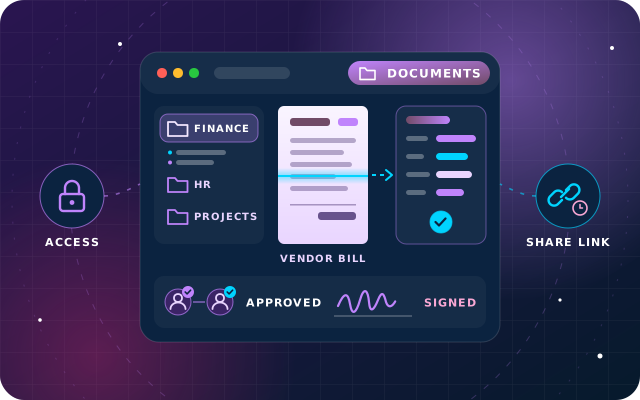
Odoo Documents files attachments from Accounting, HR and other apps into folders automatically, so paperwork lands where teams already look.
Bill digitization reads PDFs into draft vendor bills with IAP credits; keep auto-posting for trusted, regular vendors.
Studio approval rules and Sign add named approvers and a signed record without leaving Odoo.
On Odoo 19 Community, SBS Document Management adds workspaces, per-file access levels, expiry reminders and expiring share links, free.
Paper rarely disappears in one go. It retreats into email attachments, shared drives and a scanner nobody wants to own, and each step makes a simple audit question harder to answer: who approved this bill, and where is the signed copy?
Odoo Documents tackles that by keeping files next to the records they belong to, with access rights, approvals and signatures in the same database. This guide covers the Documents app in Odoo 19 Enterprise, how bill digitization, approval rules and Sign fit around it, and the free route for businesses on Odoo 19 Community.
What Odoo Documents Does in Odoo 19
The Documents app works like a shared drive inside Odoo. The tree on the left offers All, Company, My Drive, Shared with me, Recent and Trash, and everything under Company follows the access rights set on each folder and file.
The feature that matters most is file centralization. When it is on for an app, the attachments of that app's records are filed into a dedicated folder automatically. For Accounting it cannot be switched off: Odoo creates a sub-folder for each journal type, such as Sales, Purchase and Bank, and tags each file with its journal. For HR, each employee gets a sub-folder, and files are tagged by type, such as Contracts and Payslips. In Odoo 19, HR can also create several folders for each employee.
Files keep their history too. You can manage versions, lock a file against changes, split or merge PDFs, add tags, link a file to any record and create shortcuts, so one file appears in several folders without being duplicated. In Odoo 19, the chatter on folders and files also records access right changes, shares and renaming. Odoo's Documents guide walks through each screen.
Getting Paper in without Retyping
Once a custom alias domain is configured, each folder can have its own email alias, so suppliers and staff can email files straight into the right place, optionally tagged and with an activity for whoever must act. In Odoo 19, an email without attachments sent to an alias becomes a file itself. When you need something from someone, such as a renewed trade license, use Request to create a placeholder with a due date and send reminders until the file arrives. Odoo 19 can also sort a folder's incoming files with an AI prompt, tagging or moving them, or creating records such as vendor bills.
Digitizing Vendor Bills from Inbox to Posted Bill
Vendor bills are where paperless pays back first. Odoo's document digitization uses optical character recognition (OCR) and artificial intelligence to read a bill and fill in a draft: vendor, bill reference, bill date, due date, recipient bank, currency, and the lines with quantities, prices and taxes.
There are two ways in. Bills emailed to the purchase journal's alias, vendor-bills@ followed by your alias domain by default, become draft bills automatically; that route accepts PDF and XML. JPEG images go through a Documents alias instead, and any file in the Finance folder can be turned into a vendor bill and sent for digitization.
A few settings decide how much control you keep:
Automatic or on demand. In the Accounting settings, digitization can run on every bill or only on demand, from a button on the bill.
Purchase order matching. In Odoo 19, Odoo looks for purchase order references anywhere in an imported bill, including line descriptions, and the Purchase Matching button pairs the bill with received order lines.
Auto-post by vendor. With automatic digitization on, choose Always, Ask after 3 validations without edits, or Never on each vendor. Keep Always for trusted, regular vendors whose bills you would approve anyway.
Duplicate warnings. Odoo 19 marks likely duplicates in red and possible ones in yellow, and leaves duplicates out of automatic posting.
Digitization is an In-App Purchase (IAP) service: each document uses one prepaid credit, while electronic bills with embedded XML are read without OCR credits. If a field comes back wrong, Odoo 19 lets you click the right text in the document preview to fill it. Odoo's digitization guide lists every recognized field.
Approvals and Signatures with a Full Audit Trail
Approval Rules on the Buttons That Matter
Studio approval rules put a named approver in front of any button, such as Confirm on a vendor bill. You choose approvers by user or by group, add a condition with the filter icon so the rule only applies above a threshold, and chain several steps in order. Exclusive Approval stops one person approving two steps on the same record, and approvers can delegate their rights until a set date while they are away.
When someone without approval rights clicks the button, Odoo shows an error and creates an activity for the approvers. Every decision is tracked in the record's chatter, ready for your auditor. Approval rules are built with Studio, and activating Studio may change your Odoo pricing plan, so check before you start. Our guide on when to configure, customize or write code explains where Studio fits. For purchase orders, the Purchase settings also offer a simpler approval step above a minimum amount, without Studio.
Signatures inside the Same Record
Odoo Sign sends documents for electronic signature from the Sign app or straight from a record, with the related customer added as a signer automatically. In Odoo 19 you can send several documents as one envelope, request a signature on any PDF in a record's chatter and import files from Documents. Templates can save fully signed documents into a chosen Documents folder with tags, and set how many days a request stays valid.
Once everyone has signed, the signed documents and a certificate of completion go to the requester and, for requests sent from a record, into that record's chatter. Signers can be asked to authenticate by SMS. Odoo's UAE page on Sign refers to Federal Decree-Law No. 46 of 2021 on Electronic Transactions and Trust Services and notes that some documents, such as wills, may still need a handwritten signature, so confirm with your legal adviser which of yours can be signed electronically.
Have a question about this guide? Ask the engineers who wrote it.
Paperless only works if people trust that confidential files stay confidential. In Odoo 19, sharing works much like a modern drive: from the Share dialog you invite users or contacts as Viewer or Editor, choose whether to notify them, and can set an expiry date on an individual permission.
General access is set separately for internal users and for anyone with the link: Viewer, Editor or None. Link access must be enabled before you can share with external contacts, and portal users find what they may see under the Documents card in their customer portal. Odoo 19 adds bulk changes to the rights of several files or folders at once, and warns you when general access rights change after a document is moved.
A practical pattern for most companies:
One top-level folder per department, with internal access set to None on HR and Finance and named editors added.
Project and customer folders shared with the people working on them, not the whole company.
Outside contacts invited with an expiry date on their access, reviewed at month end.
File owners chosen deliberately, because the owner gets full access by default.
Retention and Deletion: Keeping What You Must
Going paperless raises a question paper never did: when may a file be deleted? Odoo gives you the controls, but the policy is yours to agree with your auditor.
Trash with a delay. Deleted files stay in the trash for 30 days by default, and the delay can be changed in the Documents settings.
Attachments follow their records. With file centralization on, deleting a record moves its attachments to the trash in Documents instead of destroying them.
Locks and versions. Lock the final versions of contracts and certificates, and keep earlier versions under Manage versions.
Accounting records. The optional Restrictive Audit Trail setting stops tracked accounting records from being deleted; they can only be canceled or archived.
Odoo Documents does not replace a records retention policy. Decide how long each kind of file must be kept, then build that into folders, tags and, where it helps, automation rules, which also require Studio. For tax records, agree retention periods with your auditor and check the latest guidance from the Federal Tax Authority.
The Community Route: SBS Document Management
Documents, Sign and Studio are Enterprise apps, so a business on Odoo 19 Community needs another answer. Ours is SBS Document Management, one of our 50+ free modules on the Odoo App Store. It treats storage and obligation as two separate problems and solves both.
Workspaces and four access levels. Each workspace is internal or restricted and can be opened to named portal contacts, optionally with upload rights. Each file is then Private, Workspace, Specific or Internal.
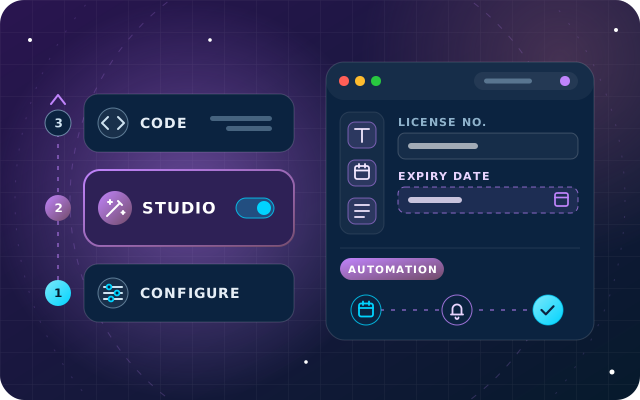
Documents that chase their own renewal. A license, passport or certificate attached to an employee, customer, vendor, sales order or purchase order carries an expiry date and lead days, and Odoo works out the notification date and the days left.
Requests and letter templates. Document requests move from draft to requested and then to accepted or rejected. Experience letters, salary certificates and no-objection letters are held as templates and go to an approver before printing.
Protected share links. Links expire, can be revoked at any moment and allow downloading only when you choose, and the recipient needs no Odoo account.
The module is listed for Odoo.sh and on-premise installations, not Odoo Online, so check where your Odoo runs first. One server setting matters: share links are opened by people with no Odoo session, so dbfilter must resolve to exactly one database, typically per hostname.
Enterprise Documents or Community with SBS Document Management
Need
Odoo 19 Enterprise
Odoo 19 Community with SBS Document Management
Folders and access rights
Folders, Viewer or Editor rights, link access
Workspaces and four access levels per file
Files filed from other apps
File centralization by app
Business documents attached to employees, partners and orders
Expiry dates on documents
No expiry field; schedule activities instead
Expiry date, lead days and days left
Requests for missing files
Requests with due dates and reminders
Requests with a status flow
Sharing outside Odoo
Link access, and invited contacts with expiry dates
Protected links that expire and can be revoked
Vendor bill digitization
OCR with IAP credits
Not included
Electronic signatures
Sign app
Not included
Approval steps
Studio approval rules
Approval for letter templates
Hosting
Odoo Online, Odoo.sh or on-premise
On-premise or private cloud
A Paperless Rollout Plan in Six Steps
List the paper. Write down every document that still moves by hand or email: bills, contracts, HR files, permits and delivery notes.
Design the folders and rights. Mirror departments and approval boundaries, not individual habits, and decide who owns each folder.
Connect the inboxes. Set up the vendor bills alias and folder aliases, then choose automatic or on-demand digitization.
Add approvals where money moves. Start with vendor bills and purchase orders above a threshold.
Move signatures into Sign. Build templates for contracts and offer letters, with a Documents folder for the signed copies.
Train, then close the old route. Once a month has run cleanly, stop accepting bills through any other channel.
Tip: Ask your regular suppliers to send structured electronic invoices where they can. Bills with embedded XML are read without OCR credits, and there is nothing to misread. Our guide to UAE e-invoicing explains what is coming.
How Star Bit Solutions Can Help
Through OdooStar, our Odoo practice in Ajman, we implement Odoo Enterprise with Documents, Sign, approvals and digitization configured around your real document flows, and we bring across the files you already have. On Community, we install and configure SBS Document Management, including the dbfilter setting its share links depend on.
Star Bit Solutions is a software company in Ajman, UAE, founded in 2014. We implement and customize Odoo Enterprise and Odoo Community, and build StarBiz (AI-driven ERP), StarHub (life super app), StarBot (conversational AI), StarLearn (adaptive learning) and StarSense (AI and IoT platform). About us
Job budgets with committed cost, purchasing against a job, subcontractor bills, milestone and progress claims, and an honest look at retention in Odoo 19.
Is the Odoo Documents app available in Odoo Community?
No. Documents, Sign and Studio are Odoo Enterprise apps. On Odoo 19 Community, our free SBS Document Management module adds workspaces with access levels, business documents with expiry reminders, document requests, letter templates with approval and expiring share links. It is listed for Odoo.sh and on-premise installations, not Odoo Online, so check your hosting before you plan around it.
Does vendor bill digitization in Odoo cost extra?
Yes. Digitization is an In-App Purchase service paid with prepaid credits, and each digitized document uses one credit. Enterprise subscribers get free credits to test it first. Electronic bills with embedded XML do not use OCR credits, because their data is already structured. Check current credit prices from the digitization section of the Accounting settings before you plan volumes.
Can Odoo route a vendor bill for approval before it is posted?
Yes. With Studio you can add an approval rule to a button such as Confirm on vendor bills. Approvers can be named users or a user group, steps can run in a set order, a condition can limit the rule to larger amounts, and every decision is logged in the chatter. When someone without rights clicks the button, Odoo creates an activity for the approvers.
Are documents signed with Odoo Sign valid in the UAE?
At federal level, electronic signatures in the UAE fall under Federal Decree-Law No. 46 of 2021 on Electronic Transactions and Trust Services, while DIFC and ADGM have their own rules. Odoo publishes a UAE page saying Sign complies, but notes that documents such as wills, some property transactions and certain government forms may still need handwritten or notarized signatures. Confirm with your legal adviser which of your documents can be signed electronically. This is not legal advice.
How long do deleted files stay in Odoo Documents?
Deleted files and folders go to the trash, where they stay for 30 days by default before permanent deletion, and an administrator can change that delay in the Documents settings. When file centralization is on for an app, deleting a record in that app moves its attachments to the trash in Documents rather than destroying them straight away.
OdooStar by Star Bit Solutions
Go Paperless in Odoo, and Keep Every Approval on Record.
Tell us which documents slow your teams down. Our Odoo engineers will design the folders, digitization, approvals and signatures around them.