Security and backups
Odoo Security on Your Own Server: A Practical Hardening Checklist
TLS and proxy mode, the database manager, master password, updates, firewalls, two-factor sign-in, least privilege and logs for self-hosted Odoo.
· 9 min read
Odoo access rights decide who can see, change and approve what. Here is how users, groups, record rules and multi-company access fit together in Odoo 19, how to build separation of duties, and how to review access every quarter.
Key takeaways
Access in Odoo tends to grow by accident. A new hire gets the same rights as the person next to them, a manager asks for Settings access to fix one thing, an integration runs as an administrator because it was quicker. Two years later, nobody can say for certain who can approve a payment or export the customer list.
Odoo access rights are built to prevent exactly that, as long as you set them up deliberately and check them regularly. This guide explains how users, groups, record rules and companies fit together in Odoo 19, how to build separation of duties on Odoo Enterprise and Community, and a quarterly review that keeps access tidy.
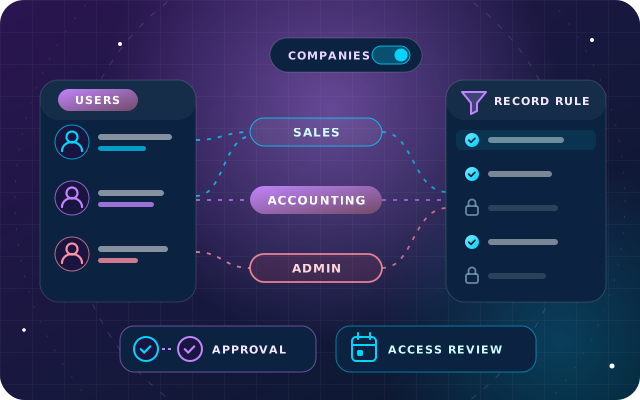
Everyone who signs in is a user. Internal users work in the back end, portal users such as customers and suppliers see their own documents through the portal, and public users are website visitors. In Odoo 19, each internal user also has a Role on the Access Rights tab, User or Administrator, and Administrator places them in the Settings group that controls configuration for the whole database.
The detailed permissions come from groups. On a user's Access Rights tab, each app offers a drop-down of levels, commonly User: Own Documents, User: All Documents and Administrator. Each choice puts the user in a group, and groups can imply others: a Sales administrator, for example, automatically receives the Canned Responses administrator permissions. In developer mode, the Technical Access Rights tab shows the groups you selected and the ones added automatically.
Two rules explain most surprises. Access rights are additive, so a user's permissions are the union of everything their groups grant, and one generous group can undo careful design elsewhere. Access rights also work at model level, granting read, write, create or delete on a whole type of record, such as all invoices or all contacts.
Odoo's documentation warns that careless changes can leave a database where nobody is able to change access rights any more. Make changes on a neutralized copy first, keep two named administrators, and treat superuser mode as an emergency tool.
Record rules narrow access down to individual records. A rule is a domain, a filter such as "the salesperson is the current user", applied to read, write, create or delete. That is how a salesperson sees only their own leads while a sales manager sees the whole team's.
Odoo ships a library of record rules for its apps, and its documentation advises anyone unfamiliar with domains to get help before changing them. Keep changes to standard rules rare, put them in a custom module rather than editing them by hand, test them with real user accounts and write down why each one exists.
In a multi-company database, two fields on the user decide where someone can work: Companies, the entities they may access, and Default Company, the one selected when they sign in. Users switch with the company selector at the top of the screen, and can tick several companies to work across them.
Records then follow their Company field. Quotations, invoices and vendor bills belong to one company and appear only when it is active. Products and contacts, on the other hand, are shared across companies by default unless you set a company on them. Decide early which master data is shared, because a shared contact or product is visible to users of every company.
Odoo's documentation warns that misconfigured multi-company access leads to inconsistent behavior. Test with a real user from each company before go-live, not with an administrator who can see everything.
Separation of duties means no single person can start, approve and complete a sensitive transaction alone. In practice it comes down to a few pairs of tasks that belong to different people: whoever adds a vendor's bank details should not be the one who trusts them for payment, and whoever enters a journal entry should not be its only reviewer. Odoo 19 gives you several controls:
| Risk | Odoo 19 control | Edition |
|---|---|---|
| Large purchases committed without sign-off | Purchase Order Approval: managers approve orders above a minimum amount | Enterprise and Community |
| Payments sent to a fraudulent bank account | The Send Money setting on a partner bank account marks it as trusted, and only users with the Validate bank account permission, or Settings administrators, can switch it on | Enterprise and Community |
| Invoices posted without an accountant's check | Entries posted by users with invoicing-only access are flagged To review for accountants, and once reviewed they cannot be reset by those users | Enterprise |
| An action taken without approval | Studio approval rules on buttons, with named approvers or an approver group, an approval order and Exclusive Approval, all recorded in the chatter | Enterprise |
| Closed periods changed later | A Lock Everything date, with exceptions only by Accounting administrators and logged on the company record, plus a Hard Lock date that cannot be undone | Enterprise |
Exclusive Approval deserves a mention because it is separation of duties in one tick: a user who approves one step cannot approve another step on the same record. On Odoo Enterprise, the Approvals app adds request types for purchases, payments and other requests with a full approval trail, and our guide to Odoo Documents and approvals shows approvals and signatures working around real documents.
Groups decide which apps a user reaches, but saying that one person should never see Discuss, or that nobody may delete a contact while everyone may edit one, normally means new groups and a stack of record rules. Our free SBS Menu Manager adds that layer, enforced on the server, so a restriction holds whether a request comes from the interface, an import or the API.
The module's own advice is worth repeating: apply the Read-only User group and broad policies to a test account first, and never to your only administrator.
Credentials are access too. SBS Password Manager applies the same discipline to hosting, server and client logins: four roles, a visibility list on every credential so that even a Manager sees only what they are named on, an identity check before each reveal and an audit log nobody can edit. Both modules are built and tested on Odoo 19 Community and listed for Odoo.sh and on-premise installations, not Odoo Online.
Access drifts as people join, move and leave, so a short review every quarter keeps it honest. Export the user list with each user's groups, sit down with each department head and work through these steps:
Tip: Grant access by role, not by copying a colleague. Keep a one-page role matrix, such as sales executive or accounts payable clerk, with the exact levels each role gets, and set up every new user from it.
Access rights sit on top of the server itself. For the infrastructure side, see our checklist for Odoo security on your own server.
Through OdooStar, we design access with you as part of every Odoo Enterprise implementation: a role matrix for each team, groups and record rules that match it, approval steps for the transactions that matter and multi-company access tested with real users. Administrator training covers users, access rights and Studio. On Odoo Community, we add SBS Menu Manager and SBS Password Manager where they help.
Want an outside view of who can do what in your Odoo? Contact us, call +971 55 973 4524 or email [email protected].

Star Bit Solutions is a software company in Ajman, UAE, founded in 2014. We implement and customize Odoo Enterprise and Odoo Community, and build StarBiz (AI-driven ERP), StarHub (life super app), StarBot (conversational AI), StarLearn (adaptive learning) and StarSense (AI and IoT platform). About us
Role-based access, approval steps and administrator training, designed with each team during implementation.
Learn MorePer-user menus, per-model locks on delete, archive and export, and a read-only role, enforced on the server.
Learn MoreCredentials encrypted in Odoo, with four roles, a visibility list on every record and an audit log nobody can edit.
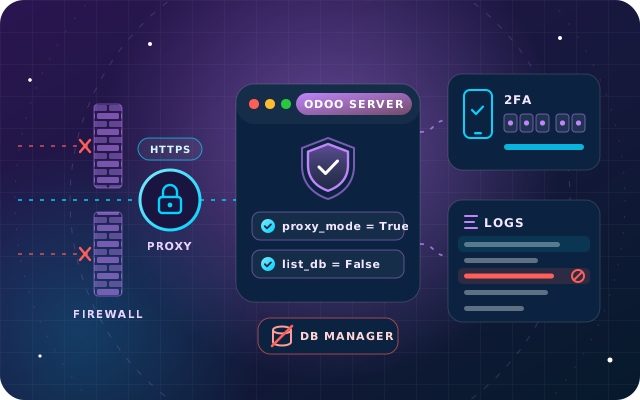
Learn MoreTLS and proxy mode, the database manager, master password, updates, firewalls, two-factor sign-in, least privilege and logs for self-hosted Odoo.
· 9 min read
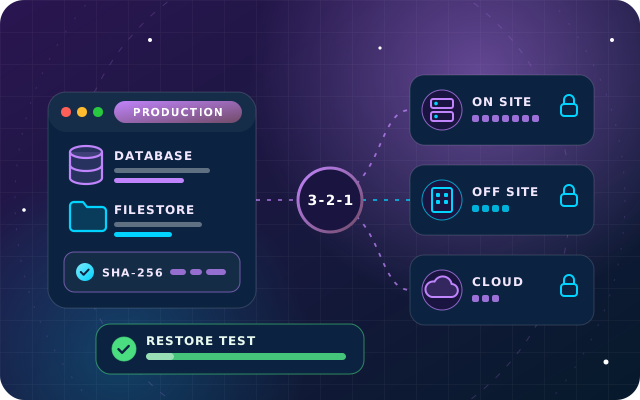
Database plus filestore, schedules and retention, encrypted off-site copies, the 3-2-1 rule and a test-restore routine for self-hosted Odoo.
· 10 min read
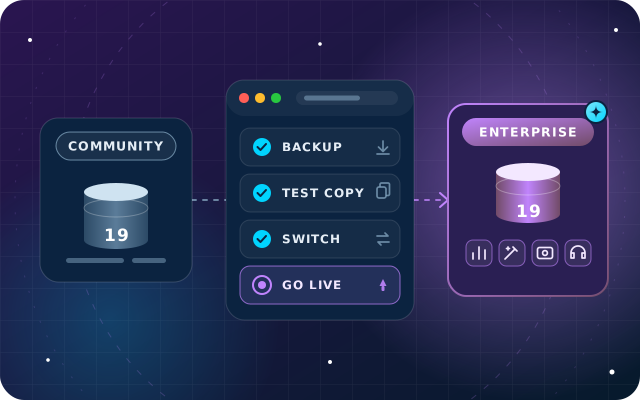
What you gain, the documented switch on Odoo 19, which add-ons must go, user counts, testing and a phased plan for the move.
· 9 min read
Access rights work at model level: they grant a group read, write, create or delete on a whole type of record, such as invoices or contacts. Record rules then filter individual records with a domain, for example only the leads where the user is the salesperson. Access rights add up across groups, while record rules decide which of those records each user can actually reach.
Standard Odoo has no single switch that makes an internal user read-only across every app. Give the person the lowest level each app offers, then sign in as them to check what they can still change. On Odoo 19 hosted on-premise or on Odoo.sh, SBS Menu Manager adds a Read-only User group that blocks every create, update, delete, archive and export across the database, while still allowing comments in the chatter.
Only from the companies listed in the Companies field on their user. Records with a company set, such as invoices and vendor bills, appear only when that company is active in the company selector. Records without a company, which by default includes new products and contacts in a multi-company database, are shared with every company, so decide early which master data should stay shared.
Quarterly suits most businesses, with an immediate check whenever someone leaves or changes role. Each review compares users with the HR staff list, justifies every administrator, checks sensitive groups such as accounting, payroll and approvals, looks for separation of duties conflicts and revokes unused portal accounts and API keys. Record the outcome so auditors can see the review took place.
With Purchase Order Approval turned on in the Purchase settings, orders above the minimum amount you set wait for a purchase manager's approval before confirmation. On Odoo Enterprise, Studio approval rules can add further steps with named approvers or an approver group, an approval order and Exclusive Approval, so the same person cannot approve two steps of one record.
Share your user list and main approval flows. Our Odoo engineers will map the groups, rules and conflicts, and suggest a cleaner set-up.