Odoo Security on Your Own Server: A Practical Hardening Checklist
Star Bit Solutions9 min read
Odoo security on your own server comes down to settings you can check one by one. This checklist covers TLS and proxy mode, the database manager and master password, updates, firewalls, two-factor authentication, least privilege, backups and log monitoring.
On your own server, Odoo security is your job: TLS, patches, firewalls and backups move from Odoo to your team.
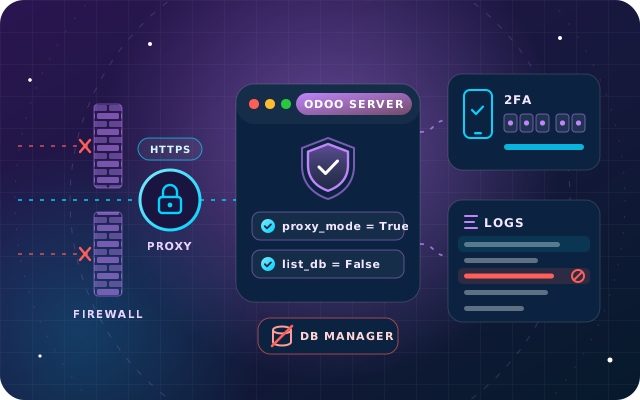
Run Odoo behind an HTTPS reverse proxy with proxy_mode = True, and keep Odoo's own ports closed to the internet.
Disable the database manager with list_db = False, and set a long, random master password that nobody reuses.
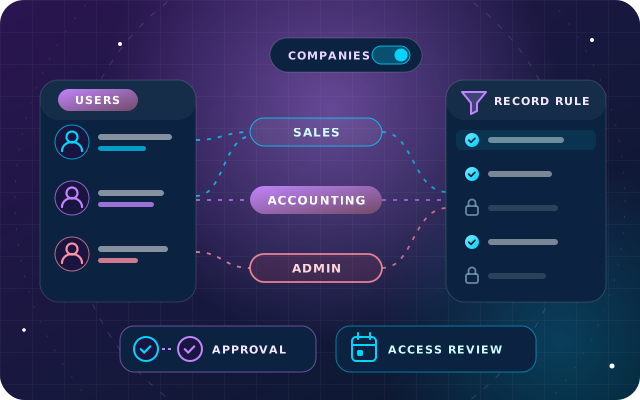
Enforce two-factor authentication, give people and integrations the least access they need and archive leavers promptly.
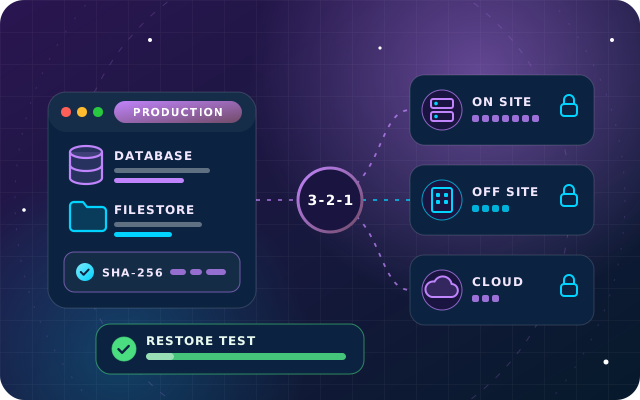
Watch Odoo's login log with fail2ban, patch on a schedule and keep backups where the Odoo server cannot reach them.
When Odoo Enterprise runs on Odoo Online or Odoo.sh, Odoo looks after the servers, the network and the patches. When Odoo Enterprise or Community runs on your own server or a private cloud, all of that moves to your team. Odoo's own deployment guide puts it plainly: securing an information system is a continuous process, not a one-shot operation.
This guide turns Odoo security on a self-hosted Odoo 19 server into a checklist you can work through, verify and repeat. The configuration options it names are the ones documented in Odoo's 19.0 deployment guide, so your administrator can check each one against the source.
Who Handles Odoo Security on Each Hosting Option
Start by being clear about what you have taken on. The split below is why a self-hosted server needs a written checklist, and why our hosting comparison treats security as part of the cost.
Area
Odoo Online
Odoo.sh
Your own server
Servers, operating system and network
Odoo
Odoo
You
Odoo security fixes
Applied by Odoo
Applied by Odoo
You install updates
HTTPS and certificates
Odoo
Odoo
You
Backups
Daily, by Odoo
Daily for production
You
Custom code quality
No custom modules
You
You
Users, access rights and two-factor sign-in
You
You
You
Put Odoo behind a Reverse Proxy with TLS
Odoo transmits authentication information in cleartext, whether people use the web client or the API, so Odoo's guide states that a secure deployment must use HTTPS. The usual pattern is a reverse proxy such as nginx in front of Odoo, terminating TLS and forwarding requests to Odoo on the same machine.
Redirect every plain HTTP request to HTTPS, and use a valid certificate. Free options exist.
Set proxy_mode = True in the Odoo configuration file, and only when Odoo really is behind a proxy. Odoo then uses the X-Forwarded headers to see the real client address, hostname and scheme. It ignores them if X-Forwarded-Host is missing, so copy the headers from Odoo's sample configuration.
In multi-processing mode, send requests whose path starts with /websocket to the live chat worker on the gevent port, as the sample does.
Add a Strict-Transport-Security header, and flag the session_id cookie as Secure with SameSite=Lax.
Keep Odoo's own ports, 8069 and 8072 by default, closed to the internet so that every request passes through the proxy.
Limit request sizes and set sensible timeouts on the proxy.
Odoo's checklist also asks for multi-processing mode, with worker limits such as limit_memory_hard, limit_time_cpu and limit_time_real set to match your typical usage, so that one runaway request cannot take the whole server down.
If PostgreSQL runs on a different machine, encrypt that connection too. The db_sslmode option accepts disable, allow, prefer, require, verify-ca or verify-full.
Lock down the Database Manager and the Master Password
The database manager at /web/database/manager can create, duplicate, back up, restore and delete databases. Odoo strongly recommends disabling it on any internet-facing system: it is a development and demo tool and may expose dangerous features to attackers.
Make each hostname resolve to a single database, using db_name or a dbfilter such as ^%d$, so nobody needs to pick one.
Set list_db = False to stop database listing and block the management screens. The command-line equivalent is --no-database-list.
If a few machines must keep access, block every route starting with /web/database at the proxy, except perhaps /web/database/selector, for everyone else.
Set admin_passwd, the master password, to a long random value and store it in a password manager. Odoo generates a random master password for new on-premise databases and hashes the value once it is set through the interface.
Run Odoo with a PostgreSQL user that is not a superuser and cannot create databases, and have the databases owned by a different user, so the management screens cannot work even if someone reaches them.
Have a question about this guide? Ask the engineers who wrote it.
Keep Odoo, the Operating System and PostgreSQL Patched
Odoo publishes security advisories for Community and Enterprise as issues marked [SEC] in its GitHub repository, and patches Odoo Online and Odoo.sh as soon as a fix is available. On your own server, a fix only arrives when you install it.
Install the latest build of your Odoo version regularly, from GitHub or Odoo's download page. Odoo's update guide recommends a complete, up-to-date version rather than applying individual patches.
Remember that updating is not upgrading. An update installs the latest revision of the same version and leaves your data alone; an upgrade moves the database to a new major version.
Apply operating system and PostgreSQL security updates on a schedule, not only when something breaks.
Test updates on a neutralized copy first, and take a backup before touching production, as described in our Odoo backup strategy.
Never install demo data on internet-facing servers, test copies included. Demo databases contain default logins and passwords.
Firewalls and Network Rules
Expose only ports 80 and 443 to the internet. Odoo's ports and PostgreSQL, which listens on port 5432 by default, should answer only where they must.
Restrict PostgreSQL in pg_hba.conf to the Odoo host, and never open it to the internet.
Allow SSH with keys only, ideally through a VPN or from trusted addresses, and run brute-force protection such as fail2ban.
Apply an outbound default-deny rule, then allow only what Odoo needs: your mail server, the banks and payment providers you integrate with and, for Enterprise, services.odoo.com on port 80, which Odoo's weekly update notification uses to validate the subscription.
If Odoo sits behind a web application firewall or a DDoS protection service, accept connections only from that service's published address ranges.
Host staging and test copies on separate machines from production, with the same precautions.
Users, Passwords and Two-Factor Authentication
Many incidents start with an account rather than a server. Odoo's guide asks for unique logins and strong passwords for every administrator, no login called admin, no default passwords even on test databases, and administrator accounts kept for administration rather than daily work.
In Settings, under Permissions, tick Enforce two-factor authentication for employees only or for all users, portal users included. Ask everyone to add an authenticator app from the security tab of My Profile.
Install the Password Policy module and raise the Minimum Password Length, which defaults to 8.
Give each person the lowest access level that lets them work, and keep the Settings administrator role to a few named people.
Connect integrations through a dedicated user with only the rights they need, using API keys. Odoo 19 asks for a description and a duration for each key, so name it clearly and let it expire.
Archive leavers on their last day, and review the devices listed on each user's profile, revoking any that should no longer be signed in.
Server, hosting and domain credentials deserve the same care. Our free SBS Password Manager keeps them inside Odoo, encrypted with a key held outside the database, revealed only after an identity check to people named on each record, and logged every time someone looks. It is built and tested on Odoo 19 Community and listed for Odoo.sh and on-premise installations, not Odoo Online. Its Copy button needs HTTPS, one more reason to finish the proxy step.
Monitor Logs and Block Brute-Force Attempts
Odoo writes a log entry for every login attempt, with the result, the login and the source IP address, in a line that reads "Login failed for db:... login:... from ...". That makes failed logins easy to watch:
Make sure Odoo logs to a file that is rotated, and keep the proxy's access and error logs.
Point a fail2ban filter at the failed-login lines and ban an address after repeated failures. Odoo's guide shows a jail that blocks an address for 15 minutes after 10 failures within one minute.
Add rate limiting on the proxy for the login page and the API.
Alert on what matters: bursts of failures, new administrator accounts, certificate expiry, a filling disk and missed backups.
Review alerts weekly, and keep logs long enough to investigate an incident after the event.
Tip: After every change, test from outside your network. Plain HTTP should redirect to HTTPS, /web/database/manager should be blocked, and ports 8069, 8072 and 5432 should not answer at all.
An Odoo Security Hardening Checklist
HTTPS only, with HTTP redirected and a valid certificate.
proxy_mode = True behind the proxy, with Odoo's ports closed to the internet.
list_db = False, with db_name or dbfilter matching one database per hostname.
A long, random admin_passwd, kept in a password manager.
A PostgreSQL user that is neither a superuser nor the owner of the databases.
Multi-processing workers with memory, CPU and time limits such as limit_memory_hard, limit_time_cpu and limit_time_real.
No demo data on any internet-facing database.
Odoo, the operating system and PostgreSQL updated on a schedule.
Inbound ports 80 and 443 only, outbound traffic by exception and SSH by key.
Two-factor authentication enforced and a minimum password length set.
Least privilege for users and integrations, reviewed regularly.
fail2ban or an equivalent on failed logins, with alerts someone reads.
Daily backups of databases and filestore, copied to a server the Odoo server cannot reach.
How Star Bit Solutions Can Help
Through OdooStar, we implement Odoo Enterprise on Odoo Online, Odoo.sh and your own servers, and Odoo Community where it fits. With your own servers, the servers, security patches and backups stay with your IT team, and we can agree a support arrangement around them: a review against this checklist before go-live, then issue resolution, monitoring and backups. If running servers is not where you want to spend your time, we can help you weigh a move to Odoo.sh or Odoo Online.
Star Bit Solutions is a software company in Ajman, UAE, founded in 2014. We implement and customize Odoo Enterprise and Odoo Community, and build StarBiz (AI-driven ERP), StarHub (life super app), StarBot (conversational AI), StarLearn (adaptive learning) and StarSense (AI and IoT platform). About us
Odoo publishes security advisories and fixes for Community and Enterprise, but a self-hosted server is only as secure as its set-up. Put Odoo behind an HTTPS reverse proxy, disable the database manager, keep Odoo and the operating system updated, enforce two-factor authentication and monitor failed logins. On Odoo Online and Odoo.sh, Odoo runs and patches the servers for you.
What does proxy_mode do in Odoo?
It tells Odoo that it sits behind a reverse proxy, so Odoo reads the X-Forwarded headers the proxy sends to learn the real client IP address, hostname and scheme. Without it, every request appears to come from the proxy. Odoo's documentation says to enable it only when Odoo is actually behind a reverse proxy, and the proxy must send X-Forwarded-Host or the headers are ignored.
How do I disable the Odoo database manager?
Set list_db = False in the Odoo configuration file, or start Odoo with --no-database-list. This stops databases being listed and blocks the management screens. First make sure db_name or dbfilter resolves each hostname to a single database, otherwise users cannot reach one. If a few machines still need the screens, block the /web/database routes at the proxy for everyone else.
What is the Odoo master password and where is it stored?
The master password, the admin_passwd setting, protects the database management screens used to create, delete, dump or restore databases. It lives in the Odoo configuration file and is hashed once you set it through the interface. Odoo generates a random one for new on-premise databases. Keep it long, random and in a password manager.
Can I enforce two-factor authentication for all Odoo users?
Yes. In Settings, under Permissions, tick Enforce two-factor authentication and choose Employees only or All users, which also covers portal users. Each user can add an authenticator app from the security tab of My Profile. If someone loses their authenticator, an administrator has to deactivate two-factor authentication on that account before the user can sign in again.
OdooStar by Star Bit Solutions
Harden Your Odoo Server before Someone Else Tests It.
Send us a summary of your hosting set-up. Our engineers will check it against this list and tell you what to fix first.