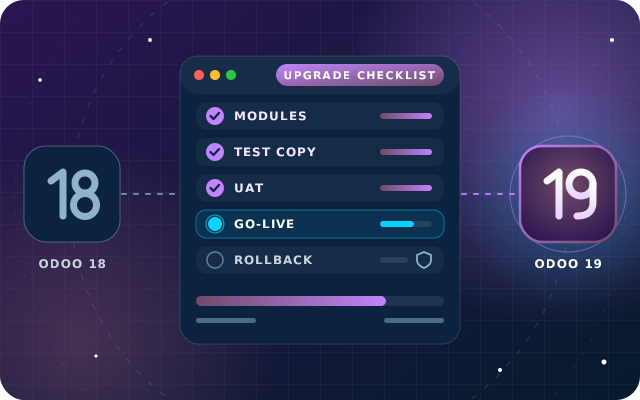
Odoo upgrades
Odoo 19 Upgrade: A Practical Checklist for UAE Businesses
Customizations, test databases, data checks, user testing, training, UAE-friendly timing and a rollback plan, in the order you need them.
· 10 min read
Moving from Odoo Community to Enterprise keeps your data and adds apps, support and upgrades. The technical switch is the easy part; planning modules, users and testing decides whether it goes smoothly.
Key takeaways
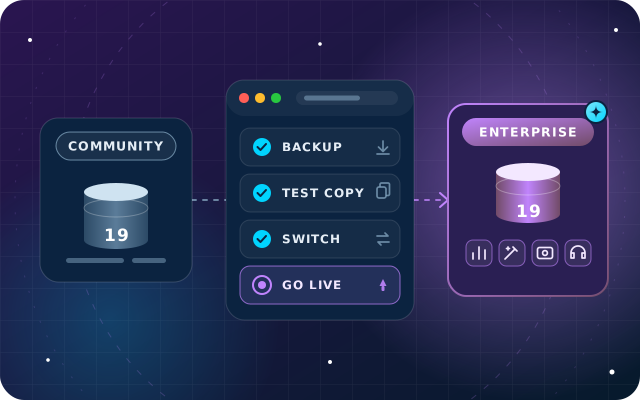
Plenty of businesses start on Odoo Community, and many reach the same point as they grow. The finance team wants proper reports, HR wants payroll inside Odoo, and every new request seems to need another add-on. Moving from Odoo Community to Enterprise is the natural next step, and it does not mean starting again: the same database, with its customers, products and history, is switched to the Enterprise edition.
This guide covers what you gain, the documented route on Odoo 19, how to review custom and SBS modules before the switch, how users and subscriptions work, and how to test and time the move. If you are still weighing the two editions, our Odoo Enterprise vs Community guide covers the decision itself.
Enterprise is built on the same core as Community, so the apps you already use keep working. What changes is everything Enterprise adds on top, according to Odoo's editions comparison:
For UAE companies, two gains stand out. With Enterprise Accounting, the UAE localization adds its VAT return and Corporate Tax Report, structured on the formats issued by the Federal Tax Authority (FTA). With Enterprise Payroll, the UAE payroll localization brings UAE salary rules, end-of-service calculations and a WPS (Wage Protection System) report.
Odoo documents the switch for self-hosted databases in its Odoo 19 guide. The details vary by installation, but the basic steps are the same:
odoo-bin -d your_database -i web_enterprise --stop-after-init.Two points matter more than the commands. First, the switch happens on the same Odoo version: Odoo 19 Community becomes Odoo 19 Enterprise. Odoo's upgrade documentation lists switching editions as something an upgrade does not cover, so keep the edition switch and any version upgrade as separate projects.
Second, installing web_enterprise changes the edition, not your processes. The Enterprise apps you are paying for, such as Accounting or Payroll, are installed and configured afterwards, and that is where most of the work sits.
The steps above cover a database that stays on your own server. If Enterprise is also your moment to stop self-hosting, Odoo's hosting transfer procedures apply, and the database must be on a supported version.
Odoo.sh imports a backup of a supported major version into a project whose subscription includes Odoo.sh. Odoo Online accepts standard apps only, so Odoo asks for a duplicate with every non-standard app uninstalled and checks the database before putting it online. Ask Odoo or your partner how the edition switch fits into the transfer before you start, and see our comparison of Odoo Online, Odoo.sh and on-premise hosting.
The commands themselves are straightforward. The module review decides whether the switch goes smoothly, so start by listing every non-standard module on the database, with its technical name, and sort each one into a group:
Two of our own free modules are conflicting by design. SBS Account Community is built for Odoo 19 Community and deliberately excludes account_accountant, account_asset, account_budget, account_followup and account_reports, the Enterprise accounting modules it replaces. It must be uninstalled before Enterprise Accounting is installed. SBS HR Payroll excludes hr_payroll, so it cannot run alongside Enterprise Payroll either.
Uninstalling an Odoo module removes the records it owns, so plan the data first. For SBS Account Community, export what you set up in it, such as asset registers and depreciation boards, budgets, follow-up levels and recurring payment templates, and recreate them in Enterprise Accounting. For SBS HR Payroll, keep the PDF payslips and contribution register reports for past periods, then start Enterprise Payroll from a clean period. Our article on payroll on Odoo 19 Community covers what that module runs today.
The other SBS modules declare no conflict with Enterprise apps, but they are built and tested on Odoo 19 Community, so test every one you keep on the Enterprise copy. Some overlap with Enterprise apps: if you adopt Odoo Documents, for example, decide whether SBS Document Management stays or its files move across. All SBS modules are listed for Odoo.sh and on-premise, not for Odoo Online.
| Module | Status with Enterprise | What to do |
|---|---|---|
| SBS Account Community | Conflicts with Enterprise Accounting | Export its records, uninstall it, then configure Accounting |
| SBS HR Payroll | Conflicts with Enterprise Payroll | Archive payroll history, uninstall it, then set up Payroll |
| SBS Document Management | Overlaps with Odoo Documents | Choose one, and move the files if you switch |
| Other SBS modules | No declared conflict | Test each one on the Enterprise copy |
| Your own custom modules | Depends on the code | Review dependencies and run your tests |
| Other community modules | Depends on the module | Check for overlap with the Enterprise apps you add |
Enterprise is a per-user subscription contracted with Odoo, so count users before you buy. A paying user is someone who logs in to the Odoo backend to create, view or edit records. Customers and suppliers who use the portal are not paying users.
Before counting, archive the accounts of people who have left and remove duplicates. On a self-hosted database, Odoo compares the number of active users with the subscription and shows a warning when there are more, with 30 days to resolve it before the database expires.
The plan follows from your hosting. Odoo's Standard plan covers all apps on Odoo Online, while hosting on Odoo.sh or your own server, Studio, multi-company and the external API all need the Custom plan, with Odoo.sh hosting billed on top. Every Community database is self-hosted and many carry custom modules, so the Custom plan is the usual starting point unless you move to Odoo Online and leave the custom modules behind.
Only one database can be registered per subscription. A self-hosted server must also be able to reach Odoo's subscription servers, which for Odoo 18 and later means services.odoo.com on port 80, and that access must stay open because the check runs every week.
Never switch the production database first. Rehearse the whole sequence on a neutralized copy, so test emails and scheduled jobs never reach real customers, and record every step and how long it took.
Tip: rehearse at least twice. The first run finds the problems; the second, done strictly from the runbook, proves the timings you will rely on at go-live.
How long the move takes depends on the number of modules to review, the volume of data, the apps you add and whether payroll is involved. Rather than fixing a duration up front, plan in phases, each with something to sign off.
Once you are on Enterprise, future version upgrades use Odoo's upgrade service for standard apps and Studio, while developers port any custom modules. That is one more reason to finish the edition switch, and let it settle, before you plan the next version.
We wrote the SBS modules, so we know exactly what each one holds and what happens to it when Enterprise apps arrive. Through our Odoo Enterprise implementation service, we review your modules and users, rehearse the switch on a copy, configure Accounting, Payroll and the other Enterprise apps, train your teams and support the first close.
If you are staying on Community for now, our 50+ free modules keep filling the gaps, and our guide to free Odoo 19 Community modules flags the ones that cannot sit beside Enterprise apps. We can plan the future switch with you from day one.
Send us your edition, version, hosting and module list through the contact page, or call +971 55 973 4524, and we will outline your route to Enterprise.
Star Bit Solutions is a software company in Ajman, UAE, founded in 2014. We implement and customize Odoo Enterprise and Odoo Community, and build StarBiz (AI-driven ERP), StarHub (life super app), StarBot (conversational AI), StarLearn (adaptive learning) and StarSense (AI and IoT platform). About us
Module review, a rehearsed switch, app configuration, training and support for your move to Enterprise.
Learn MoreOur free Community accounting module, and the records to export before Enterprise Accounting replaces it.
Learn MorePayroll for Odoo 19 Community, and the history to keep before you move to Enterprise Payroll.
Learn MoreCustomizations, test databases, data checks, user testing, training, UAE-friendly timing and a rollback plan, in the order you need them.
· 10 min read
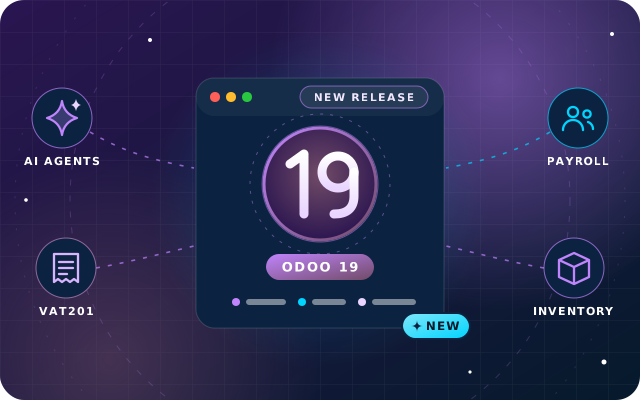
AI agents, a rebuilt VAT201, corporate tax and WPS payroll updates, merged units and packagings, and the checks to run before upgrading.
· 10 min read
AI agents that create and update records, websites from a prompt, an IFRS-aligned UAE chart of accounts, new payroll reports and the checks to run first.
· 9 min read
Not if you follow the documented route. The same database is switched by installing the web_enterprise module, so customers, products, journal entries and history stay where they are. Records held by add-on modules you uninstall, such as a Community accounting or payroll module, are removed with them, so export that data first and rehearse the switch on a copy.
Treat them as two separate steps. Odoo's upgrade documentation lists switching editions as something an upgrade does not cover, and changing one thing at a time keeps testing manageable. Switch edition on your current version, let it settle through a month-end close, then plan the version upgrade with Odoo's upgrade service.
No. It is built for Odoo 19 Community and excludes the Enterprise accounting modules it replaces: account_accountant, account_asset, account_budget, account_followup and account_reports. Uninstall it before installing Enterprise Accounting, after exporting its asset, budget and follow-up records. SBS HR Payroll likewise cannot run alongside Enterprise Payroll, because it excludes hr_payroll.
You pay for internal users, meaning the people who log in to the Odoo backend to create, view or edit records. Customers and suppliers who use the portal are not paying users. Archive the accounts of people who have left before you register, because Odoo warns a self-hosted database when active users exceed the subscription.
Only if it runs standard apps alone. Odoo Online does not accept custom modules or Odoo App Store apps, including the free SBS modules, so Odoo's documentation asks you to uninstall every non-standard app on a duplicate first. Odoo then checks the database before putting it online. Odoo.sh or your own server keeps custom modules available.
Send us your version, hosting and module list. We will map what stays, what goes and how to switch without surprises.