
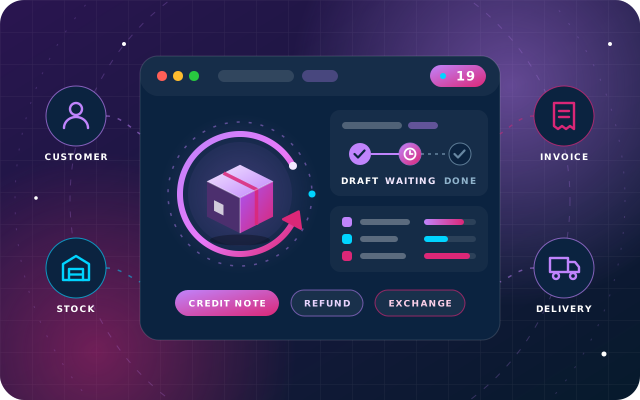
Sales returns and exchanges in Odoo 19 are rarely hard in theory. In practice one return involves three teams: the warehouse takes the goods back, finance raises the credit note, and someone refunds the customer or leaves a credit on their account.
This guide covers where that process breaks, the three scenarios you need to handle, and a step-by-step workflow with SBS Auto Return, our free module for Odoo 19 Community. It ends with the bridge modules, a set of controls and a go-live checklist.
On Odoo Enterprise or Odoo 20? SBS Auto Return is built and tested on Odoo 19 Community. We implement Odoo Enterprise as well, and port the SBS modules you use when we upgrade a database to Odoo 20.
Why returns go wrong in practice
Standard Odoo can process a return, but in separate steps: reverse the delivery, raise a credit note for the right amount, match it to the original invoice, then refund or credit the customer. An exchange adds a new sale that has to be netted off. Each step is a place where the job can stop halfway.
Goods come back, but no credit note follows
The warehouse receives the goods and stock goes up, but nobody tells finance. The customer still shows the full balance, and receivables no longer match what happened.
Refunds leave on one signature
When one person can take goods back, raise the credit and pay out cash, nobody checks any of it. That is a segregation-of-duties gap, and the shortest route for an honest mistake to reach the bank account.
Exchanges are booked as two unrelated orders
Staff enter a return and a separate new sale, then net the two on a calculator. The link between them exists only in someone's memory.
Lots and serial numbers get lost
Returned items go back on the shelf without their lot or serial number. Traceability breaks exactly when a warranty claim or a recall needs it.
The three return scenarios
Every customer who walks in with goods fits one of three cases, and SBS Auto Return gives each its own return type.
1. Identified delivery return
The customer has the paperwork. Pick the original sales order and the delivery it went out on, and each returned line is tied to the movement that shipped it, so price, tax and the maximum returnable quantity come from the real transaction. You cannot take back more than went out.
2. Unidentified return
No delivery note, no order reference. Record the products, quantities and prices directly; the goods still come back into stock through a real transfer backed by a posted credit note.
3. Exchange with a new sale
Goods come back and different goods go out. Link a confirmed replacement order and the record nets the credit against the new sale, telling you whether to collect the difference or refund it.
Rule of thumb: use an identified return whenever the customer can produce the order or delivery, because each line is checked against what actually shipped. Treat unidentified returns as exceptions and review them regularly.
Step by step: the SBS Auto Return workflow
There are three states. In Draft and Waiting for Final Approval nothing has touched stock or the ledger; everything is created when a manager presses Finalize.
Step 1: draft the return
Create a return, choose its type and describe what is coming back and why. Select the original order and delivery, or enter products, quantities and prices for an unidentified return, then add lot or serial numbers and any discount per line.
Step 2: check which way the money goes
From the lines and any linked new sale, the record works out whether you owe the customer or the customer owes you. A straight return of 862.50 shows as a refund, while an exchange where the replacement goods are worth more than what came back flips to Collect From Customer for the 287.50 difference.
Allocate the amount across cash and bank journals, or allocate less and the remainder stays on the customer's account as credit.
Step 3: confirm and send for approval
Confirming moves the return to Waiting for Final Approval and records who confirmed it. Nothing has been posted yet.
Step 4: finalise, and let Odoo create the documents
A manager presses Finalize, and only then are the transfer, the credit note, any new invoice and the payment created. For an exchange, that one step produces an outgoing transfer for the new goods, an incoming transfer for the returned ones, a posted credit note, a posted invoice and a single payment for the difference.
These are ordinary Odoo documents, so stock valuation and reconciliation carry on as normal.
Two roles, deliberately separated
SBS Auto Return User prepares and confirms returns and sees the ones they created. SBS Auto Return Manager sees every return and is the only role that can finalise one, so the person taking goods back is not the person committing the refund. Records are also isolated per company.
The audit trail
Each record keeps who created, confirmed and finalised it, each with a timestamp, plus the remaining receivable and any credit left on the customer's account. Smart buttons open the transfers, credit notes, invoices and payments it produced.
Discounts, alternate units, lots and serials
Returns get awkward when the original sale was not one unit at list price.
Discounted goods
Return lines can carry a discount as a percentage or a fixed amount. If you sell with fixed-amount discounts through SBS Sales Discount Amount, the Sales Discount bridge carries the original discount onto the credit note, shared in proportion on partial returns.
An invoice for 4 units at 250.00 with a 40.00 fixed discount nets 960.00. Returning 2 units credits 480.00 with a 20.00 fixed discount, rather than 500.00 with none.
Packs, boxes and cartons
If you sell by the pack with SBS Multi UoM, the Multi-UoM bridge lets a return line use the packing unit the customer bought, with the ratio and price taken from the product's Multiple UoMs tab. Two packs at a configured ratio of six become 12 base units, credited at the pack price.
If the pack and base quantities disagree with the ratio, saving is refused with “The base quantity does not match the configured Multi UoM ratio.”
Lots and serial numbers
Returned lines support lot and serial numbers. Make recording them part of the Draft step for every tracked product.
The three bridge modules and when you need each
Each bridge is free and has no menus or settings of its own. When its code is available, Odoo installs it automatically as the second of its two parent modules is installed, and removes it if either is uninstalled. If both parents were already installed when you added the bridge, install it once from Apps.
| Bridge module | You need it when | What it does |
|---|---|---|
| Auto Delivery Integration | You also use SBS Auto Delivery/Invoice | Hides the Auto Invoice button on sales orders that carry return lines, so exchange goods are never invoiced twice. |
| Multi-UoM Integration | You sell by the box, carton or pack with SBS Multi UoM | Return lines use the product's packing units, ratios and prices, and lines that break the ratio cannot be saved. |
| Sales Discount Integration | You give fixed or percentage line discounts with SBS Sales Discount Amount | Copies the original discount onto the credit note, proportionally on partial returns. |
Exchanges can also start on the sales order. Record what the customer hands back on the order's Return tab, and confirming the order turns those lines into an exchange return, approved and finalised through SBS Auto Return.
Controls and reporting tips
- Make Waiting for Approval a daily queue. The returns list filters on My Returns, Draft, Waiting for Approval and Finalized.
- Group by return type. A rising share of unidentified returns can point to paperwork problems at the counter.
- Group by customer and status. One shows repeat returners; the other catches returns stuck in Draft.
- Keep the Manager group small, and away from the people who staff the returns counter.
- Check balances after finalising: the remaining receivable and any credit left on the customer's account.
- Reconcile through your normal reports. Returns produce standard credit notes, invoices and payments.
Setting up sales returns and exchanges in Odoo 19: a go-live checklist
- Confirm the database runs Odoo 19 with sale_stock and Odoo accounting in place.
- Install SBS Auto Return on Odoo.sh or on-premise; it is not listed for Odoo Online.
- Set the outstanding receipts and payments accounts on every cash and bank journal used for settlement.
- Give SBS Auto Return User to staff who prepare returns, and SBS Auto Return Manager only to people allowed to finalise them.
- If you run SBS Auto Delivery/Invoice, SBS Multi UoM or SBS Sales Discount Amount, confirm the matching bridge is installed, and install it from Apps if it is not.
- If you sell in packs, check each product's Multiple UoMs tab has a ratio and a price for every packing unit.
- In a test database, run an identified return, an unidentified return, an exchange where the new goods cost more, and a refund allocated only in part.
- Open each generated document from the smart buttons and check it against what you expected.
- Brief the team on which return type to use when.
- Go live, and review the Waiting for Approval queue every day.
Requirements
All four modules are built for Odoo 19, tested on Odoo 19 Community Edition, free and open source, and listed for Odoo.sh and on-premise (not Odoo Online).
- SBS Auto Return (
sbs_auto_return): depends on sale_stock and Odoo accounting; Odoo apps Invoicing (account), Inventory (stock) and Discuss (mail). Settlement journals need their outstanding receipts and payments accounts configured. Finalising requires the SBS Auto Return Manager role. - Auto Delivery Integration (
sbs_auto_return_auto_delivery_invoice): depends on sbs_auto_return and sbs_auto_delivery_invoice; Odoo apps Invoicing (account), Discuss (mail) and Inventory (stock). - Multi-UoM Integration (
sbs_auto_return_multi_uom): depends on sbs_auto_return and sbs_multi_uom; Odoo apps Invoicing (account), Discuss (mail), Inventory (stock) and Sales (sale_management). - Sales Discount Integration (
sbs_auto_return_sales_discount): depends on sbs_auto_return and sbs_sales_discount; Odoo apps Invoicing (account), Discuss (mail), Inventory (stock) and Sales (sale_management).
The three bridges need no configuration, and usually install themselves. All four are among the 50+ free modules we publish through OdooStar; find more guides on our Insights page, or tell us how your returns work today.