WhatsApp in Odoo: Order Confirmations, Reminders and Support Conversations
Star Bit Solutions10 min read
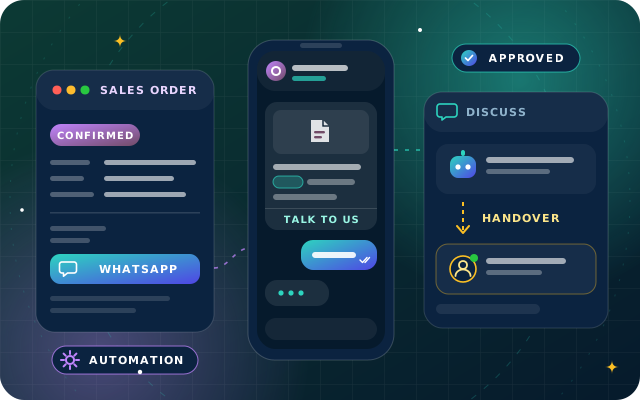
The Odoo WhatsApp integration lets Odoo 19 Enterprise send approved templates from orders, deliveries, invoices and appointments, and brings customer replies into Discuss. Here is how to connect Meta, build templates, automate sends and decide where a chatbot fits.
Odoo's WhatsApp app is Enterprise-only and connects to a WhatsApp Business Platform account; personal and WhatsApp Business app numbers do not work with it.
Templates are built in Odoo on one model, with variables mapped to fields, then submitted to Meta and synced back once approved.
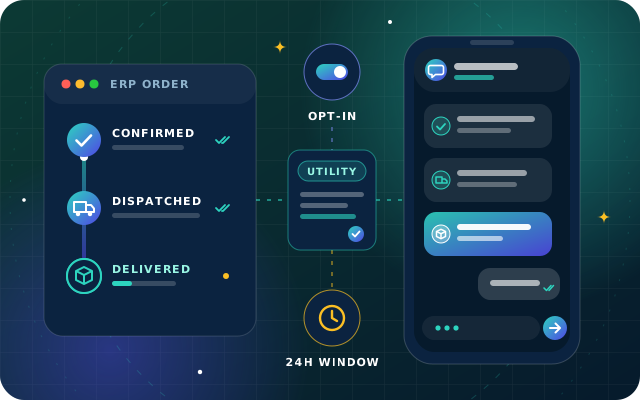
Odoo 19 sends templates from the chatter, from Sales, Inventory, Accounting, Point of Sale and Calendar, and from automation rules.
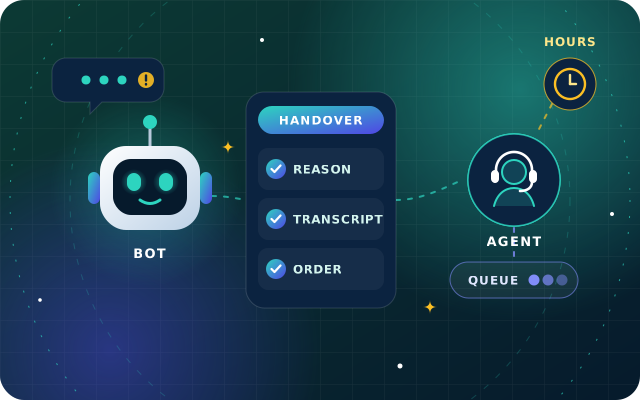
Replies arrive in Discuss for the users you choose; StarBot can answer routine WhatsApp questions first and hand over with context.
Most of the questions customers send a business are really questions about a record. Has my order shipped? When is my appointment? How much do I still owe? When those records live in Odoo, the most reliable way to answer on WhatsApp is to let Odoo send the message itself, from the record, at the moment it changes.
That is what the Odoo WhatsApp integration does in Odoo 19 Enterprise. It sends Meta-approved templates from sales orders, deliveries, invoices and appointments, runs them from automation rules and brings customer replies into Discuss. This guide covers setup, templates, sending, opt-in, replies and where a chatbot fits. For the WhatsApp rules behind it all, start with our guide to WhatsApp order updates.
What the Odoo WhatsApp Integration Does
WhatsApp is an Odoo Enterprise app; it does not work in Odoo Community. It connects your database to a WhatsApp Business Account on Meta's WhatsApp Business Platform. Odoo's documentation states that personal WhatsApp accounts and WhatsApp Business app accounts are not compatible, so a number already used in the app has to move to the Platform first.
The app supports two flows. In a company-initiated flow, Odoo sends a template to one or more customers, and if a customer answers within 15 days a Discuss chat window opens. In a customer-initiated flow, a customer writes to your public WhatsApp number and Odoo opens a group chat with the operators responsible for that account.
Where in Odoo 19
What it can send by WhatsApp
Any record with a chatter
A template chosen by the user, from the WhatsApp button above the composer
Sales and eCommerce
Quotations, orders and online order confirmations
Inventory
Shipping notifications, new in Odoo 19
Accounting
Payment follow-ups from follow-up levels, new in Odoo 19
Point of Sale
Receipts, plus order received and order ready notices from the preparation display
Calendar and Events
Reminders to calendar attendees, new in Odoo 19, and event reminders
Sign
Signature requests, new in Odoo 19
Automation rules
Any approved template for the rule's model, through the Send WhatsApp action
Connecting Your Meta Account to Odoo
The setup runs across Meta's developer tools and Odoo, and Odoo's WhatsApp documentation walks through every screen. In outline:
Meta business account. Create one in Meta Business Suite.
Developer app. In the Meta developer dashboard, create an app of the Business type, link it to your business portfolio and add the WhatsApp product. Meta provides a test number for trials.
Account in Odoo. Under WhatsApp > Configuration > WhatsApp Business Accounts, enter the Phone Number ID, access token, App ID, Account ID and App Secret, then click Test Connection.
Webhooks. Copy the Callback URL and Webhook Verify Token from Odoo into Meta, then subscribe to the messages, account update and template status, quality and category fields.
Your real number. Add the business number with its WhatsApp profile, verify it by text or call, and add the payment method Meta requires.
Permanent token. Replace the temporary token with a system user token from Meta's business settings; otherwise Odoo loses the connection when the temporary one expires.
Go live. Add a privacy policy URL and switch the Meta app from Development to Live. Until then, Odoo can only message the test numbers.
Hosting matters here. Meta must reach the callback URL over HTTPS from the public internet, which Odoo Online and Odoo.sh provide. A self-hosted database needs a public domain, a valid certificate and a route through the firewall; see our comparison of Odoo Online, Odoo.sh and on-premise.
Building WhatsApp Templates in Odoo
Templates live under WhatsApp > Templates. Each belongs to one WhatsApp account and applies to one model, such as Sales Order, Transfer or Invoice, which decides where it can be sent from and which fields it can use. Setting the model needs administrator rights.
Name and language. One template per language, so Arabic and English versions are two templates.
Phone field. Where Odoo reads the number. Odoo 19 removed the separate Mobile field from contacts, so point it at the contact's phone and store numbers with the country code.
Category. Utility for messages about a specific order, account or request, marketing for promotions and authentication for one-time passcodes. A wrong category can get the template flagged or rejected.
Header. Text, image, video, document or location, for example the invoice PDF.
Body and variables. Placeholders {{1}}, {{2}} and onwards, each mapped on the Variables tab to a field of the model, such as the customer name or order reference, or to a portal link.
Buttons. Quick Reply, Call Number and Visit Website, where the link can be static, dynamic or tracked.
Click Submit for Approval and the template stays Pending until Meta decides, which can take up to 24 hours. Once it is approved, sync it with Sync Templates on the account or Sync Template on the template.
Tip: A changed template has to be resubmitted to Meta for approval, and Odoo warns that editing templates can cause errors unless its exact process is followed. For real changes, create a new template, and keep names unique across Odoo and Meta to avoid duplicate errors when you sync.
Have a question about this guide? Ask the engineers who wrote it.
Sending from Records, App Settings and Automation Rules
By Hand, from the Chatter
Once a template is approved for a model, a WhatsApp button appears above the chatter composer on that model's records. It opens a Send WhatsApp Message window with the approved templates, so a salesperson can send a quotation or a reminder without leaving the record. Canned responses work in WhatsApp conversations too.
From App Settings
Several apps send templates on their own once you choose one. Online order confirmations are set under Website > Configuration > Settings, in the eCommerce section. Payment reminders use the Send WhatsApp message action on follow-up levels under Accounting > Configuration > Follow-up Levels; a negative number of days sends a reminder before the due date, and Odoo advises reconciling the bank first so nobody is chased for an invoice already paid. Point of Sale shares receipts once WhatsApp Enabled is ticked, and events can include WhatsApp reminders in their communication schedule.
With Automation Rules
For everything else, use automation rules. Create one in Studio, choose a trigger, add conditions and pick Send WhatsApp as the action with an approved template. Useful triggers include a value being set, such as an order's status, a time before or after a date field, such as the day before a delivery or an appointment, and record creation. Time-based rules are checked by a scheduled action every four hours by default, and more often when a rule's delay is short, so do not promise reminders to the minute.
A Worked Example: A Dispatch Notice in Arabic and English
Create the template. In WhatsApp > Templates, create "Order dispatched" in English, applying to Transfer, with the category Utility and the phone field pointing at the contact's phone.
Write the body. "Hello {{1}}, your order {{2}} has left our warehouse and is on its way. Reply here if you need to change the delivery time." Map the variables to the contact's name and the source document, which holds the sales order reference.
Add a button. A Quick Reply such as Talk to us invites replies.
Repeat in Arabic. Create the Arabic version as a second template with its own name and translated text.
Submit and sync. Submit both for approval, then sync them once Meta approves.
Automate. In Studio, create two automation rules on Transfer that run when the status becomes Done, limited to delivery operations, to contacts who have opted in and to one language each.
Test. Validate a delivery for a test contact, check the message and its status under WhatsApp > Messages, then let the rules run for everyone.
Opt-in and Consent in Odoo
Meta only allows you to message people who have given you their number and agreed to receive messages from your business, and Odoo cannot know who agreed unless you record it. A simple pattern works:
Collect consent wherever you collect numbers, naming your business in the wording.
Record it on the contact with a tag or a Studio field, with the date and source.
Add the consent condition to every automation rule that sends WhatsApp, and check consent before switching on WhatsApp in follow-up levels, event reminders or receipts.
Remove it as soon as a customer asks to stop, on any channel.
Keep offers separate: consent to order updates is not consent to promotions.
The category matters for cost as well. Since 1 July 2025 Meta charges per delivered template, with rates by category and country, while utility templates sent inside an open customer service window and free-form replies are not charged. Check Meta's current rates for your markets before switching on high-volume rules.
Replies, Discuss and the 24-Hour Window
Replies arrive in Discuss. When a customer writes first, Odoo opens a group chat with the users listed under Notify users on the WhatsApp account. Once a colleague is talking to the customer, only the people in that conversation are notified; if nobody responds for 15 days, the customer's next message goes to the whole group again. Odoo 19 also shows which WhatsApp account is used to reply, which helps when one team runs several numbers.
Meta's 24-hour rule still applies. For 24 hours after the customer's last message your team can reply freely; after that, only an approved template can restart the conversation. When a chat turns into a support case, typing /ticket in the conversation creates a Helpdesk ticket, so the case is tracked in one place.
Where StarBot Adds AI Conversations and Handover
Odoo's WhatsApp app is built for templates your records send and replies your team writes. Odoo 19's AI agents, covered in our guide to AI in Odoo 19, are documented for the AI app, Discuss and website Live Chat. If you want an assistant that answers on WhatsApp itself, that is where StarBot comes in.
StarBot answers from a knowledge base your team approves, detects whether a customer writes in Arabic or English and replies in the same language. Connected to Odoo through OdooStar, it can check an order or delivery status in your sales, inventory, helpdesk and CRM records, with each lookup limited to what the person asking may see. When a request needs a person, it hands over on keywords, sentiment, repeated misunderstanding or simply because the customer asked, with the transcript and captured details attached.
Since 15 January 2026, Meta's WhatsApp Business terms have barred AI providers from using the Platform to offer general-purpose AI assistants, but, as TechCrunch reported, Meta has said businesses using AI to serve their own customers are not affected. Decide which system answers each number before go-live, so a customer never gets two replies.
A Go-Live Checklist for WhatsApp in Odoo
Meta app set to Live, with a privacy policy URL, a permanent token and verified webhooks.
Notify users set for each account, with cover for evenings and weekends.
Utility templates approved in Arabic and English, with unique names.
Consent recorded on contacts and used as a condition in every rule.
Automation rules tested with test contacts before they run for all customers.
Failure Type and Failure Reason columns shown under WhatsApp > Messages and reviewed every week.
How Star Bit Solutions Can Help
Through our Odoo Enterprise practice, we set up the WhatsApp app end to end: the Meta business account and app, webhooks and tokens, templates in Arabic and English, automation rules, follow-up levels and the Discuss routing your teams will use. On Odoo Community, where the WhatsApp app is not available, we can connect StarBot to your Odoo records or plan a move to Enterprise; our guide to Odoo Enterprise vs Community explains the difference.
When you want conversations as well as notifications, StarBot adds an AI assistant on WhatsApp, web and social channels, with handover to your team inbox or helpdesk. Contact us, call +971 55 973 4524 or email [email protected], and tell us which messages you want Odoo to send.
Written by the Star Bit Solutions team
Star Bit Solutions is a software company in Ajman, UAE, founded in 2014. We implement and customize Odoo Enterprise and Odoo Community, and build StarBiz (AI-driven ERP), StarHub (life super app), StarBot (conversational AI), StarLearn (adaptive learning) and StarSense (AI and IoT platform). About us
Does the Odoo WhatsApp integration work with Odoo Community?
No. WhatsApp is an Odoo Enterprise app and does not work in Odoo Community. Community users can move to Enterprise, which also brings full Accounting, Studio and the other Enterprise apps, or connect a separate WhatsApp service such as StarBot to their Odoo records. Either way, the WhatsApp number must be registered on Meta's WhatsApp Business Platform.
Can I use my existing WhatsApp Business app number with Odoo?
Not as it is. Odoo's integration only works with WhatsApp Business Platform accounts, and Odoo's documentation states that personal WhatsApp accounts and WhatsApp Business app accounts are not compatible. Register the number on the Platform first, following Meta's guidance on migrating an existing number, and plan the switch for a quiet day so customers are not left without replies.
Why is my WhatsApp template stuck in Pending in Odoo?
A template stays Pending until Meta reviews it, which can take up to 24 hours, and the Meta account administrator receives an email with the decision. Once it is approved, click Sync Templates on the WhatsApp business account in Odoo, or Sync Template on the template itself. If it still does not appear on a record, check its model and allowed users.
Can Odoo send WhatsApp messages automatically?
Yes. Automation rules can run a Send WhatsApp action with an approved template when a value changes, at a time relative to a date field or when a record is created. Several apps also send templates from their own settings, including eCommerce order confirmations, payment follow-up levels and Point of Sale receipts, and Odoo 19 adds WhatsApp calendar reminders and shipping notifications.
Can a chatbot answer WhatsApp messages in Odoo?
Odoo's WhatsApp app sends templates and routes replies to people in Discuss, and Odoo 19's AI agents are documented for the AI app, Discuss and website Live Chat. For an assistant that answers on WhatsApp itself in Arabic and English, checks Odoo records and hands over to your team, StarBot connects to Odoo through our OdooStar team.
StarBot by Star Bit Solutions
Let Odoo Send the Message the Moment the Record Changes.
Tell us which orders, deliveries and reminders you want on WhatsApp. We will connect Meta, build the templates and automation rules, and plan replies and handover.