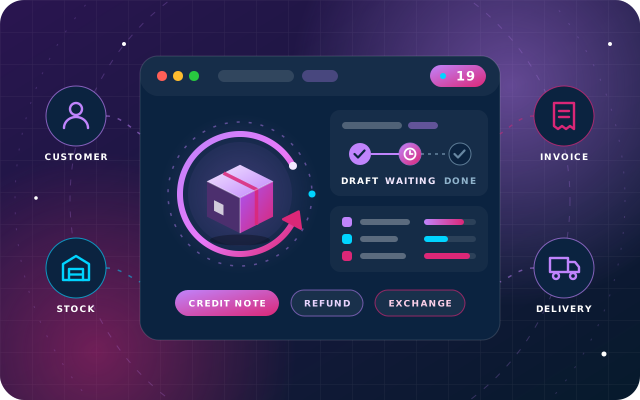
Returns and refunds
Sales Returns, Exchanges and Refunds in Odoo 19: A Practical Workflow
How a two-step approval keeps stock, credit notes and refunds consistent every time goods come back.
· 8 min read
When the original sale carried a discount or was sold by the pack, a careless credit note refunds more than the customer paid. Here is how to make Odoo 19 credit the price actually charged, with worked examples and a test plan.
Key takeaways
Odoo returns with discounts are where refunds quietly go wrong. A customer bought four units with 40.00 off, or two packs of six at the pack price, and brings half of it back. If the credit note is priced from the product's list price instead of the original sale, you refund more than the customer ever paid, and nobody notices until the margins drift.
Our earlier guide to sales returns, exchanges and refunds in Odoo 19 covered the overall workflow. This one goes deeper on two cases that often lead to refund errors: discounted lines, and goods sold in packing units rather than single units. It explains why they go wrong, how our free returns modules handle them, and how to test the setup before go-live.
The SBS returns modules are built and tested on Odoo 19 Community. If you run Odoo Enterprise, we design returns around its standard Sales, Inventory and Accounting apps, and try any module on a staging copy before production.
Standard Odoo 19 handles a return after invoicing in two steps: the warehouse reverses the delivery, then finance creates a credit note from the invoice. Odoo's credit note documentation describes a Reverse option that prefills the credit note with the exact details of the original invoice. Used carefully, that keeps the price right. The trouble starts in the gaps around it.
A credit note created from scratch, or by a tool that only knows the product and the quantity, takes the product's current sales price. Any discount the customer received disappears, and so does any price change since the sale.
Customers negotiate in money, not percentages: "take 40 off". Odoo's discount column takes a percentage, so a fixed discount is converted by hand at the sale, and converted again, or forgotten, at the refund.
A fixed discount covers the whole line. When half the goods come back, half the discount should come back with them, neither all of it nor none of it.
If a customer bought two packs of six, the return should say two packs and credit the pack price. Converting to twelve units by hand invites quantity errors, and pricing those units at the unit list price over-refunds whenever the pack was cheaper per unit.
Several free modules work together here, each with one job. All of them appear in our tour of free Odoo 19 Community modules.
| Module | Its job in a return | Settings |
|---|---|---|
| SBS Auto Return | Holds the return, exchange and refund on one record; nothing posts until a manager finalizes it | User and Manager roles |
| SBS Sales Discount Amount | Adds a Disc. Amount column beside Disc.%, kept in step both ways | Odoo's Discounts setting |
| SBS Multi UoM | Sells one product by the unit, pack, box or carton, with a price for each packaging unit | Units of Measure and Packagings |
| Sales Discount Integration | Copies the original discount onto the credit note, proportionally on partial returns | None |
| Multi-UoM Integration | Lets return lines use the packing units, ratios and prices the sale used | None |
The bridge modules have no menus and nothing to configure. With their code in your addons path or Odoo.sh repository, Odoo installs each bridge automatically when the second of its parent modules is installed, and removes it if either parent is uninstalled. If both parents were already installed, install the bridge once from Apps.
SBS Sales Discount Amount lets a salesperson type the discount in money in a Disc. Amount column, while Odoo's own percentage field keeps taxes and totals standard. It remembers which figure was typed and holds it steady when the quantity or price changes, refuses a discount larger than the line, and carries the discount through to the invoice.
When a return is finalized in SBS Auto Return, the Sales Discount bridge copies the discount from the source line onto the credit line. A fixed discount stays marked as fixed, and when only part of the quantity comes back, the discount is shared in the same proportion. It works for returns raised against an invoice and for unidentified returns typed in by hand.
| Document | Quantity | Unit price | Fixed discount | Net |
|---|---|---|---|---|
| Original invoice | 4 | 250.00 | 40.00 | 960.00 |
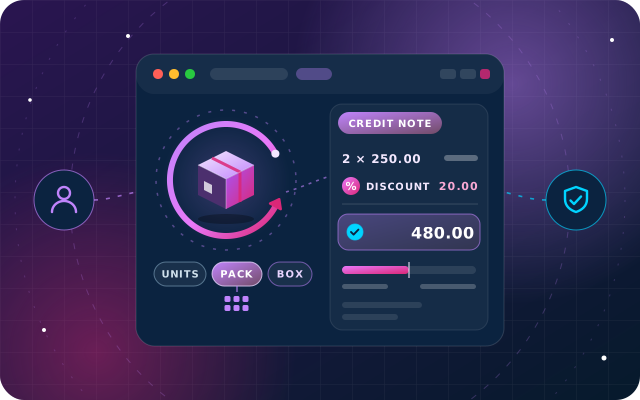
| Credit note with the bridge | 2 | 250.00 | 20.00 | 480.00 |
| Credit note without it | 2 | 250.00 | None | 500.00 |
Half the goods came back, so half the discount came back with them. Without the bridge, the customer is refunded 20.00 more than they paid for those two units, and the loss repeats on every discounted return.
SBS Multi UoM adds a Multiple UoMs tab to the product, where each packing unit has a ratio to the base unit of measure (UoM) and its own price. Stock stays in base units, and the ratio and price in force when a sales line is written are stored on that line, so later price changes never alter documents you have already issued.
The Multi-UoM bridge makes return lines read the same table. The dropdown offers only the packing units configured on that product, the stock quantity follows the configured ratio, and the credit uses the configured pack price. A return line carries both a pack quantity and a base quantity, and saving is refused if they disagree, with the message "The base quantity does not match the configured Multi UoM ratio."
Take a printer cartridge with a unit list price of 5.00, sold in a Pack of 6 at 27.00 and a Box of 12 at 54.00. A customer returns two packs:
The same arithmetic applies to boxes: one Box of 12 is credited at 54.00 rather than 60.00. The gap on each return is small, which is exactly why it goes unnoticed.
Tip: The Multi-UoM bridge reads pack ratios and prices from the product's Multiple UoMs table. If you have changed a pack price since the sale, compare the credit line with the original invoice before the manager finalizes the return.
Here is the discount case end to end, as a team would run it with SBS Auto Return:
If a single line carries both a packing unit and a discount, test that combination on a staging copy before relying on it, because each bridge is documented on its own.
Run these cases on a staging copy with real products and prices, and compare every credit note with the original invoice:
Check the controls around the numbers as well. The SBS Auto Return Manager role should belong to people who do not staff the returns counter, and the Waiting for Approval list deserves a daily review.
We wrote the SBS returns, discount and packaging modules, and we implement Odoo Enterprise and Community through OdooStar. On Enterprise, we design your returns flow around the standard apps. On Community, we install SBS Auto Return with the discount and packaging bridges, configure your packing units and run the test cases above with your own data.
Tell us how your returns work today through the contact page, call +971 55 973 4524 or message us on WhatsApp, and an engineer will map the setup with you.

Star Bit Solutions is a software company in Ajman, UAE, founded in 2014. We implement and customize Odoo Enterprise and Odoo Community, and build StarBiz (AI-driven ERP), StarHub (life super app), StarBot (conversational AI), StarLearn (adaptive learning) and StarSense (AI and IoT platform). About us
Credits discounted goods at the price they were sold for, shared proportionally on partial returns.
Learn MoreReturn goods in the packs you sold them in, with the right ratio and the right refund.
Learn MoreReturns, exchanges and refunds on one record, posted only after manager approval.
Learn MoreHow a two-step approval keeps stock, credit notes and refunds consistent every time goods come back.
· 8 min read
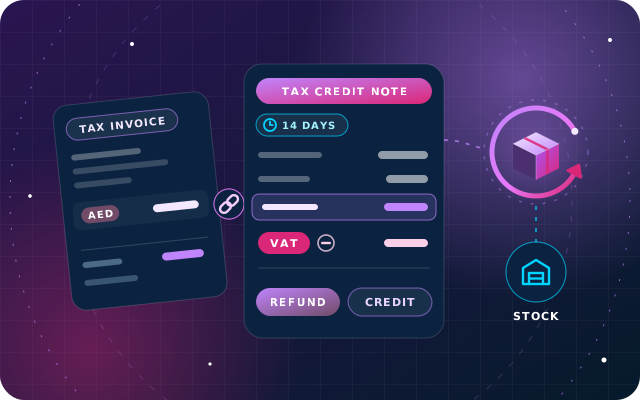
The tax credit note rules in force in 2026, refunds versus store credit, electronic credit notes and an Odoo 19 returns workflow with SBS Auto Return.
· 10 min read
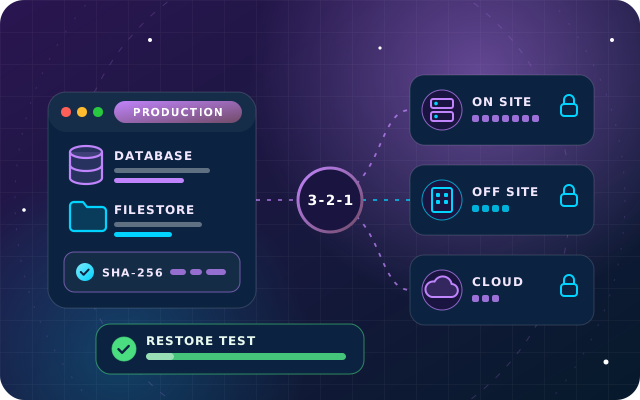
Database plus filestore, schedules and retention, encrypted off-site copies, the 3-2-1 rule and a test-restore routine for self-hosted Odoo.
· 10 min read
Yes, if finance uses the Reverse option on the original invoice: Odoo 19 prefills the credit note with the exact details of that invoice, and you then edit the quantity for a partial return. A credit note created from scratch takes the product's current sales price instead. With SBS Auto Return and SBS Sales Discount Amount installed, the bridge module copies the original fixed or percentage discount onto the credit note automatically.
In proportion to the quantity returned. If 4 units were sold at 250.00 with a 40.00 fixed discount, netting 960.00, and 2 come back, the credit note shows 2 units at 250.00 with a 20.00 fixed discount, netting 480.00. Without the bridge, the credit would have been 500.00, a refund of 20.00 more than the customer paid.
Yes, with SBS Multi UoM, SBS Auto Return and the Multi-UoM bridge installed. The return line offers only the packing units configured on the product, converts the quantity to base units with the configured ratio and credits the configured pack price. Saving is refused if the pack and base quantities disagree with the ratio.
No. They have no menus or settings of their own, and they read the discounts and packing units you already maintain. With their code in your addons path or Odoo.sh repository, Odoo installs each bridge automatically when the second of its parent modules is installed, and removes it if either is uninstalled. If both parents were already installed, install the bridge once from Apps.
No. They are built for Odoo 19, tested on Odoo 19 Community Edition and listed for Odoo.sh and on-premise installations, not Odoo Online, because Odoo Online does not accept third-party Python modules. They are free to download from the Odoo App Store, and each module page lists its dependencies.
We set up SBS Auto Return with the discount and packaging bridges on Odoo 19, then test your own return cases before go-live.